
Box Blur
Averages a square around every pixel: a graphic softness in which small lights turn into flat squares.
Group: Blur & Sharpen · How to add an effect
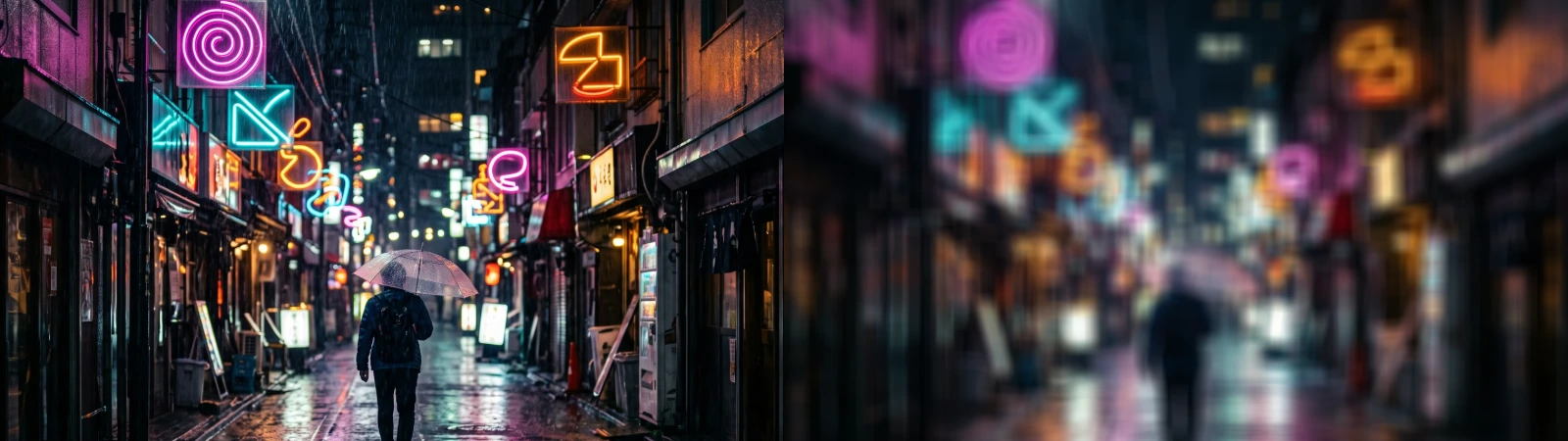
Use it for: a graphic, digital softness · a frosted-glass panel behind text · lights that should read as squares, not glows.
- Radius – how far the softening reaches.
Tip: for a natural, lens-like defocus use Gaussian Blur; Box Blur is the graphic one. The difference shows most on small lights: Which one?
Presets
Section titled “Presets”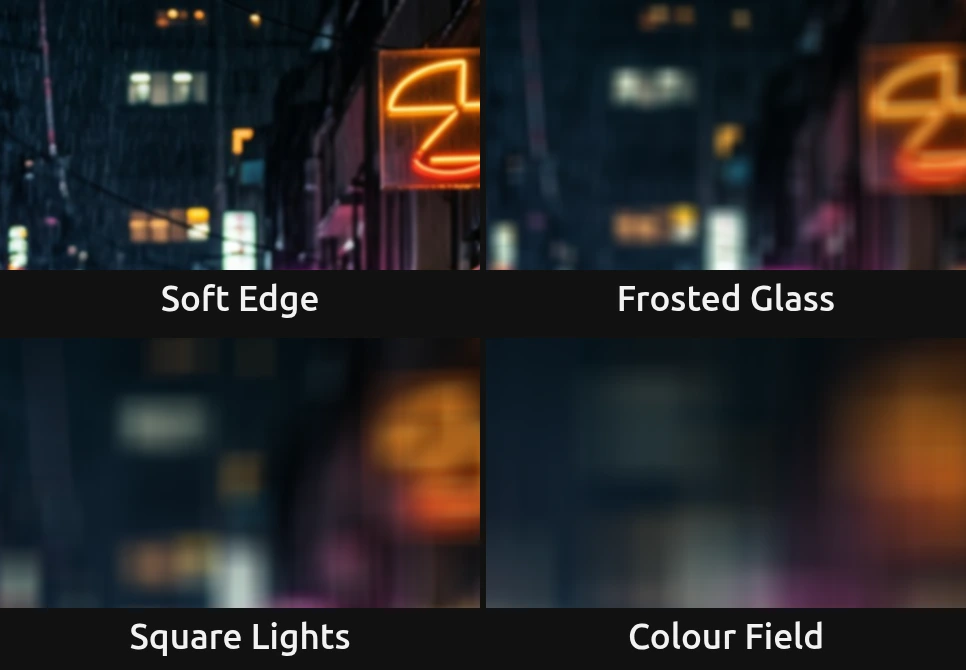
Pick one in the Preset row of the effect card. It sets Radius in one undo step, and the row shows its name until you change something. A Radius with keyframes keeps them, and the card says so.
Soft Edge – Radius 1.5: takes the digital edge off sharp footage, graphics or text without looking blurred.
Frosted Glass – Radius 8: shapes stay readable as areas, fine detail and lettering behind it are gone. Good for a panel behind a title.
Square Lights – Radius 20: every lamp and window becomes a flat block with straight edges, and the frame reads as a pattern of squares. The look Gaussian Blur cannot give: its lights turn into round glows.
Colour Field – Radius 50: only large patches of light and colour are left, a quiet backdrop for text or a scene change.
Controls
Section titled “Controls”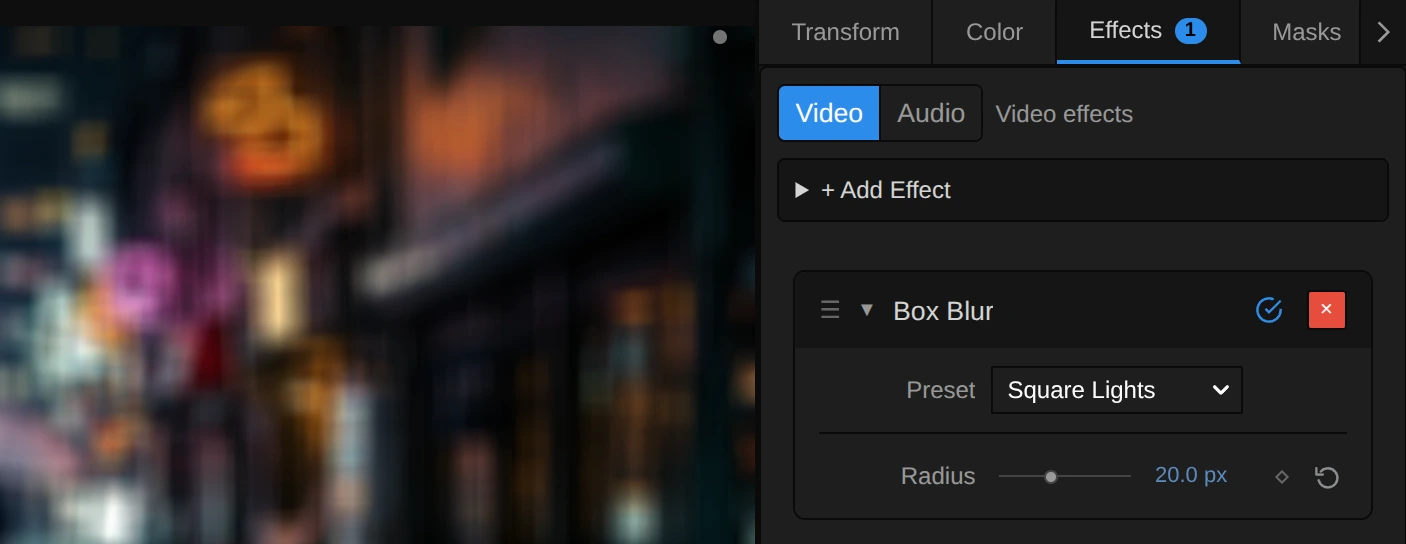
Preset – a starting point for Radius; see Presets.
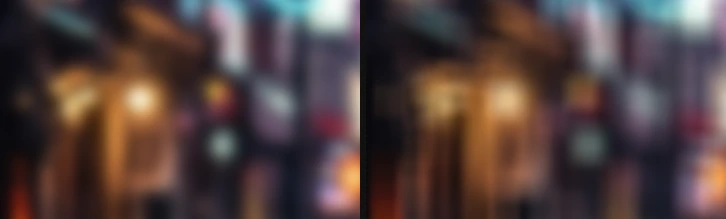
Radius – how far the softening reaches: every pixel becomes the average of a square twice as wide as Radius. 1–2 only takes the edge off, 8–12 makes a frosted panel, from about 20 small lights read as squares, and 50 leaves broad patches of colour. It counts pixels of a 1080p picture, so a 4K export shows the same blur relative to the picture. It changes smoothly when animated, and 0 leaves the picture untouched. 0 to 50 px, default 5 px.
Node setup
Section titled “Node setup”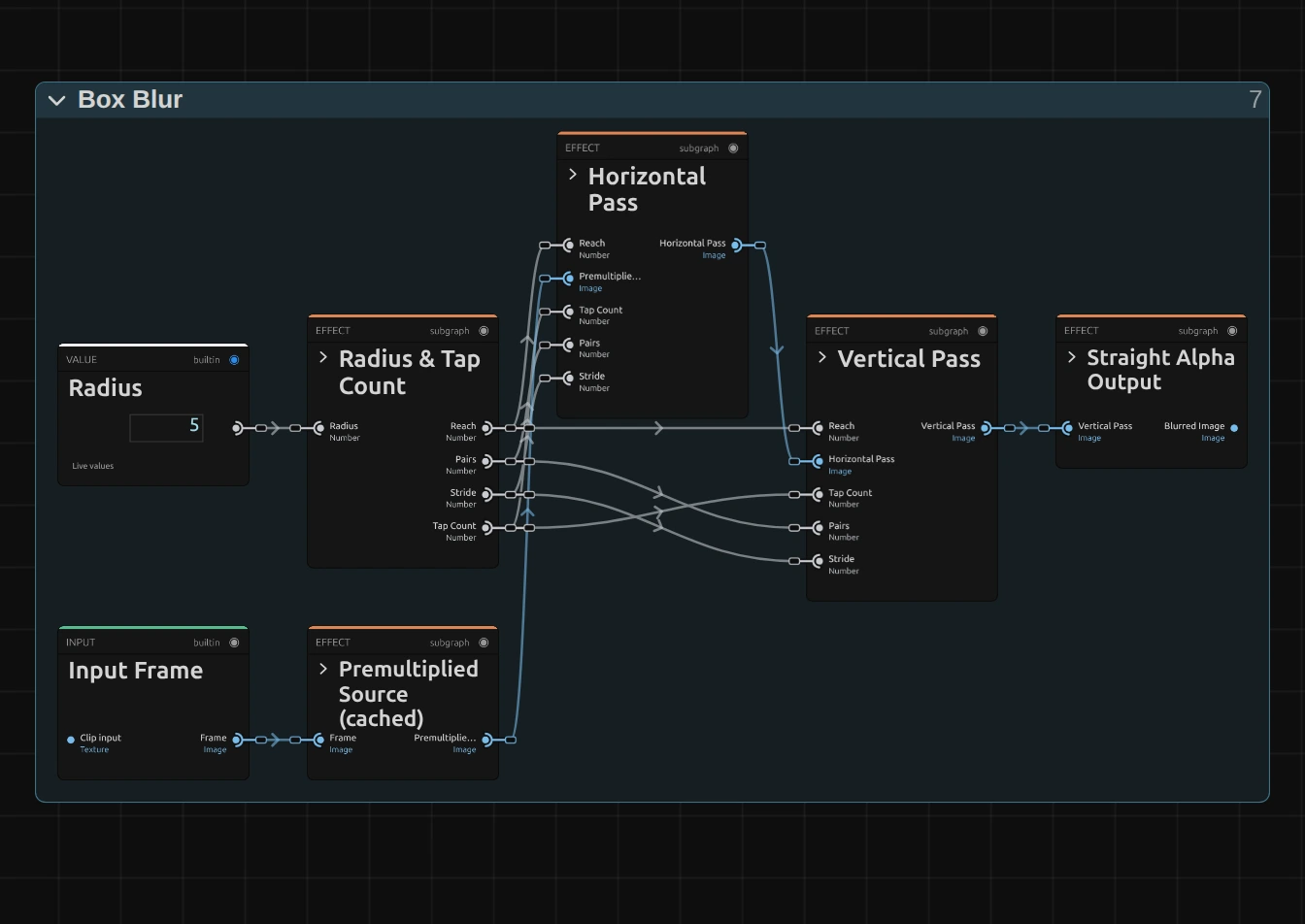
Box Blur works in five stages, one folder each in the Nodes tab: Radius & Tap Count turns Radius into a reach in pixels and the number of reads, Premultiplied Source prepares the picture so transparent edges stay clean, Horizontal Pass averages along the rows and Vertical Pass along the columns of that result, and Straight Alpha Output turns the result back into a normal picture. Two passes of a line instead of one square are much faster and give exactly the same square. Click a folder’s header to open it. Gaussian Blur has the same stages; only the weights inside the passes differ.
Radius & Tap Count
Section titled “Radius & Tap Count”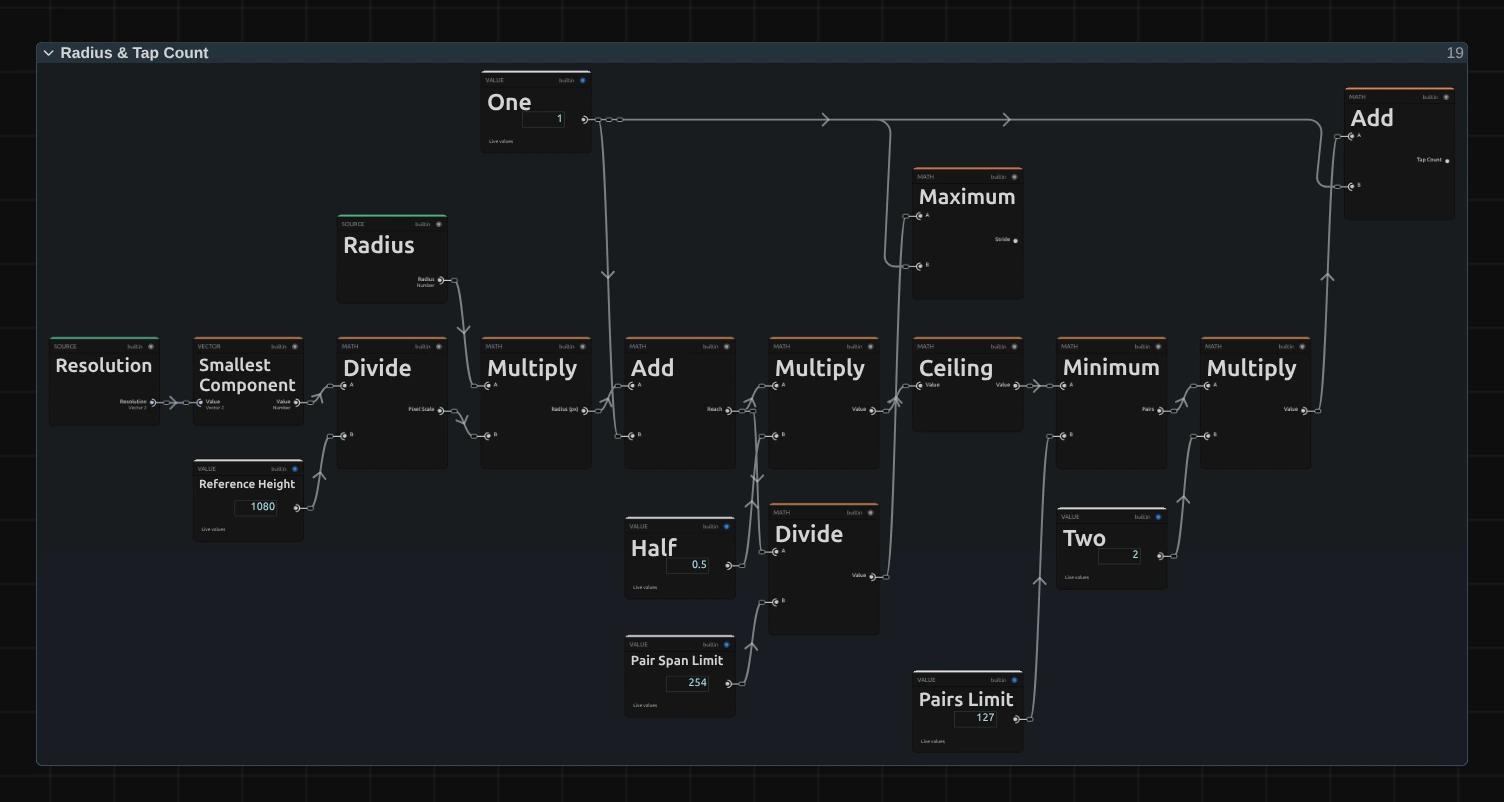
Smallest Component – the shorter side of the frame. Divided by 1080 it says how much larger or smaller this frame is than a 1080p one; Multiply turns Radius into pixels of this frame, so a 4K export, a portrait frame and a thumbnail show the same blur.
Add – Radius in pixels plus one: the Reach. Every pixel closer than Radius counts fully and the one just beyond counts in part, which is why the blur grows smoothly when Radius is animated, instead of in one-pixel jumps.
Minimum – how many pairs of pixels each side reads: half the Reach, rounded up by Ceiling, but at most 127. Each read takes two neighbouring pixels at once (Pairs times Two plus One is the Tap Count).
Maximum – the stride: Reach divided by 254, but at least 1. Up to a reach of 254 pixels every pixel is read; beyond that the reads spread out instead of cutting the square short. Even an 8K frame at Radius 50 stays below that limit.
Premultiplied Source
Section titled “Premultiplied Source”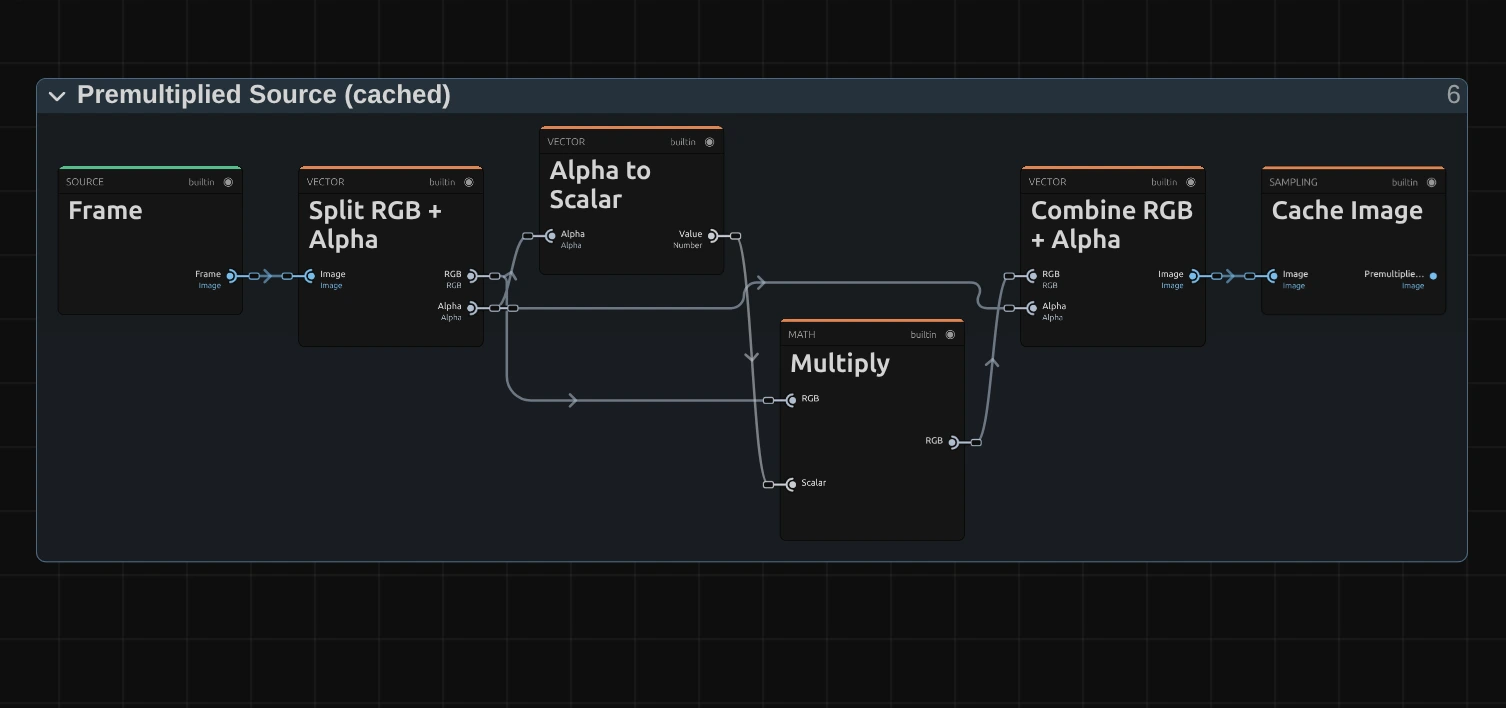
Multiply – multiplies each pixel’s colour by its alpha. A see-through pixel then adds almost nothing to the average, so the colour of its invisible part cannot leak into the blur as a dark rim around a cut-out figure or a title.
Cache Image – keeps the prepared picture in a 16-bit float texture for Horizontal Pass to read, so no precision is lost in dark areas.
Horizontal Pass
Section titled “Horizontal Pass”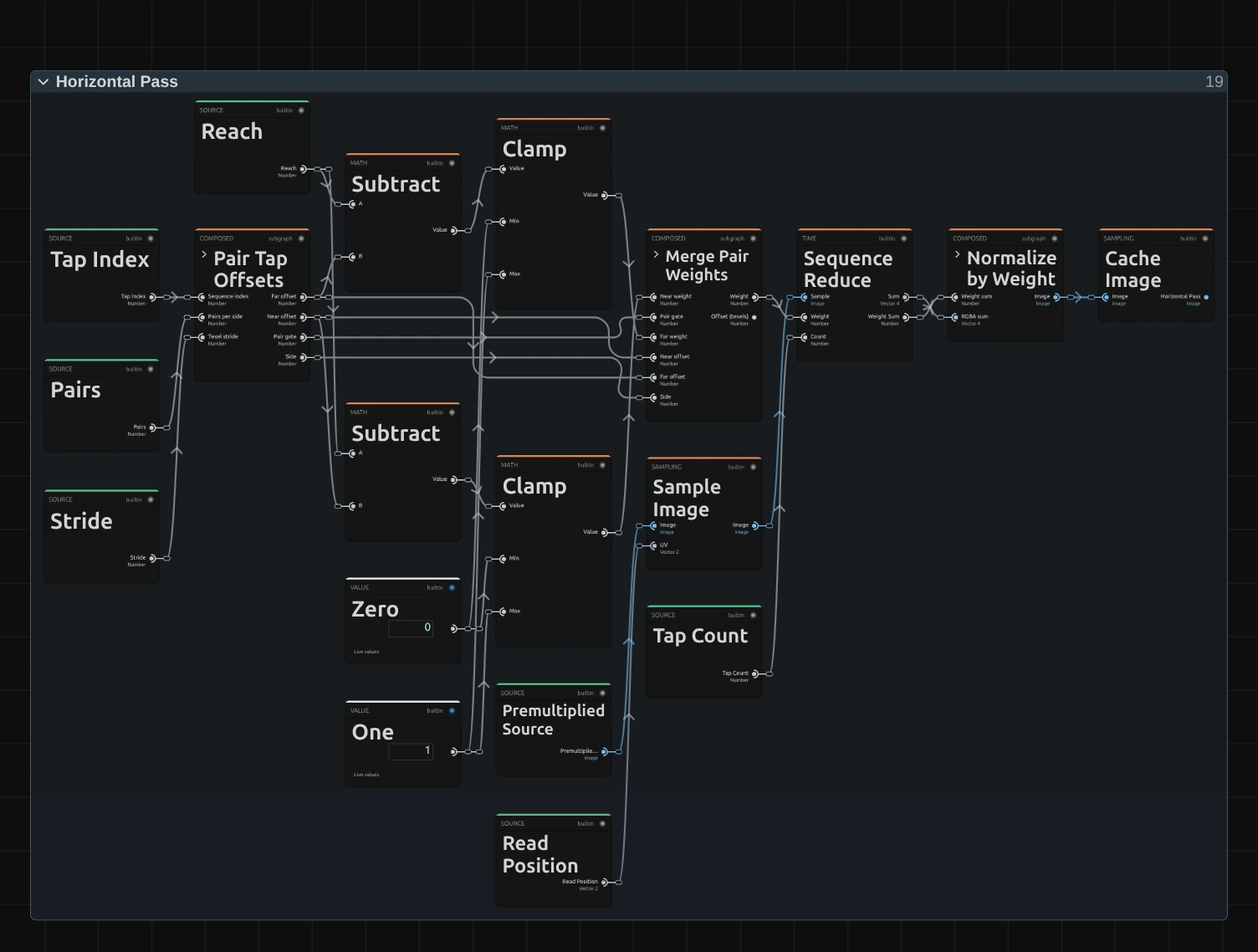
Pair Tap Offsets – lists the reads along the row: the pixel itself and, for every pair, the distance of its near and far pixel. It holds a small node setup of its own; its › opens it.
Subtract – the Reach minus the distance of a pixel: how far that pixel lies inside the square. There is one for the near and one for the far pixel of each pair.
Clamp – keeps that between 0 and 1. This is the whole box kernel: inside the Radius a pixel counts fully, the pixel at the border in part, everything beyond not at all. Merge Pair Weights then folds each pair into one read between its two pixels, so one read covers two.
Sequence Reduce – reads the Premultiplied Source at every position (Sample Image) and adds up the reads, each times its weight.
Normalize by Weight – divides that sum by the sum of all weights, so the average keeps the picture’s brightness, and Cache Image keeps the blurred rows for the vertical pass.
Remix: for a softer square whose lights fade towards their edges (a tent instead of a box), Divide the result of each Subtract by Reach before it goes into its Clamp, in both Subtracts of Horizontal Pass and of Vertical Pass.
Vertical Pass
Section titled “Vertical Pass”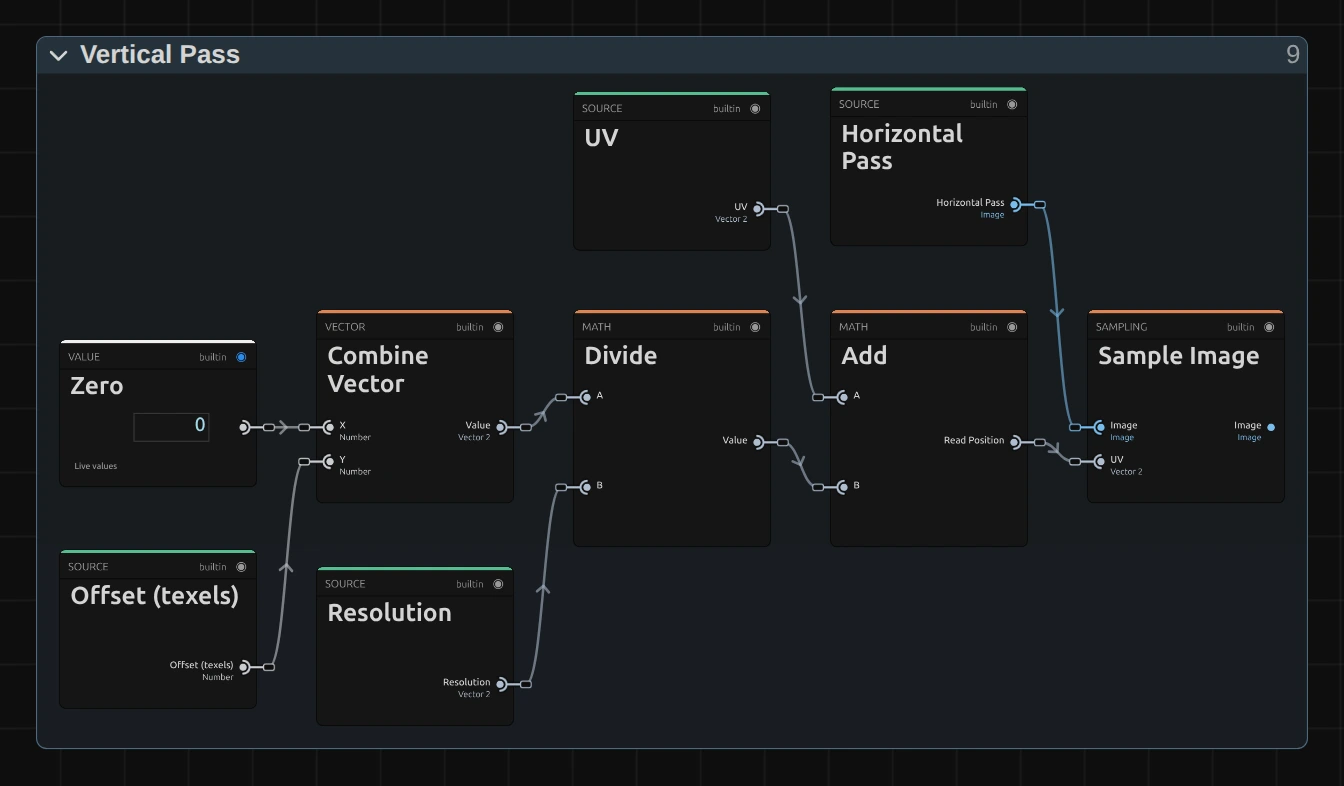
Vertical Pass holds the same recipe as Horizontal Pass, with two differences:
Combine Vector – puts the offset into the second, vertical place (the first is Zero), so the reads go up and down a column instead of along a row.
Sample Image – reads the cached result of Horizontal Pass instead of the source. A row average of column averages is the average of the whole square.
Straight Alpha Output
Section titled “Straight Alpha Output”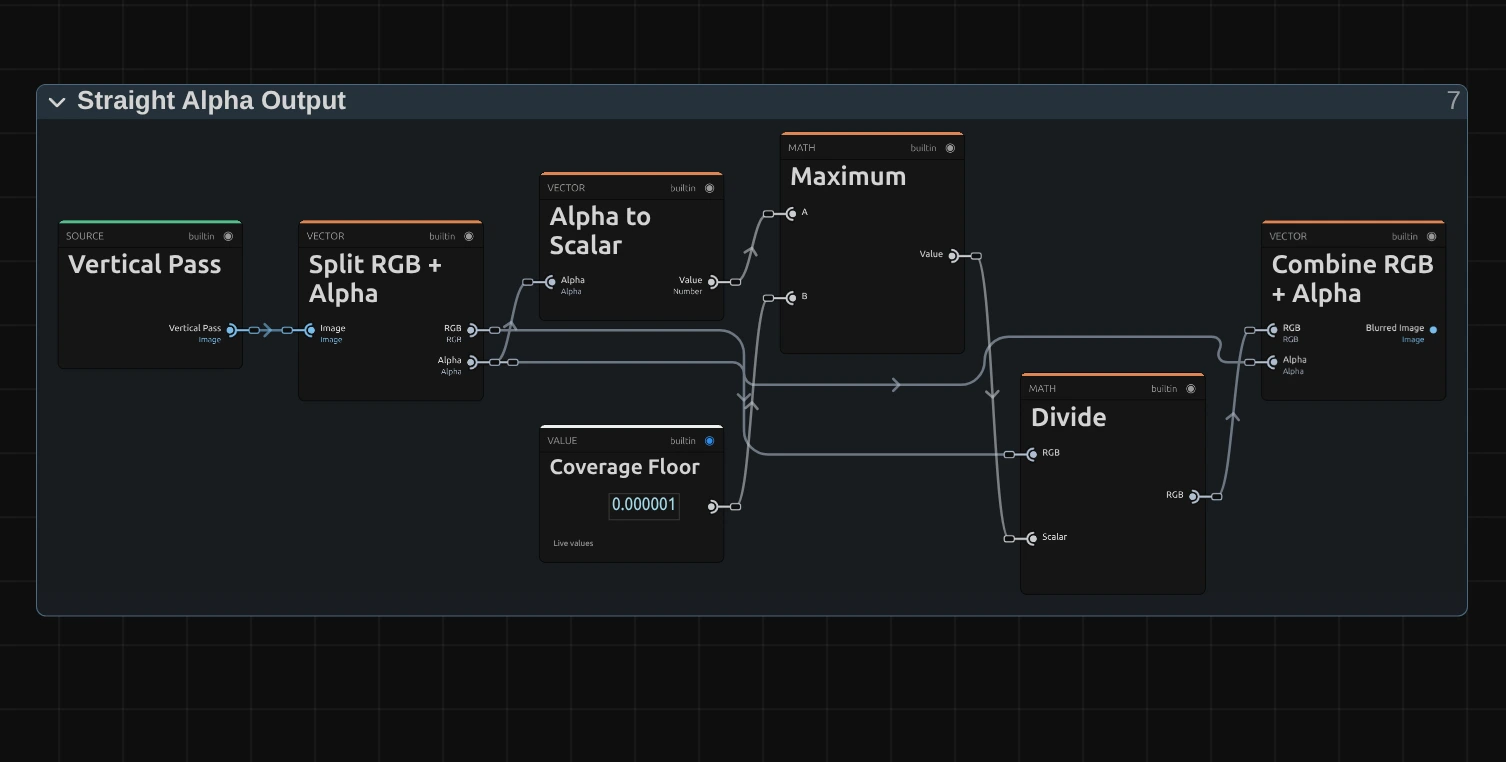
Maximum – the blurred alpha, but never below the Coverage Floor, a tiny 0.000001. Fully transparent pixels then stay black and transparent instead of turning into errors.
Divide – divides the blurred colour by the blurred alpha: the reverse of the Multiply in Premultiplied Source, so half-transparent edges get their real colour back.
Combine RGB + Alpha – joins colour and alpha into the finished picture that leaves the effect.
Technical details
Section titled “Technical details”- Size. Radius counts pixels of a frame whose shorter side is 1080: preview quality, a 4K export, a portrait frame and the thumbnails all show the same blur relative to the picture.
- Kernel. Every pixel within Radius counts fully, the one at the border in part. A horizontal pass into a 16-bit float cache, then a vertical pass: about Radius + 2 reads per pass at 1080p, two pixels per read. Up to 127 reads per side; beyond that the reads spread out, and the card and the tool result say so.
- Edges. At the frame edge the outermost pixels repeat, so a large Radius does not darken the border. Transparent edges fade without a dark rim, and the preview and the export match.
- Zero. An unedited Box Blur at Radius 0 is skipped, so the picture passes through exactly.
- Software preview. Where the editor falls back to its software preview, Box Blur shows an approximation (a canvas blur, rounder than the box); the GPU preview and the export show the real square.
- Saved projects. They render with this kernel; a Box Blur whose node setup you edited keeps its own recipe.
- More: Blur & Sharpen notes · Editable blur kernels · Node Catalog · Styles and presets.