
Glyph Matrix
Rebuilds the picture from characters that keep rolling on to their neighbours, in diagonal waves. For screens, data and thinking machines: the figure stays readable, the text never stands still.
Group: Text & Glyph · How to add an effect
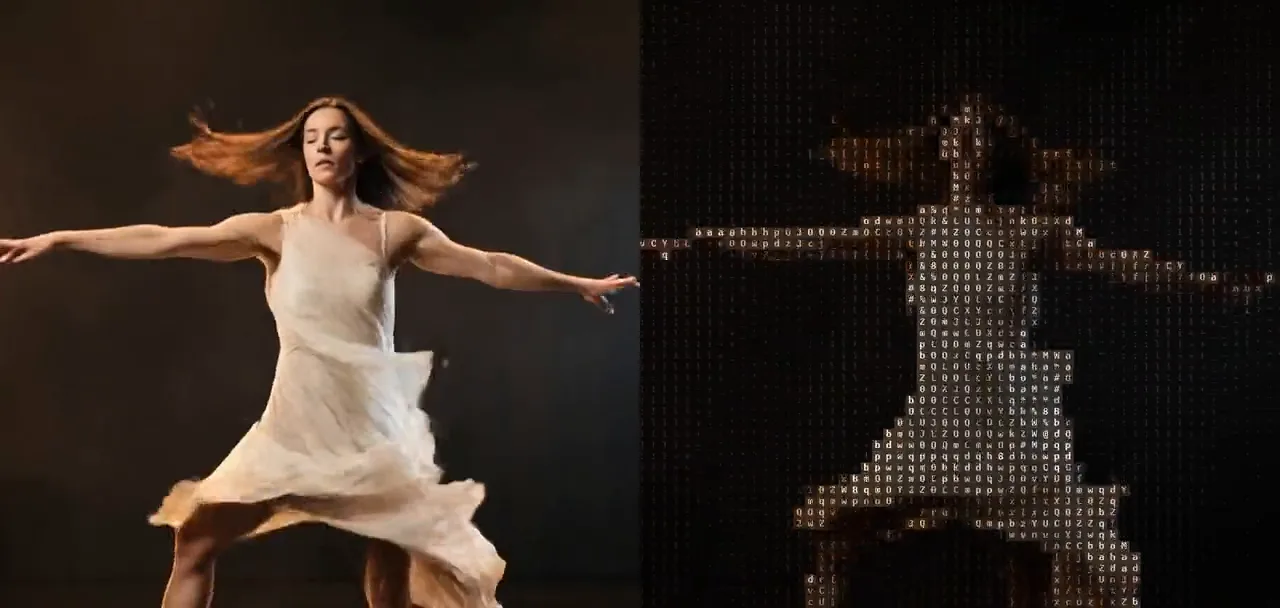
Use it for: a computer, a control room or a data stream on stage · a figure made of living text · a picture that dissolves into code on a cue.
- Cell Size – how big the characters are.
- Roll – how far they roll: a soft shimmer or whole waves of the alphabet.
- Speed – how fast they tick on.
Tip: keyframe Roll from 0 to 1 to let a calm character picture break into rolling waves of text, and back to 0 to let it settle.
Presets
Section titled “Presets”Pick one in the Preset row of the effect card. It sets all controls at once, in one undo step, and the row then shows its name until you change something. A control with keyframes keeps them, and the card says so.
Data Wave – bars that roll through the whole ramp: diagonal staircases sweep across the picture, and the figure shows in their colours. Graphic and restless; strong on large surfaces and with electronic music.
Shade Shimmer – small cells of shading blocks that shimmer among their neighbours. The figure stays easy to read while its surface boils softly, like an old monitor.
Ice Code – white letters on a deep blue field, rolling through half the ramp; Black Level 0.2 keeps the dark stage an empty blue. Cool and technical: a control room, a data stream, a mind at work.
Split-Flap – large letters that run through the alphabet, like the departure board of a station. The picture shows in the colour of the cells. For travel, waiting and announcements.
Controls
Section titled “Controls”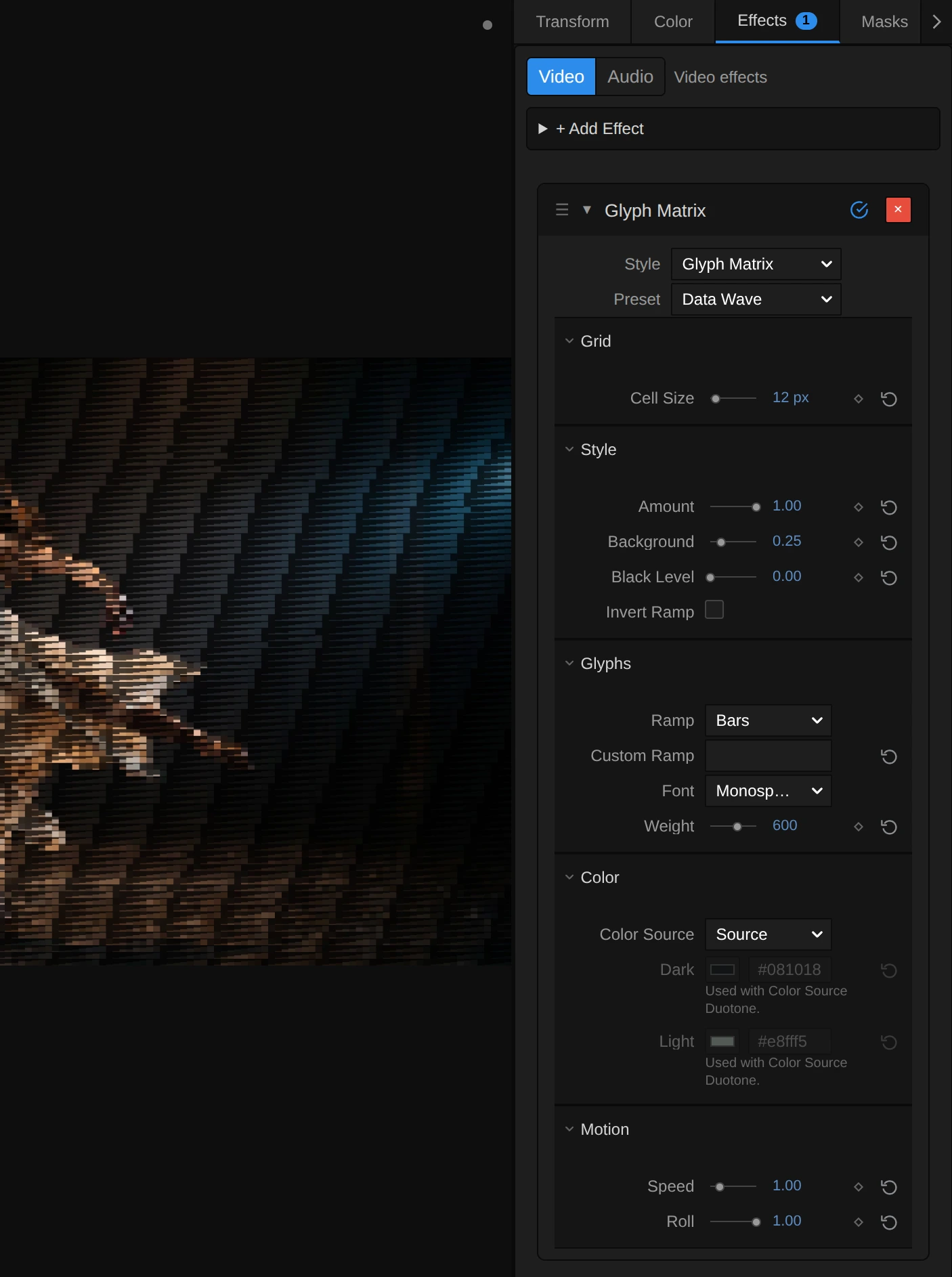
Style – switches to another look of the same engine and keeps your values and keyframes, for example Symbol Matrix, Matrix Rain or Retro Matrix.
Cell Size – how big one character is. 8–10 gives fine print that shimmers like a screen full of data, 14 small but clear characters, 24 and more large letters that read on a projection; at 72 the frame holds only 15 rows of large signs. It counts pixels of a 1080p picture, so the preview, the thumbnails and a 4K export show the same grid. 4 to 72 px, default 14 px.
Amount – how much of the effect you see. At 0 the original picture, unchanged; in between, the rolling characters fade in over it. Keyframe it to let a picture turn into code on a cue. 0 to 1, default 1.
Background – how much of the picture fills each cell behind its character. At 0 the characters stand on a near-black ground, like a terminal; 0.2–0.4 lets the picture glow through, so the figure stays readable; towards 1 the cells take the full colour and the characters disappear into a mosaic. 0 to 1, default 0.2.
Black Level – the brightness up to which the picture counts as black. Everything darker becomes the first character of the ramp, the space in most ramps (with Invert Ramp the last, densest one, a still carpet of it), and stops rolling, even at Roll 1, so a grey stage drops out and only the lit figure rolls; the rest of the picture spreads over the whole ramp. Try 0.15–0.25 on stage footage, above all with Duotone. 0 to 0.9, default 0.
Invert Ramp – swaps the ends of the ramp: dark parts get the dense characters and bright parts the light ones, like a negative typed on paper. The colours stay. The higher Roll, the less it shows, because every cell runs through more of the ramp anyway. Either on or off, default off.
Glyphs
Section titled “Glyphs”Ramp – the row of characters the picture is built from, from the darkest to the brightest part, and the order in which they roll. Detailed uses about seventy letters and signs, so neighbours look alike and the figure keeps its shading; Standard (.:-=+*#%@ after a space) rolls in coarser steps; Blocks turns the roll into shimmering dots; Bars into bars that rise and fall; Binary flips between 0 and 1; Numeric and Symbols roll through digits or dots, crosses and stars. While a Custom Ramp is typed, the row rests and the card dims it. In the menu: Standard, Detailed, Blocks, Bars, Binary and 2 more, default Detailed.
Custom Ramp – your own characters, from dark to bright, instead of the Ramp; they roll in the order you type them. An alphabet after a space ( ABCDEFGHIJKLMNOPQRSTUVWXYZ) runs like a split-flap board. A single character holds still, since there is nothing to roll to. Spaces at the end are ignored, and a ramp longer than 256 characters is thinned to 256, spread from its first to its last (the card says so). Clear it to use the Ramp again. Any text, default empty.
Font – the lettering. Monospace draws the even signs of a terminal; Serif and Sans Serif give rounder, bookish letters, each narrowed to fit its cell. Monospace, Serif, Sans Serif, default Monospace.
Weight – how heavy the strokes are. Heavier letters carry more colour, so the picture gets brighter. How many steps you see depends on the font: the built-in monospace font of many systems only has regular (up to 500) and bold (600 and more). Keyframes step from one weight to the next. 200 to 900, default 600.
Color Source – where the colour of the characters comes from. Source takes the colour of the picture under each cell; Duotone colours them between Dark for the dark parts and Light for the bright parts, for a single-colour screen. Source, Duotone, default Source.
Dark – the colour of the darkest characters in Duotone; the ground behind them is a deep shade of it. With Source it rests, and the card dims it. Pick a colour, default #081018.
Light – the colour of the brightest characters in Duotone. With Source it rests, and the card dims it. Pick a colour, default #e8fff5.
Motion
Section titled “Motion”Speed – how fast the characters tick on. At 1 each cell steps to its next character six times a second, and the waves travel left by six cells a second; at 0 the roll stops and characters change only where the picture changes; 3 and more flickers. It follows the playhead, so a paused picture stands still and the export matches the preview; a keyframed Speed speeds up smoothly. 0 to 5, default 1.
Roll – how much of the ramp each character rolls through, around the character of its own brightness. At 0 every cell holds still, like ASCII; 0.2 lets it tick through its nearest neighbours, so the picture stays clear and shimmers; from about 0.5 the characters stop following the picture, and at 1 they run through the whole ramp: the ramp itself sweeps across the frame in diagonal stripes. Any value above 0 moves at least two characters, so short ramps such as Binary roll too. 0 to 1, default 0.2.
Node setup
Section titled “Node setup”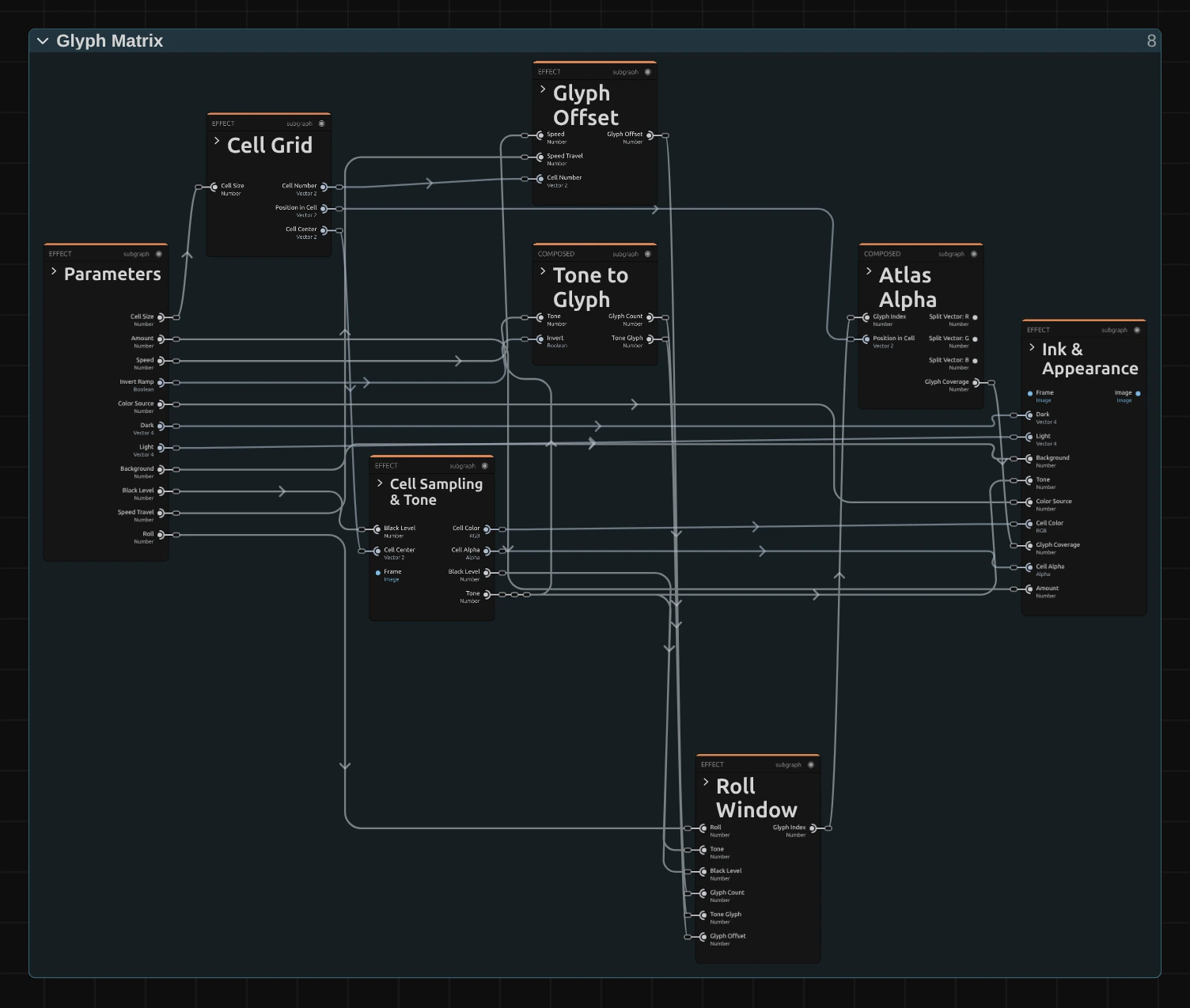
Glyph Matrix works in seven stages, one folder each in the Nodes tab: Cell Grid cuts the frame into square cells, Cell Sampling & Tone reads the colour and brightness in the middle of each cell, Tone to Glyph picks the character of that brightness, Glyph Offset works out how far each cell has rolled on right now, Roll Window keeps that roll inside a part of the ramp around the cell’s own character, Atlas Alpha looks up where the character covers the cell, and Ink & Appearance colours the character and its ground. Click a folder’s header to open it. Glyph Offset and Roll Window make it move; the other five work as in ASCII. Glyph Matrix is one look of the glyph engine that the Text & Glyph looks share; its Style menu switches between them.
Cell Grid
Section titled “Cell Grid”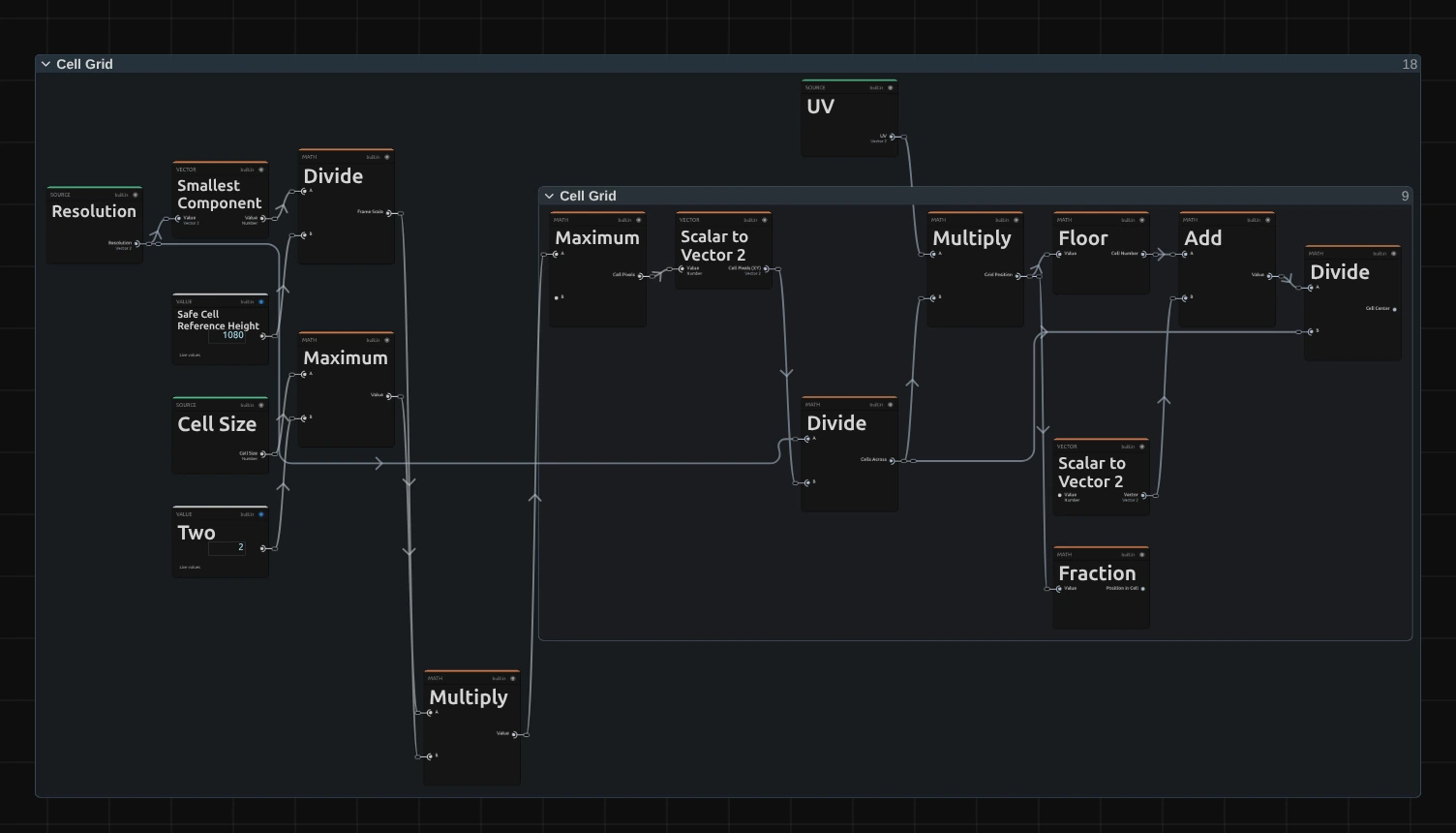
Smallest Component – the shorter side of the frame; divided by 1080 it scales Cell Size, so a 4K export, a portrait frame and a thumbnail show the same grid.
Maximum – the cell size in pixels of this frame, never smaller than 2.
Floor – which cell the pixel lies in. Glyph Offset uses this cell number to place the cell on the wave.
Fraction – where the pixel lies inside its cell, from 0 to 1; Atlas Alpha draws the character with it.
Divide – the middle of the cell, where the whole cell reads the picture.
Cell Sampling & Tone
Section titled “Cell Sampling & Tone”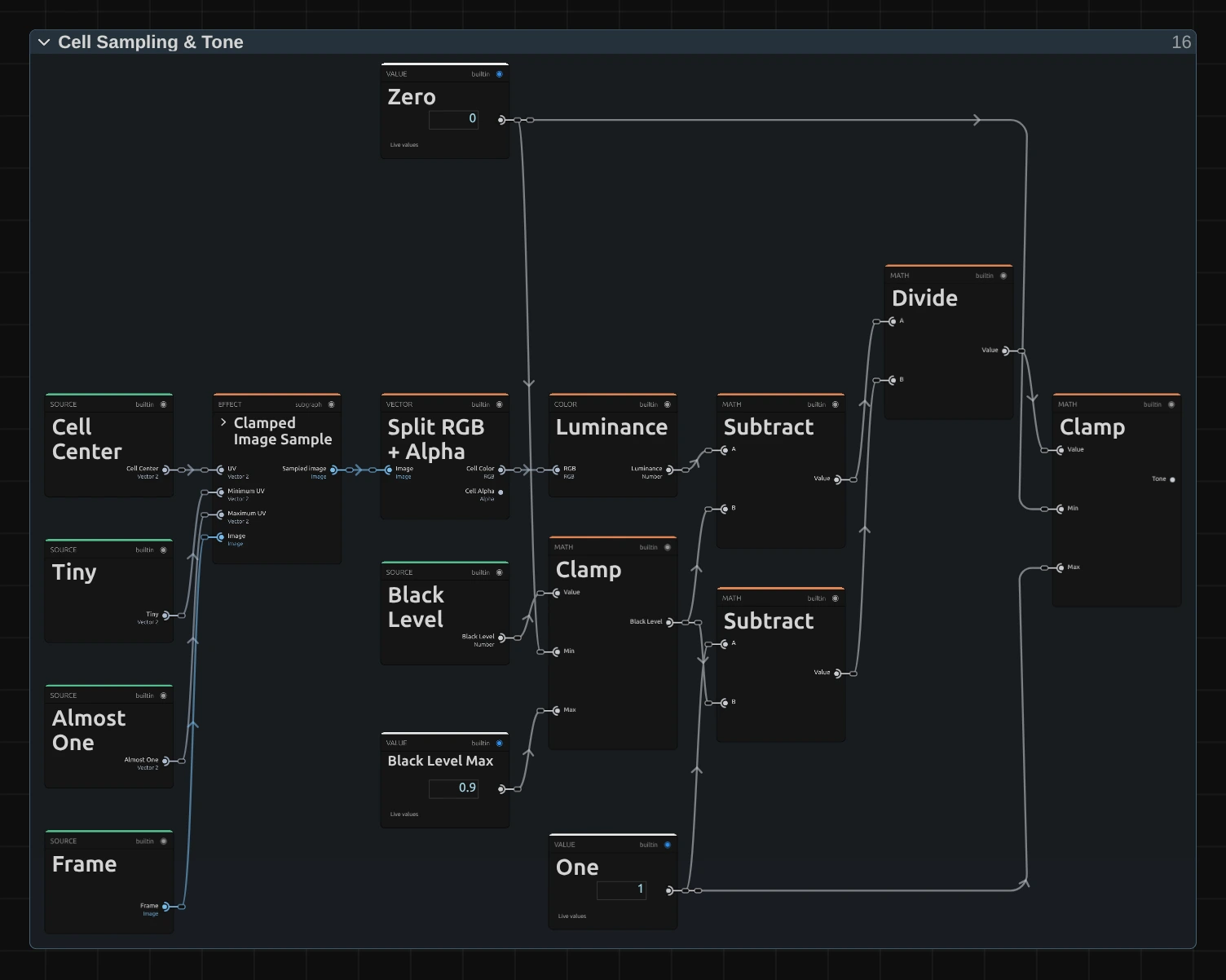
Clamped Image Sample – reads the input picture at the cell centre, never outside the frame.
Split RGB + Alpha – the cell’s colour, which becomes the ink, and its transparency.
Luminance – the brightness of the cell colour, weighted the way the eye sees it (green counts most).
Divide – applies Black Level: the luminance minus Black Level (Subtract), divided by what is left above it (the other Subtract: One minus Black Level). The Clamp next to Black Level keeps it between 0 and Black Level Max 0.9.
Clamp – keeps the result between 0 and 1, so everything darker than Black Level becomes 0: the Tone. It picks the character.
Tone to Glyph
Section titled “Tone to Glyph”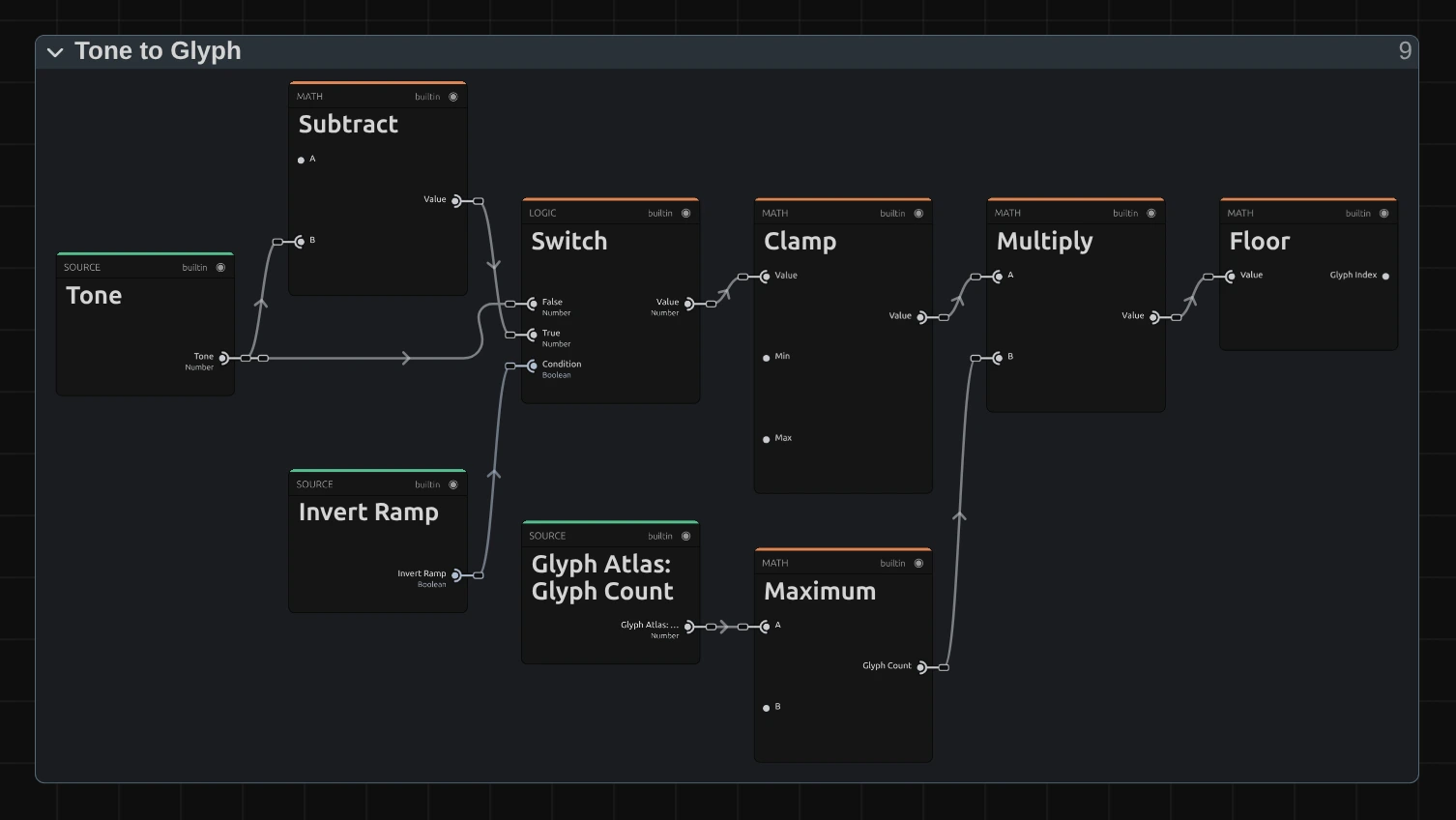
Subtract – one minus the tone, for Invert Ramp.
Switch – the tone as it is, or inverted when Invert Ramp is on.
Clamp – keeps the tone just under 1, so the brightest cells get the last character and never one past it.
Multiply – spreads the tone over the number of characters in the ramp.
Floor – the number of the cell’s own character: the Tone Glyph that Roll Window rolls around.
Glyph Offset
Section titled “Glyph Offset”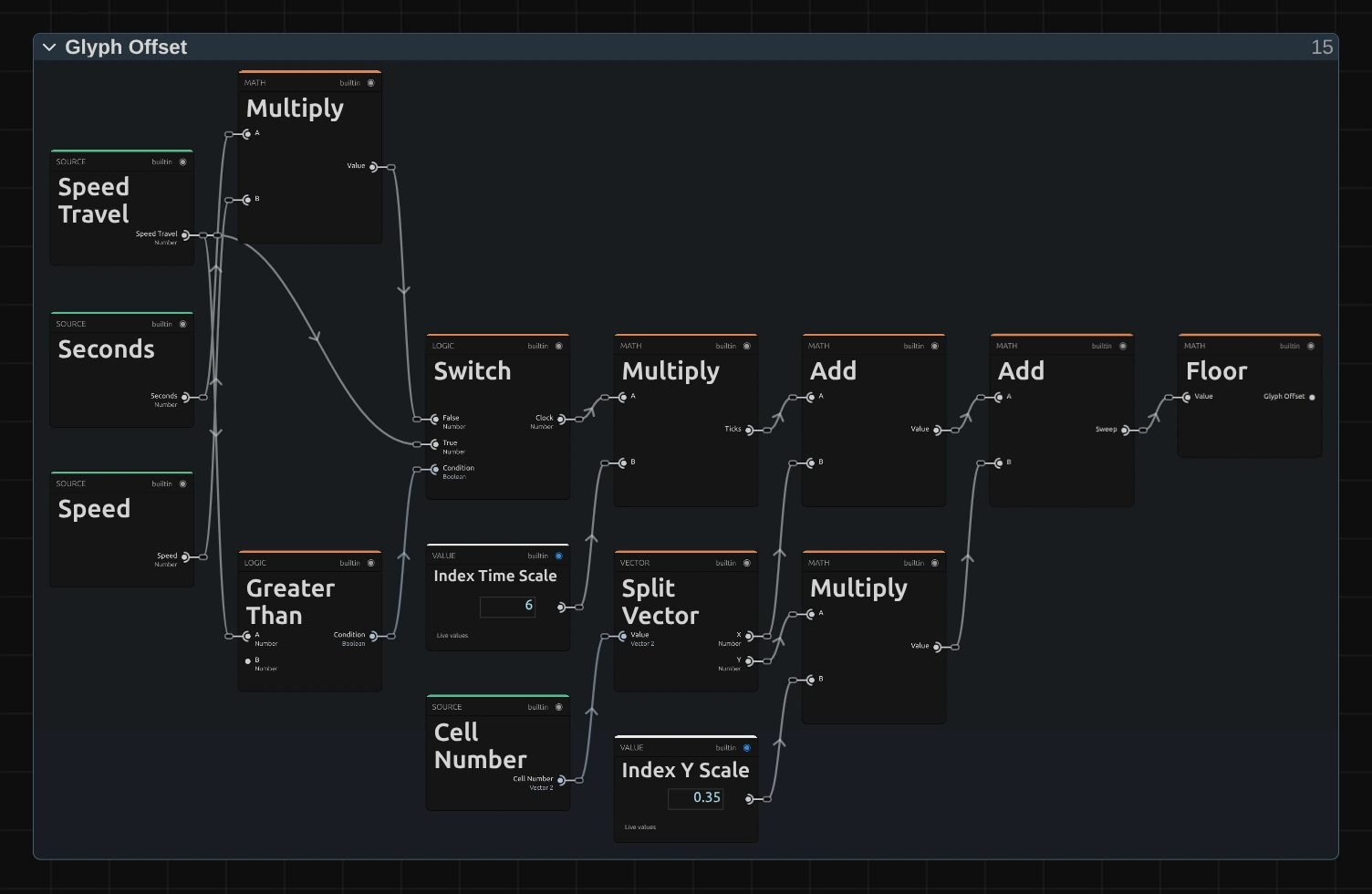
Clock – how far the clock has run: Seconds × Speed (the Multiply above it), or Speed Travel, the distance a keyframed Speed has covered, when Speed has keyframes (Greater Than checks for that). So a Speed ramp speeds the roll up smoothly instead of making it race.
Ticks – the clock times Index Time Scale 6: how many steps a character has rolled on by now, six a second at Speed 1.
Multiply – the cell’s row (Split Vector splits the cell number into column and row) times Index Y Scale 0.35.
Sweep – Ticks plus the column plus a third of the row (Add): neighbouring cells are one step apart, rows a third of a step, so equal steps line up in steep diagonal waves that travel left as the ticks grow.
Floor – drops the fraction: the Glyph Offset, a whole number of steps.
Remix: open the Constants folder and set the value 0.35 (the Index Y Scale card above) to 1: the waves tilt to 45°. At 0 they stand upright and scroll sideways like a ticker.
Roll Window
Section titled “Roll Window”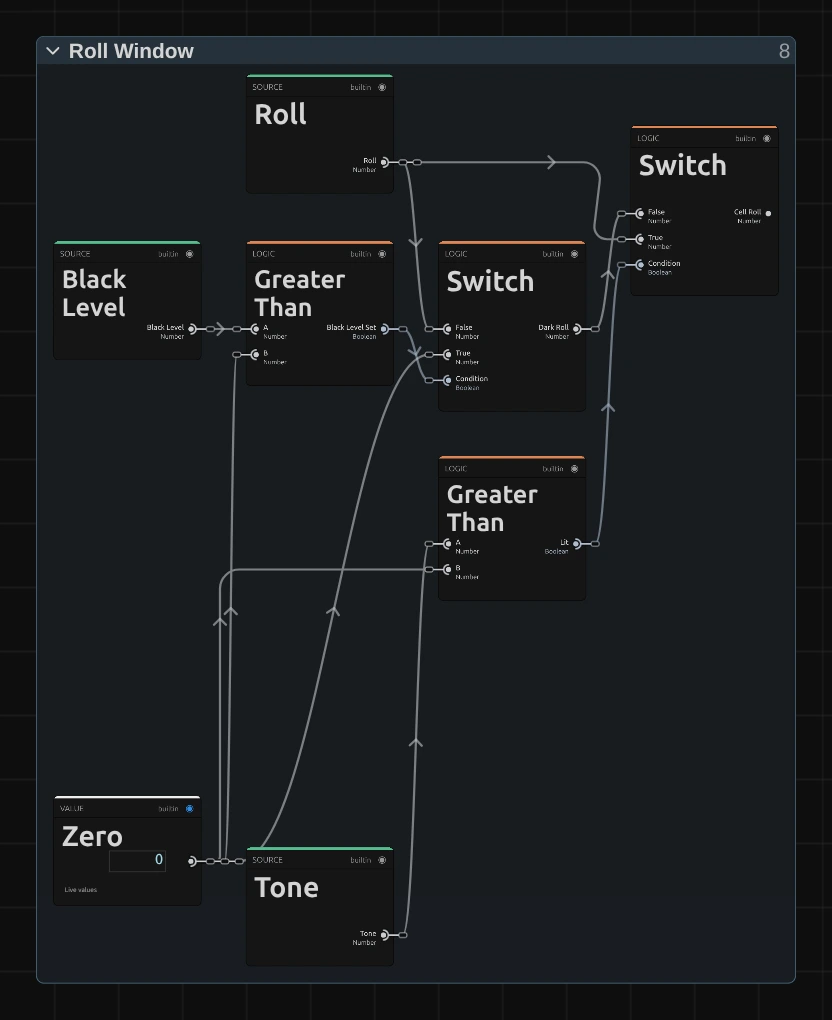
Lit – Greater Than: is the cell’s Tone above 0, so brighter than Black Level? The other Greater Than asks whether Black Level is set at all (above 0).
Dark Roll – a Switch: 0 while Black Level is above 0, otherwise Roll. At Black Level 0, also in effects saved before this hold existed, every cell rolls as before.
Cell Roll – the second Switch: Roll for a lit cell, the Dark Roll for a dark one. The window below is built from it, so with Black Level set a dark cell holds its character, even at Roll 1, and the dark stage stays empty.
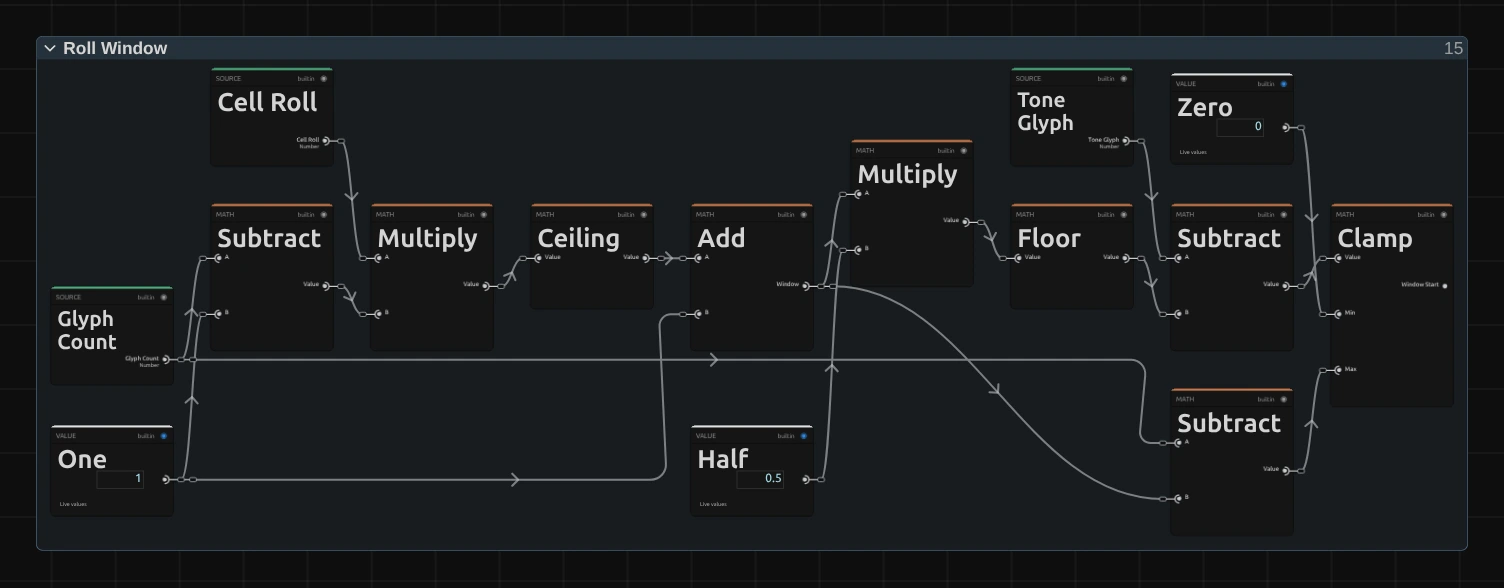
Ceiling – the Cell Roll times the ramp’s length minus one (Subtract, Multiply), rounded up: how many neighbours a cell rolls through. Any Cell Roll above 0 gives at least one.
Window – that number plus the cell’s own character (Add): from 1 at Roll 0 to the whole ramp at Roll 1.
Floor – half the window, as a whole number (Multiply by Half first): how far the window reaches below the cell’s own character.
Window Start – the Tone Glyph minus that half, kept between 0 and the ramp’s length minus the window (Clamp). The window never hangs over an end of the ramp: the brightest cells roll among the densest characters and never fall back to empty ones.
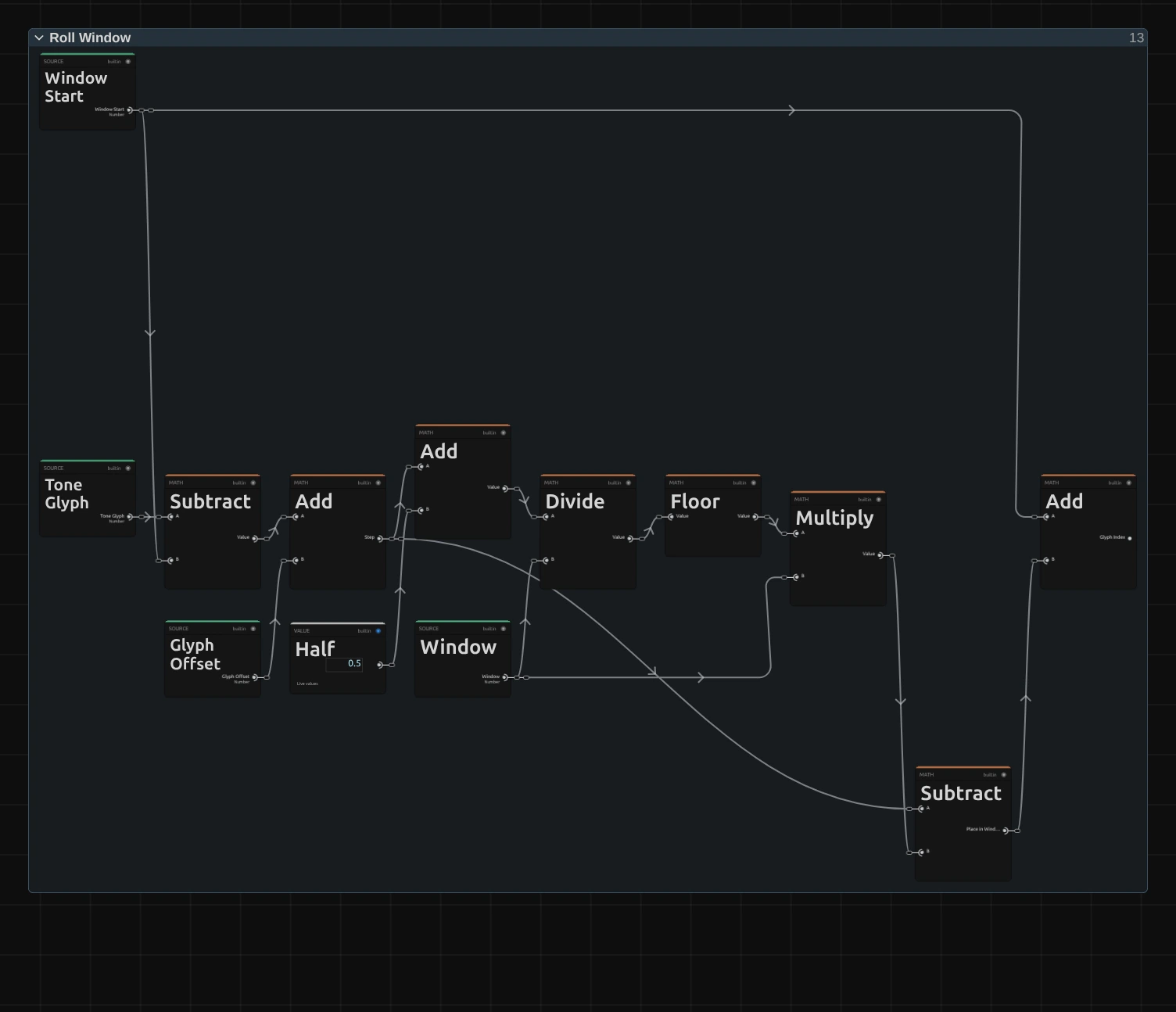
Step – the cell’s own place in its window plus the Glyph Offset (Subtract, then Add): how far it has rolled from its window’s start.
Divide – the step divided by the window (half a step added first, so the division never lands just below a whole number); Floor counts the whole windows rolled through.
Place in Window – the step minus those whole windows (Multiply, Subtract): the cell runs through its window again and again.
Glyph Index – Window Start plus the place in the window (Add): the character the cell shows now. At Roll 1 the window is the whole ramp and starts at 0, so this is the cell’s own character plus the Glyph Offset, wrapped round the ramp.
Atlas Alpha
Section titled “Atlas Alpha”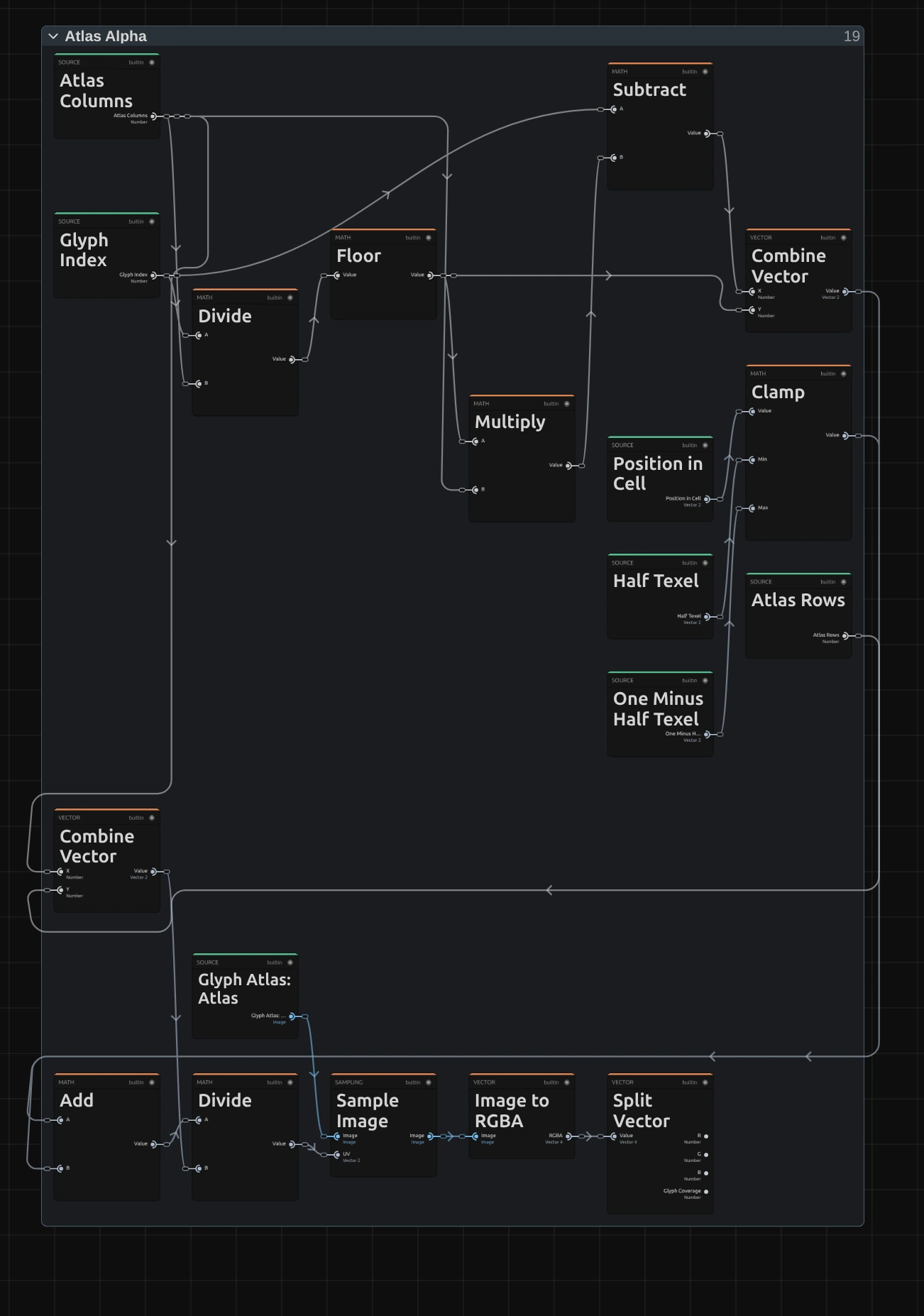
Floor – the row of the character on the atlas, a sheet of all characters of the ramp drawn in the chosen Font and Weight.
Subtract – its column on the sheet.
Clamp – keeps the place inside the cell half a pixel of the sheet away from the edges of the character’s square (Half Texel, 0.5 of the 64 pixels of a square, and One Minus Half Texel). The sheet is read with smoothing, so a read any closer would mix in a little of the neighbouring character: blocks and bars would show thin seams wherever a cell is not a whole number of pixels.
Sample Image – reads the sheet at the character’s square plus the place inside the cell.
Split Vector – the Glyph Coverage: 1 inside the strokes of the character, 0 around them.
Ink & Appearance
Section titled “Ink & Appearance”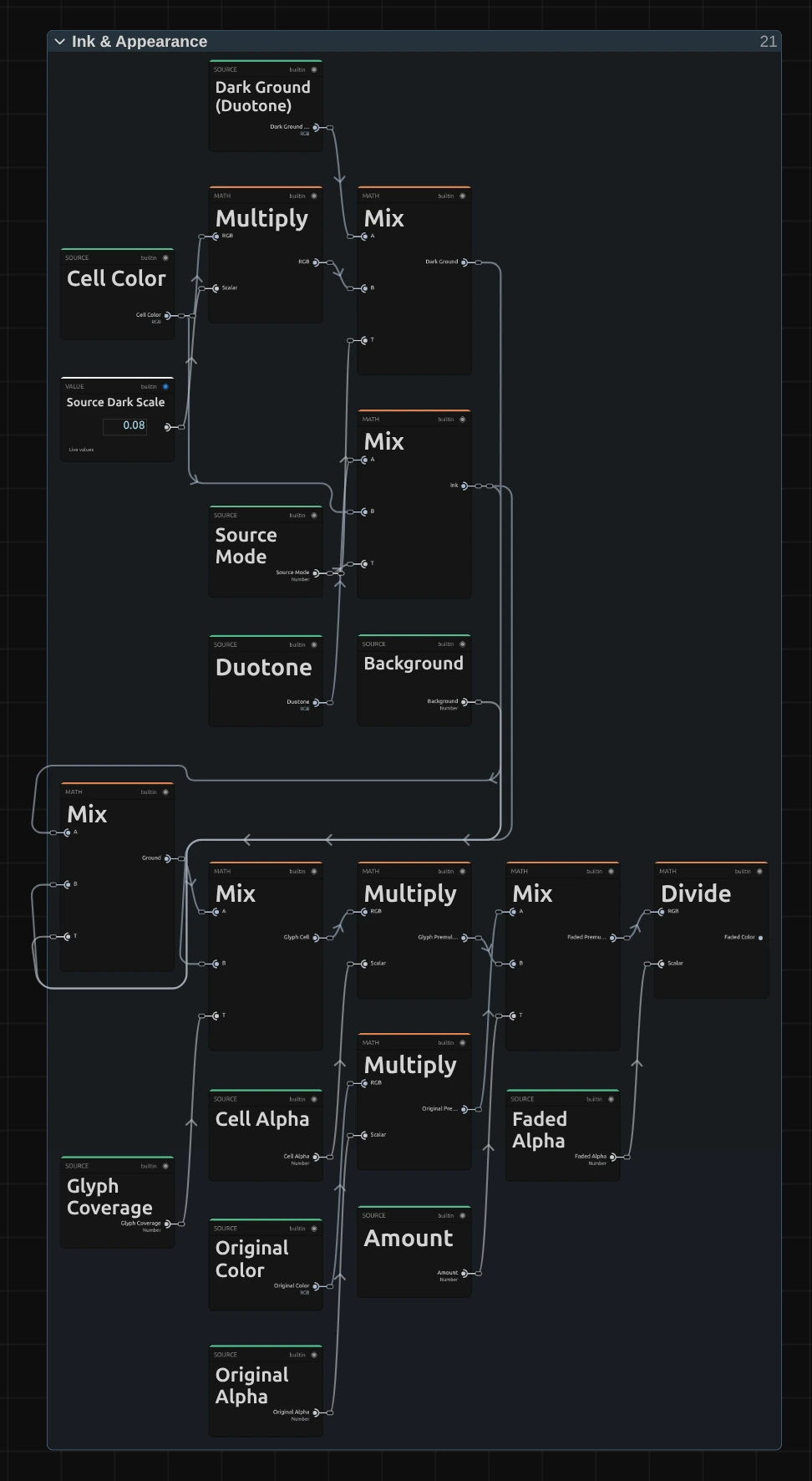
Ink – the colour of the character: the cell colour with Source, between Dark and Light with Duotone.
Dark Ground – the cell behind it as classic character art has it: the cell colour × 0.08, or Dark × 0.15 with Duotone.
Ground – the dark ground lifted towards the ink by Background.
Glyph Cell – the ink on its ground, by the glyph coverage.
Faded Premultiplied – fades the untouched picture, pixel by pixel, towards the glyph cell by Amount. Both are first multiplied by their transparency (Original Alpha, Cell Alpha), and the transparency fades the same way (Faded Alpha).
Faded Color – divides by Faded Alpha (at least a millionth) to get back to plain colour. Mixed this way, the colour a transparent pixel hides never shows as a dark or green fringe around a cut-out figure while Amount fades.
Technical details
Section titled “Technical details”- Size. Cell Size counts pixels of a frame whose shorter side is 1080: a 4K export, a portrait frame, a lower Preview Quality and the thumbnails show the same grid. A cell is never smaller than 2 pixels of the frame; below 2 px Cell Size renders as 2, and the card says so.
- Time. The roll follows the timeline time: scrubbing, playback and export give the same frame for the same moment, and a paused picture needs no extra rendering. With keyframes on Speed the roll moves by the distance Speed has travelled, so it never jumps.
- Roll. The window holds 1 + Roll × (ramp − 1) characters, rounded up, around the cell’s own one and kept inside the ramp. A Roll outside 0 to 1 renders as 0 or 1, and the card and the tools say so. The other moving Text & Glyph looks have Roll too; they start at 1, their look before Roll existed. At Roll 0 every character holds still, so Speed does nothing, and the card and the tools say so.
- Characters. The whole ramp is drawn in one font size, so its tallest character spans 88 % of the cell height. Blocks and Bars are exact shapes, read half a pixel inside each character, so they join without seams at any cell size.
- Transparency. Each cell takes the transparency of its centre, so a cut-out figure keeps its outline in whole cells. Amount fades the transparency back to the original’s, pixel by pixel, and mixes the colours weighted by their transparency, so the hidden colour of a transparent pixel never shows as a fringe around a cut-out figure.
- Saved projects. A Glyph Matrix stores its node setup and keeps its look; a setup saved before Roll existed has no Roll row in its card. Effects saved before Roll and without a stored setup load with Roll 1, the full-ramp sweep they had, and those saved before Background existed with Background 0. A stored setup keeps its smaller characters, which cover about half of a cell, and the way it read the character sheet, so saved Blocks or Bars can show thin seam lines on frames whose cells are not a whole number of pixels; Black Level is 0 there. A stored setup also keeps the earlier Cell Size in pixels of the output, so its preview at another quality and an export at another size show different grids; add the effect again for the 1080p grid. Presets fully apply only to effects added in this version: on a stored setup from before, the card has no Background, Black Level or Roll row, so a preset leaves those values out.
- More: Effect system · Node Catalog · Styles and presets.