
Color Wheel
Paints a hue wheel: the colours go round the centre and reach full strength at the rim.
Group: Generate · How to add an effect
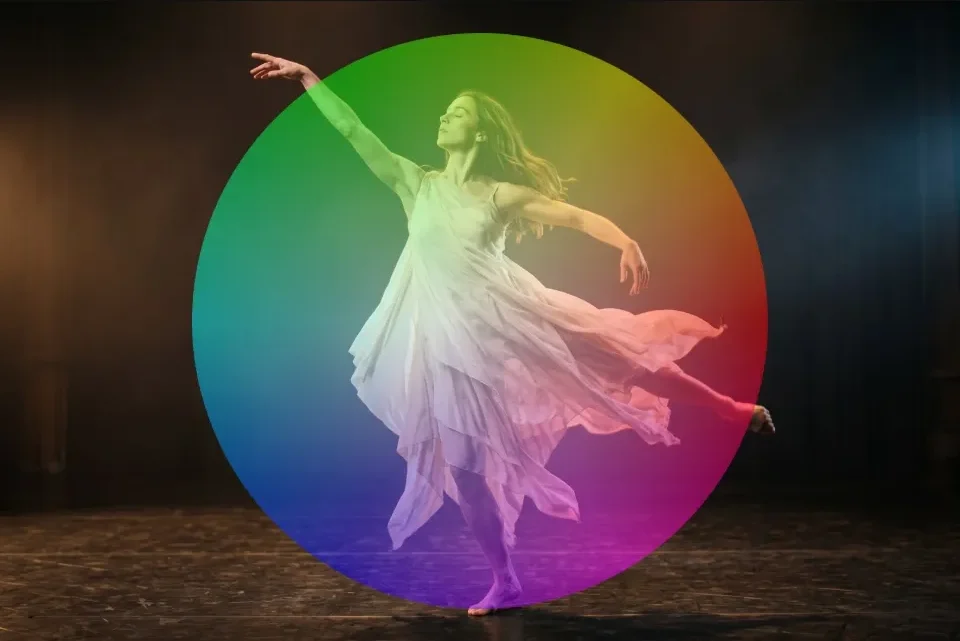
Use it for: a colour reference for a projector or a camera · a coloured gel spot over the picture · a turning, psychedelic background.
- Shape – Disc (the default) draws a round wheel with a clean edge over the clip; Fill layer colours the whole layer (or only the inside of a shape layer).
- Radius, Center X and Center Y – size and place of the disc, in % of the shorter side and of the layer.
- Direction – hues run counter-clockwise like the usual HSV wheel (red at the right, yellow upper right, green upper left, blue lower left), or clockwise.
- Hue Rotation – turns the colours round, in degrees. Spin keeps them turning (degrees per second) and can be keyframed for a smooth speed-up.
- Saturation, Brightness and Mix – how strong and bright the colours are and how much of the clip shows through.
Tip: on a Blank clip, Disc gives a wheel on a transparent background.
Controls
Section titled “Controls”| Control | Range | Default |
|---|---|---|
| Shape | Disc, Fill layer | Disc |
| Radius | 1 to 100% | 45% |
| Center X | 0 to 100% | 50% |
| Center Y | 0 to 100% | 50% |
| Direction | Counter-clockwise, Clockwise | Counter-clockwise |
| Hue Rotation | −1440 to 1440° | 0° |
| Spin | −1440 to 1440°/s | 0°/s |
| Saturation | 0 to 4 | 1 |
| Brightness | 0 to 1 | 1 |
| Mix | 0 to 1 | 1 |
Node setup
Section titled “Node setup”Color Wheel draws its picture in one built-in step: there is no graph to open. Everything you can change is in its card.
Technical details
Section titled “Technical details”- Units. Hue Rotation and Spin are stored in turns and shown in ° and °/s. Radius is a share of the shorter side, Center X/Y of the layer.
- Disc has a one-pixel anti-aliased edge and is laid over the clip as straight-alpha “over”.
- Spin is a rate: a keyframed Spin speeds up and slows down smoothly (keyframed rates).
- Saved projects. Instances saved before Shape, Direction and Radius existed render with Fill layer, clockwise and Radius 0.5; the inspector shows these values. The new defaults (Disc, Radius 45 %, Saturation 1) apply only to new instances.
More: Effect system.