
Keying & Time
Take a performer off a green or blue screen, or let time itself become the picture: echoes of a movement, or every part of the frame from a different moment. Add one in Properties → Effects → + Add Effect – Chroma Key under Keying, the others under Time (Using effects).
 Chroma KeyMakes a green or blue screen transparent, so a performer can stand in front of any background.
 Slit ScanShows every part of the frame from a different moment, so movement smears and folds through the picture.
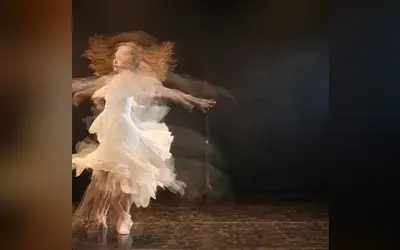 Time StackShows delayed copies of a moving video clip at once, like a long-exposure photo of a dance.
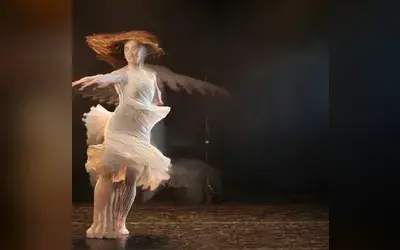 Motion TrailsLeaves fading light streaks behind everything that moves, like a dancer turning under a spotlight.
Which one?
Section titled “Which one?”| Look | Use |
|---|---|
| a performer in front of any background | Chroma Key |
| each part of the frame from a different moment | Slit Scan |
| echoes of a movement, like a long exposure | Time Stack |
| fading light streaks behind a moving performer | Motion Trails |
Time Stack and Motion Trails both leave copies of a movement behind. Time Stack shows whole earlier frames at fixed distances in time, so you see distinct echoes of the figure, and it can reach back many seconds. Motion Trails keeps only what was lighter than the picture now and lets it fade and soften frame by frame, so you see light streaks, not repeated figures; it needs no frame memory and can take a colour of its own.
The shared idea
Section titled “The shared idea”Time Stack and Slit Scan read the past. Both are built around one node, Sample Past Frame: it reads the clip at the same spot a number of seconds earlier (its Delay input). They differ only in how they choose that delay: Time Stack gives every copy its own, Slit Scan every pixel. Their pages show the recipe: Time Stack and Slit Scan.
Motion Trails works the other way round: it does not read the video’s past but builds every frame on its own last picture, so its streaks grow while the clip plays and start again after a jump.
Technical details
Section titled “Technical details”Time Stack and Slit Scan need a video clip, not a still or a nested composition, and read the past from the video itself. The first load of their frames takes a moment; the export waits for the exact frames. Each keeps its frames in a GPU memory budget of its own.
Developer notes: Effect system: Keying & Time notes.