
Stick Figure
A posable stick figure for choreography sketches, storyboards and animated characters. It draws its own picture over the clip; on a Blank clip only the figure shows.
Group: Generate · How to add an effect
Use it for: blocking a choreography before the first rehearsal · a storyboard figure over a shot · a small animated character or a sign-like pictogram.
- Pose – one angle per joint; the Pose library sets whole poses.
- Actions – Walk, Run, Jump, Punch and more on the figure’s own lane.
- Scale, Line Thickness, Head and Color – the look.
- Ground – keeps the feet on the floor while the figure moves.
Tip: add a Blank clip, put Stick Figure on it, pick Walk under Add in the Actions section and press At playhead: the figure walks off from there. Several figures on their own clips make a scene.
Presets
Section titled “Presets”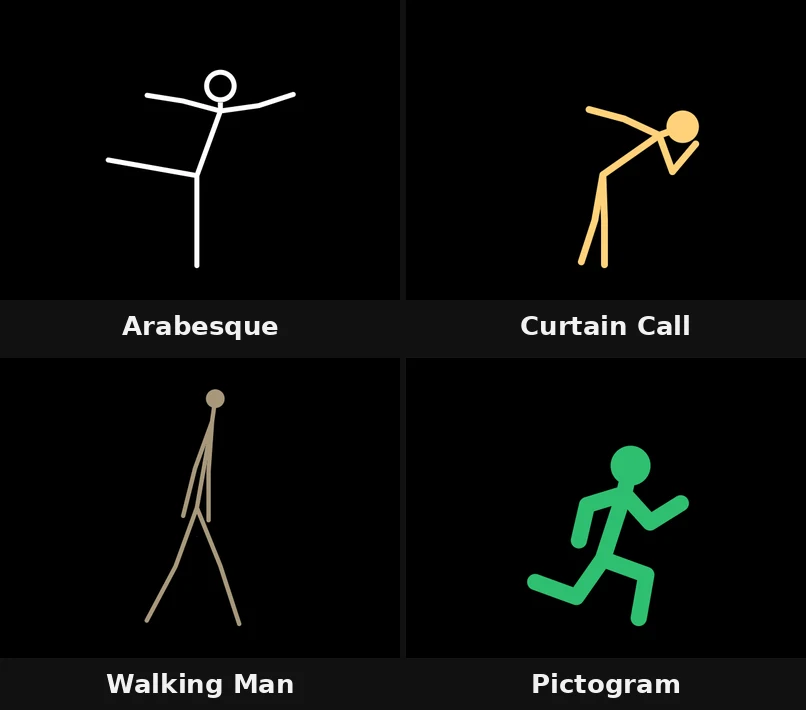
Pick one in the Preset row of the effect card. It sets the whole figure at once, pose, proportions, line and colour, in one undo step, and the row then shows its name until you change something. Every other control returns to its default too, so a preset also makes the figure fully opaque. Where the figure stands (Pelvis X and Y, Ground and Ground Y), its Scale and its Facing stay as you set them, so you can place the figure on its floor first and then try presets: the new pose stands on the same floor. The action lane stays as it is, and a joint with keyframes keeps them; the card says so.
Arabesque – a dancer on one straight leg, the other stretched far behind, one arm stretched forward at head height and the other out behind, drawn in thin white lines with a ring head. A clean starting point for dance sketches.
Curtain Call – a deep bow in warm gold, one hand at the chest and the other arm swept back. For the end of a scene, a thank-you, or a title card.
Walking Man – long, thin limbs and a small head in mid-stride, in bronze grey. It reads like a sculpture more than a cartoon; quiet and serious on a dark stage.
Pictogram – the running figure of a sign: bold green lines and a big round head. For graphic, signage-like looks and anything that should read from far away.
Controls
Section titled “Controls”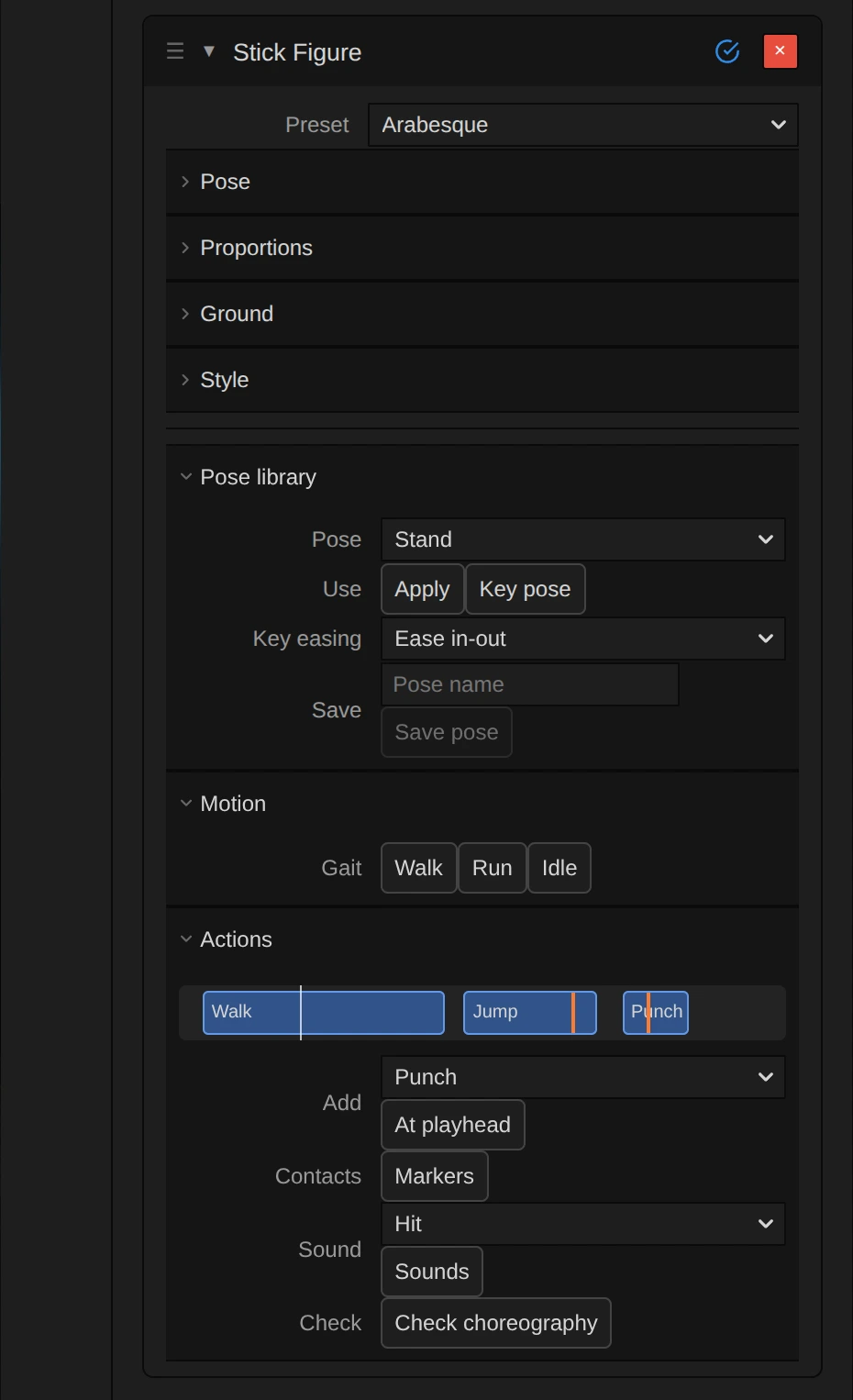
Preset – sets the whole figure at once to one of the looks above.
The card has two halves. Pose, Proportions, Ground and Style describe the figure: every row has a slider, a keyframe diamond and a reset arrow, and nodes can drive it. Pose library, Motion and Actions move it: they set keyframes, add nodes or play short actions on top.
Angles are in degrees. Lengths and positions are in figure pixels: pixels of a 1080 px tall frame, so the figure keeps its size on a 4K export or a small preview. The figure is seen from the side and faces right; L and R simply name its two arms and two legs, which are drawn alike.
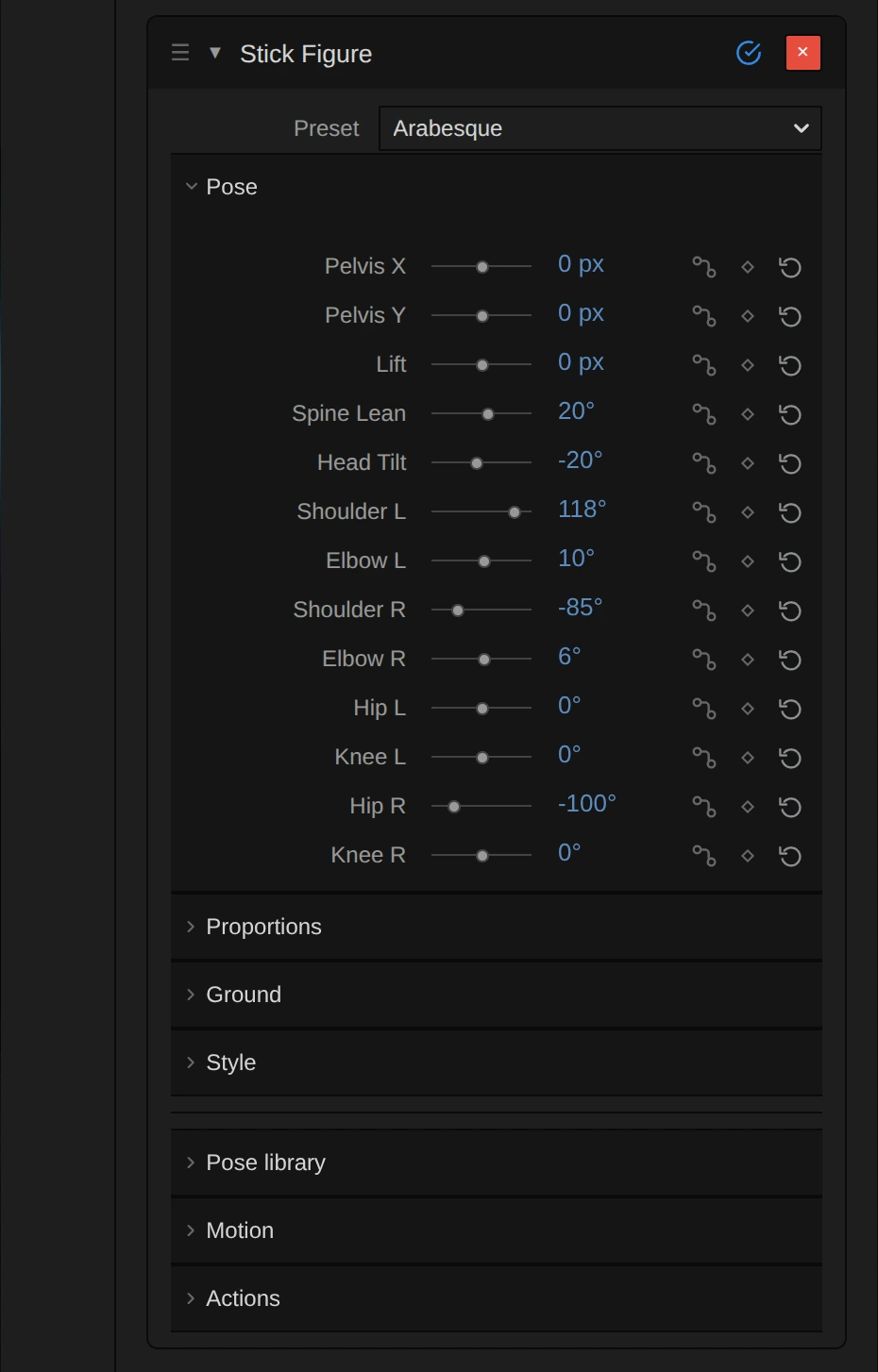
Pelvis X – where the figure stands across the frame: 0 is the middle, negative values move it left, positive right; about ±960 reaches the edges of a 16:9 frame. Facing mirrors the figure around this point, and Walk and Run add their distance to it. −2000 to 2000 px, default 0 px.
Pelvis Y – moves the pelvis up (negative) or down. With Ground on Plant lowest point the feet always stand on Ground Y, so Pelvis Y does nothing there and the card says so; it acts with Ground Keep above ground (only upward) or Off. −2000 to 2000 px, default 0 px.
Lift – raises (negative) or lowers the whole figure after it has been put on the ground, so a planted figure can still jump: −100 is a hop of about a third of its height. Keyframe it for a leap, or let the Jump action do it. −2000 to 2000 px, default 0 px.
Spine Lean – tilts the upper body forward (positive) or back around the pelvis; head and arms go with it. 10–20° is an eager walk, 45–60° a bow, 90° lays the body flat. −180 to 180°, default 4°.
Head Tilt – nods the head forward (positive) or lifts the chin (negative), on top of the spine lean. −180 to 180°, default −4°.
Shoulder L – swings the first arm from hanging along the body: positive forward, 90° points it straight ahead, 150–180° up over the head; negative swings it back. It is measured from the body, so the arm leans with the spine. −180 to 180°, default 30°.
Elbow L – bends the forearm forward from the straight arm: 90° is a right angle, 120° and more brings the hand to the chest. Negative values bend it the wrong way. −180 to 180°, default 35°.
Shoulder R – the same for the second arm. Opposite values, such as 40° and −40°, swing the arms in opposition, like in a walk. −180 to 180°, default −25°.
Elbow R – bends the second forearm, like Elbow L. −180 to 180°, default 20°.
Hip L – swings the first leg from hanging down: positive forward, 90° lifts it level in front; negative swings it back, −90° to −100° is the leg of an arabesque. −180 to 180°, default 16°.
Knee L – bends the lower leg backward, like a real knee: 20° is a relaxed step, 90° a right angle, 120° a deep crouch. −180 to 180°, default 18°.
Hip R – swings the second leg, like Hip L. −180 to 180°, default −12°.
Knee R – bends the second knee, like Knee L. −180 to 180°, default 6°.
Proportions
Section titled “Proportions”Torso – the body from the pelvis up to the shoulders. A short torso with a big head reads childlike, a long one elegant. 0 to 400 px, default 110 px.
Neck – from the shoulders up to the chin; 0 sets the head right on the shoulders. 0 to 200 px, default 14 px.
Head Radius – the size of the head. 26 gives a head of 52 px; 32 and more looks cartoonish, 15 small and sculptural, like Walking Man. 0 to 200 px, default 26 px.
Upper Arm – from the shoulder to the elbow. 0 to 400 px, default 62 px.
Forearm – from the elbow to the hand. 0 to 400 px, default 58 px.
Thigh – from the hip to the knee. Thigh and Shin together, 144 px by default, make a figure about 320 px tall: under a third of a 1080 px frame. 0 to 400 px, default 74 px.
Shin – from the knee to the foot. 0 to 400 px, default 70 px.
Line Thickness – how wide the lines of the limbs (and of a ring head) are. 4–8 looks drawn with a pen, 12 is the default marker line, 26 a bold pictogram. Lines never get thinner than one pixel: below that the card says they are drawn as a hairline. 0 to 100 px, default 12 px.
Scale – sizes the whole figure: every length and the line thickness. 2 doubles it, 0.5 halves it. Positions (Pelvis X and Y, Lift, Ground Y) stay where they are, and actions you add travel and jump in proportion. 0.05 to 5, default 1.
Ground
Section titled “Ground”Ground – how the figure meets the floor. Plant lowest point stands its lowest point on Ground Y all the time, so a bent knee lowers the body and a walk bounces naturally. Keep above ground lets it float (with Pelvis Y or Lift) but never sinks it below the floor. Off hangs it from Pelvis X and Y. Plant lowest point, Keep above ground, Off, default Plant lowest point.
Ground Y – where the floor is, measured down from the middle of the frame: 144 puts the feet about two thirds of the way down a 1080 px frame, 540 on the bottom edge. Several figures with the same Ground Y stand on one stage floor. −2000 to 2000 px, default 144 px.
Facing – which way the figure looks: Right or Left. It mirrors the figure around its pelvis, and actions walk and punch the way it faces. Right, Left, default Right.
Turn – a turnaround you can keyframe: 1 shows the figure as Facing says, −1 turned around, and the values between squash it flat, as if it turned on the spot (0 is a thin line). Keyframe it from 1 to −1 over a few frames for a quick 2D turn. −1 to 1, default 1.
Head – a Filled disc or a Ring: an outline as thick as the lines. A ring keeps its opening even with thick lines, by growing outward. Filled, Ring, default Filled.
Color – the colour of the lines and the head. White reads best on black; a grey or a soft colour makes a quieter figure, and Opacity fades it: a colour, default #ffffff.
Opacity – how solid the figure is; 0 hides it. Keyframe it to fade a figure in or out. 0 to 1, default 1.
Pose library
Section titled “Pose library”Pose – a pose to use: Stand, Fight Stance, Run Contact, Run Passing, Crouch, Jump Air, Punch, Kick, Duck, Throw Wind-up, Hit React, Fall or Wave, and below them the poses you saved. 13 built-in poses and the poses you saved, default Stand.
Use – Apply sets every joint to the pose; a joint with keyframes gets a key at the playhead instead. Key pose keys every joint at the playhead, so poses blend over time: key one pose, move the playhead, key the next. Apply or Key pose, default none.
Key easing – how Key pose blends into the next keyed pose: Ease in-out starts and lands softly, Linear moves evenly, Ease in starts slowly, Ease out lands softly. Ease in-out, Linear, Ease in, Ease out, default Ease in-out.
Save – type a name and press Save pose to keep the pose shown at the playhead, keyframes and nodes included, in this browser’s library; Delete removes a saved pose again. A name and Save pose, default empty.
Motion
Section titled “Motion”Gait – Walk, Run or Idle connects a Gait Cycle node to every joint, in one undo step: the figure walks, runs or breathes on the spot, its body bouncing with the legs. It does not travel; for steps that move across the stage, add Walk or Run on the action lane. Walk, Run or Idle, default none.
Actions
Section titled “Actions”Action lane – the figure’s own lane along its clip, with one block per action. Drag a block to move it; with the keyboard, Tab to it and use the arrow keys (Shift for bigger steps). The orange tick in a block marks its contact: the moment of impact, release or landing. A selected block shows Start, Duration, Strength, Aim at for strikes, and Delete. One block per action along the clip, default empty.
Add – choose an action and press At playhead. Walk and Run travel forward the way the figure faces, Jump lifts it off the ground, Punch, Kick, Grab and Throw strike, Duck ducks, Hit React staggers back, Land lands from a jump, Idle breathes, and Fall ends lying on the floor until the next action. Actions blend into each other and over your keyframed pose. Idle, Walk, Run, Jump, Punch, Kick, Duck, Hit React, Throw, Grab, Land or Fall, then At playhead, default Punch.
Start – where the selected action begins, in seconds of the clip. 0 s to the clip length, default the playhead.
Duration – how long the selected action takes. A Walk stretched to 4 s covers the same distance at half the pace. 0.05 to 10 s, default the action’s own length.
Strength – how far the action departs from standing: 0.5 is a half-hearted punch, 2 an exaggerated one; it scales the height of a jump too. 0 to 2, default 1.
Aim at – for Punch, Kick, Grab and Throw: a joint of another Stick Figure. Around the contact the striking arm or leg bends to reach it, so a fight stays on target when you move a figure. A joint of another Stick Figure, or No target, default No target.
Contacts – Markers puts one timeline marker on every contact of this figure, for effects that flash or shake on a hit. Markers, default none.
Sound – choose a sound and press Sounds: a MIDI track with one sound on every contact. One of the SFX sounds, then Sounds, default Hit.
Check – Check choreography lists feet in the floor, strikes that miss, joints that snap round too fast, actions that overlap and bodies passing through each other; click a time to jump there. Check choreography, default none.
Node setup
Section titled “Node setup”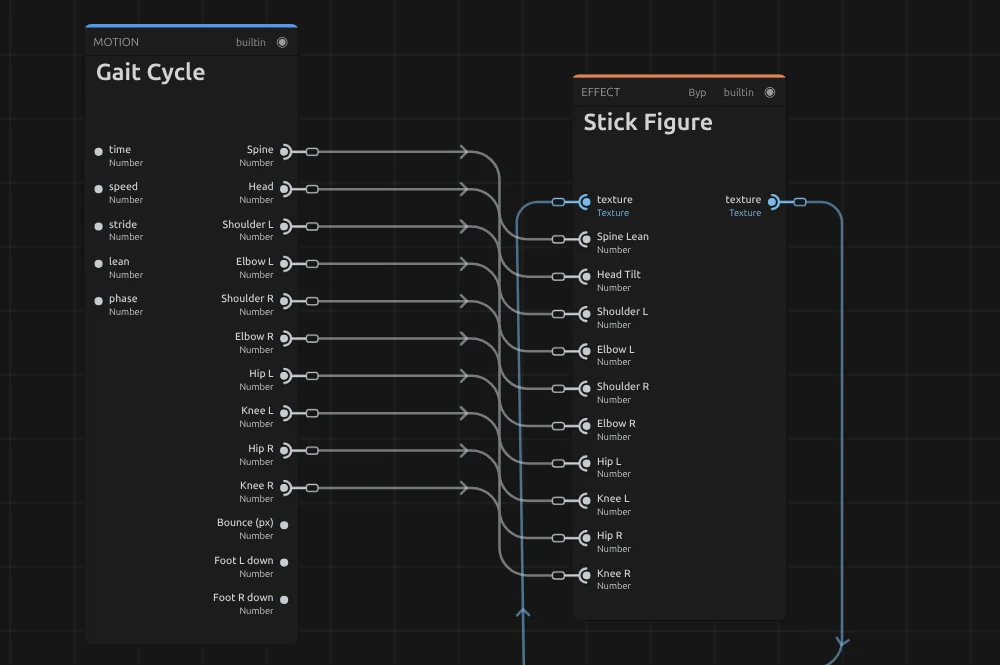
The figure itself is drawn in one built-in step, so there is no graph inside it to open. Instead every number of the card is an input that a node can drive. Walk, Run and Idle under Motion build the most common setup:
Gait Cycle – a walk, run or breathing cycle as numbers: one angle per joint, named like the card rows (Spine to Knee R), plus Bounce and Foot L/R down. Its inputs shape it: speed in cycles per second (1 for Walk, 1.6 for Run, 0.3 for Idle), stride (how far arms and legs swing), lean (added to the spine) and phase (where in the cycle it starts). It runs on the clip’s time, so scrubbing and the export match.
Stick Figure – takes each joint as an input. A connected joint follows the node instead of its slider, keyframes and actions; Ground Plant turns the leg swing into the body’s bounce.
Remix: select the Gait Cycle card and raise its Stride from 1 to 1.6: the same walk turns into long, striding steps. A Lean of 15° makes it hurried.
Other rig nodes work the same way: Limb IK bends an arm or a leg so the hand or foot reaches a point, Attach to Joint lets another clip ride on a hand or a foot, and Ballistic throws something along an arc. How they work: Stick figures and rig nodes.
Technical details
Section titled “Technical details”- Units. Angles in degrees; they turn freely, so a keyframe from 0° to 360° is a full turn and values beyond ±180° keep their direction. Lengths and positions in figure pixels of a 1080 px tall frame, scaled with the resolution.
- Drawing. The joints are worked out on the CPU and drawn on the GPU as rounded lines with a one-pixel soft edge. Actions and nodes are plain functions of the clip time, so scrubbing, playback and the export show the same pose.
- Transparency. The figure is drawn over the clip; on a Blank clip only the figure remains, with soft edges, ready to lay over other footage.
- Limits. Positions and lengths stay within ±100 000 figure pixels, also after Scale. The card and the tool results,
createRigincluded, say when a value is clamped, when lines are thinner than a pixel, when Pelvis Y cannot move a planted figure, and when the whole figure lies outside its layer. - Travel. Actions add their travel to Pelvis X in the facing direction and keep it afterwards. Actions you add now travel and jump in proportion to the figure’s legs and Scale, measured where each action starts, so a Scale keyframe after a finished walk does not move the figure; action lanes from older projects keep their distances in pixels. With Ground Plant, the feet of Walk and Run slip a little on the floor.
- Saved projects. Figures saved before the walking stance keep their saved pose; a figure without pose values shows the rig’s rest pose.
- More: Node Workspace · Effect system · Styles and presets.