
Phone Editor
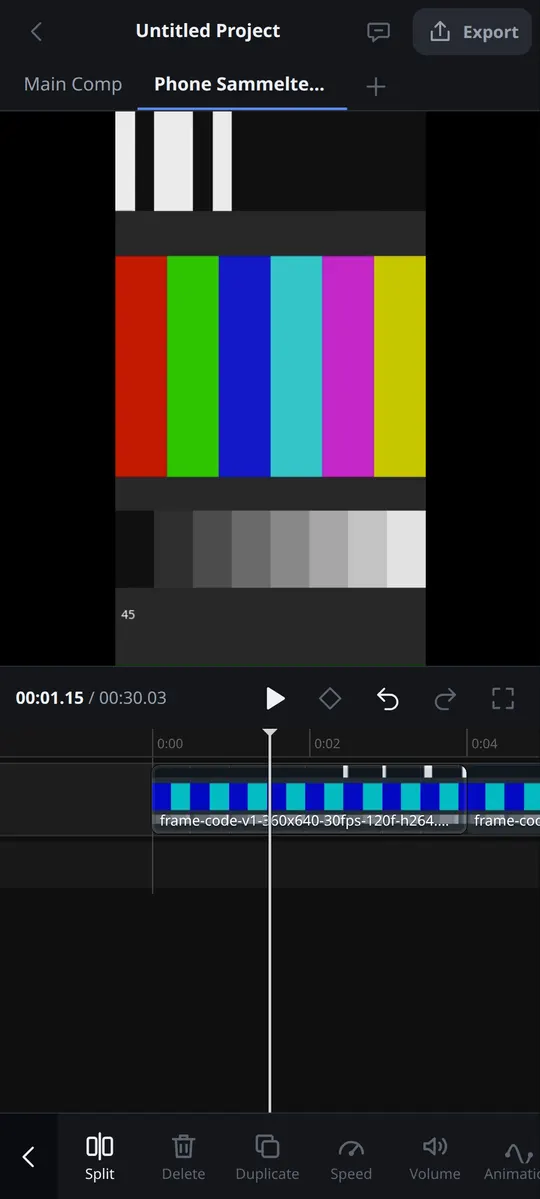
Open masterselects.com on your phone and the phone editor opens by itself, made for your thumb (the address is masterselects.com/m). It is the same editor underneath: the same timeline, effects, undo history and projects as on the desktop. A project you start on the phone opens unchanged in the full editor, and the other way round. Tablets and computers keep the full editor.
Start or reopen a project
Section titled “Start or reopen a project”The home screen opens when no project is open, and any time you tap Projects (top left).
- New project asks for a name and a canvas: 9:16 (preselected), 16:9, 1:1 or 4:5. It creates the project with its first composition at 1080 px on the short side (9:16 is 1080 × 1920), 30 fps. The canvas is part of the new project itself, so Undo never turns it back into 1920 × 1080. It is stored in the browser, with no folder dialog (also on Android, whose browser has one).
- Recent projects lists the projects stored in this browser, most recent first. Tap one to open it.
- Open a project folder (where the browser can pick folders) opens a project saved in a folder.
- Import project file opens a
.msprojarchive from your phone. - Tap the project name in the top bar for the project sheet; the small status next to it tells you where the project is stored and warns when the browser may delete it.
While a project starts, opens or imports, a full-screen loading view names it, says the current step (Waiting for folder access, Opening, Creating, Reading project, Preparing editor), shows a progress bar and, after 5 s, the time so far. Nothing of the editor shows through it.
Closing the browser does not lose anything: reopen /m and the last project comes back with the same timeline. When the browser asks for access to the project folder again after a restart, a Last project card at the top of the home screen reopens it with one tap.
Switch to the full editor
Section titled “Switch to the full editor”Full editor on the home screen and in the project sheet saves the project and opens it in the full editor with every tool. The phone remembers that choice. To come back, tap Mobile in the bottom bar of the full editor. Mobile opens the phone editor on every device, computers and tablets too; Layouts → Phone editor does the same. Both save the project first. While an export is running, both wait and tell you why. The full editor’s old Mobile dock layout is switched off, so it no longer turns itself on in narrow windows or on tablets.
MasterSelects installed as an app (from the browser’s install button) stays in the full editor on a phone, because the installed app covers only the full editor’s address.
The editing screen
Section titled “The editing screen”The screen has five strips:
- Top bar – projects, project name, assistant and export; a glowing Update button when a new version is ready (App updates).
- Preview – the real picture of your composition. It stays visible while you work, also above an open sheet.
- Transport – time, play, undo and redo.
- Timeline – the playhead stays fixed in the middle and the clips move under it.
- Tools – with nothing selected the main tools, with a clip selected that clip’s tools.
Swipe across the timeline to scrub; the preview shows the frame under the playhead. Pinch with two fingers to zoom; the frame under the playhead stays put. Tap a clip to select it and tap empty space (or the clip again) to deselect.
Cut a story
Section titled “Cut a story”- Add media: Media opens the phone’s file picker for videos, images and audio. Several files land on the main track in the order you picked them, as soon as each one’s first picture is read (a 30 MB, 15 s recording on a Pixel 10 Pro: about 0.4 s from Add to the clip). The copy into the project, which lets the project reopen after a reload, then runs in the background (about 1.3 s for that recording): a Copying into project note shows it and goes away once the copy is stored (no success message; taps on the note reach the editor underneath), the clip switches to the project copy when it is stored (with several files, right after the whole set is added; Undo and Redo keep it), and a failed copy is reported there (the clip then works only until the page reloads). Leaving or reloading the page while a copy runs asks first, because a picked phone file cannot be reopened afterwards. Opening or creating another project waits for the copy to finish (Finishing the copy into the current project on the loading screen, with the size left), so the clip does not go offline in the project it was added to. After 8 s the loading screen offers Continue without it: the switch goes on and the unfinished files are reported to pick again. Android does not ask when a tab is swiped away or discarded; the project notes a running copy, and on reopen Copy into project interrupted names the files to pick again.
- Trim: select a clip and drag the handles at its ends; the preview shows the new first or last frame.
- Split: with the playhead inside the selected clip, Split cuts it there.
- Move and reorder: long-press a clip and drag it. Reorder in the clip tools reminds you.
- Delete removes the selected clips and leaves a gap. Delete & close gap removes them and pulls everything after them forward. They are two separate commands on purpose: nothing shifts your timing unless you ask for it.
- Duplicate copies the selected clips right behind themselves.
- Text: with nothing selected, Text opens a sheet with a line above the keyboard and adds the title at the playhead. Cancel adds nothing.
- Undo and redo take back every step above, one at a time.
Sheets (media, text, export, projects) rise from the bottom with Cancel and Done. Cancel throws the draft away and never changes your project; Done commits it as one undo step. A sheet is only as tall as its content, and the transport (play, time, keyframe, Undo, Redo) stays docked right above it, so the preview keeps the rest of the screen. While a sheet holds changes, Undo and Redo wait for its Done or Cancel: they look greyed, and a tap says so. A sheet whose tab or section you open later grows to show it. Drag the grab handle (or the sheet’s header) to make it smaller or taller, tap it to switch sizes, or drag it down to close; the sheet keeps that size until the page reloads. A tap on the top bar also closes it, a touch on the preview never does. Rows of choices that do not fit scroll sideways: the cut edge fades out, and the selected choice is always scrolled into view.
Design your video
Section titled “Design your video”Every design tool opens as a sheet under the preview, so you see each change live. Cancel throws the change away and leaves your project exactly as it was; Done keeps it as one step you can undo.
Effects, filters and colour: select a clip and tap Effects to browse every effect of the editor by group, or search for one, and tap a card to add it. Each Effects and Filters card shows the effect on your current frame (on a colourful sample picture when no clip is under the playhead). Effects that change nothing at their defaults, such as Brightness or Saturation, show a clear example strength on the card; adding one still starts at its defaults. Your clip’s effects are listed above the cards: switch one off, move it up or down, remove it, or drag its slider to set its main value. With nothing selected, Effects adds an adjustment layer at the playhead that changes everything below it (every effect except the few that need a clip of their own, such as Slit Scan or the tracking effects). Filters puts one look on the clip, with Strength to make it subtler and None to remove it. Adjust changes the colour: tap a tile (Brightness, Exposure, Contrast, Saturation, Temperature, Tint, Highlights, Shadows and more) and drag the slider; Reset and Reset all go back to the defaults. Select an adjustment layer and Effects, Filters and Adjust all work on it: they change everything below the layer, in the preview and in the export. Something an adjustment layer cannot do (a move or scale, 3D, a crop rectangle, a transition) is left out and named in the Effects sheet and in the export sheet; the rest of the layer still renders and the export finishes.
Transitions: wherever two clips meet on a track, the timeline shows a small square at the cut. Tap it, pick a transition (Dissolve, Wipe, Slide and more) or None, and set its length. Apply to all cuts gives every cut on that track the same transition. A square turns solid once its cut has one.
Speed: select a clip and tap Speed. Under Normal, drag the slider (0.1x to 10x) or tap a preset; the clip gets shorter or longer on the timeline. Keep pitch keeps voices natural and Reverse plays the clip backwards. Under Curve, a preset such as Speed up or Slow middle changes the pace inside the clip and keeps its length.
Sound: select a clip and tap Volume for its level (silent to +18 dB), Mute, Fade in and Fade out; on a video clip it changes the video’s own sound. With nothing selected, Audio adds Music & sounds from your phone at the playhead, records a Voiceover with your microphone, or Extracts the audio of the video under the playhead into its own clip.
Text style and animation: in the Text sheet, the tabs above the text row set the font, size, colour, outline, shadow and alignment while you type. To change a title later, select it and tap Edit text. Animation brings a clip In, takes it Out, does both (Combo) or builds a title letter by letter (Reveal); the slider sets how long it takes. The presets are ordinary keyframes, so they open unchanged in the full editor.
Keyframes: select a clip, move the playhead and tap the diamond in the transport. It keys the clip’s position, size, rotation and opacity there and fills while you stand on a keyframe; tap it again to remove those keys. Keyframe in the clip tools lists the animated properties, jumps to the previous or next key and deletes one.
Mask, crop and canvas: Mask cuts the clip with a shape (Linear, Mirror, Circle, Rectangle, Star, Heart) with position, size, angle, Soft edge and Invert. Crop & transform crops to a ratio or edge by edge, and moves, scales, rotates, fades or flips the clip; Fit and Fill size it to the frame. With nothing selected, Overlay puts a photo or video on top of your picture at the playhead as a picture in picture, and Format changes the whole canvas (9:16, 16:9, 1:1, 4:5, 4:3, 21:9) while keeping every clip in proportion.
Export and share
Section titled “Export and share”Export (top right) opens the export sheet for the composition at 1080p. It needs at least one
clip; without a clip it says so. You see a summary, a progress bar and Cancel. When the file is
ready, Share hands it to the phone’s share sheet (navigator.share with the file) and Save
downloads it; phones without file sharing offer Save.
Advanced picks any format MasterSelects can write: MP4 or WebM (H.264, HEVC, AV1, VP9), MOV ProRes or DNxHR (they load the FFmpeg encoder first, which is slow on a phone), GIF, an image sequence as ZIP, a single PNG, JPG or WebP of the frame under the playhead, or sound only as WAV, MP3 or AAC. Set the resolution, frame rate, quality or an exact bitrate, and the range: the whole edit, your in and out marks or the selected clips. Presets are shared with the desktop export panel, and All options opens the desktop panel itself. Batch queue exports several media files one after another, retries the ones that failed, and saves or shares each result. Keep rendered part stops a running video export early and keeps what is rendered so far.
A video export decodes your recordings with the phone’s own video decoder. On Android it keeps only as many decoded pictures as that decoder can hand out, so it does not wait seconds for each picture (Export: decoder surface budget).
Tip: a greyed-out tool is not hidden on purpose. Tap it: it tells you why it does not work on a phone. The same project always opens in the full editor (tap the project name, then Full editor).
Pro tools
Section titled “Pro tools”The pro tools open as sheets like the design tools, with the same rule: Done keeps your changes as one undo step, Cancel throws them away.
Compositions: tap the stack icon at the left of the composition tabs to see every composition and switch between them. New composition asks for a name, format, frame rate and duration; More renames, duplicates, changes settings or deletes one (it always asks first and never deletes your last composition). Select clips and tap Nest to move them into a new composition that takes their place; Enter opens a nested one and the back arrow in the top bar takes you out again.
Tracks, markers and trimming: with nothing selected, Tracks adds video, audio and MIDI tracks, hides, mutes, solos or locks them, and under More renames, recolours, resizes, reorders or deletes them and sets an audio track’s level and pan. Markers adds a marker with a label and colour at the playhead; tap one to jump to it. With a clip selected, Trim modes gives you ripple trim to the playhead, roll, slip and slide in frame steps, close gaps and link or unlink picture and sound. Replace swaps the clip’s footage and keeps everything you did to the clip. All settings opens every property of the selected clip.
Timeline tools: under the timeline, the magnet turns snapping on or off (to clips, playhead, markers and the beat grid), In and Out mark the export and loop range, and the metronome clicks while you play (never in the export). Timeline in the tools opens Snap, Range (nudge, loop, clear, bake the range, compare alternatives), Tempo (tempo, time signature, tempo changes, metronome) and View (focus, thumbnails, waveforms). With a clip selected, Details shows its source and timing, colours its source, renames MIDI clips and storyboard scenes, and gives it a parent clip, parent track or new null object. Bake pre-renders a clip for smooth playback. Compare alternatives plays the versions A, B and C the assistant built for a range, and Accept keeps one.
Copy & paste, looks and titles: select a clip and tap Copy & paste to copy its effects, colour grade and animation, then tick the clips to paste onto and tap Paste. Effects and Adjust reach the same sheet (Copy or paste effects, Copy or paste colour); in Keyframe, Select picks keys to copy, delete or paste at the playhead. Save as look in Effects stores a clip’s effect stack under Filters → Saved on this device. Style titles changes size, colour, bold, italic, alignment, outline or shadow of several titles at once. In a transition, Edit transition content opens its own composition for every phone tool and Edit in Nodes its node graph.
Captions: with nothing selected, tap Captions. Generate lists every clip with speech; Transcribe runs on your phone for free (On this phone) or with an online provider for an account with credits. Signed out, the online providers are greyed and never shown as chosen; a Sign in link and Transcribe on this phone sit right there. Words fixes a typo or cuts a word from picture and sound; Style and Timing set the look, how many words a caption shows and how long it holds.
Audio effects: select a clip with sound and tap Audio effects. Add an effect, drag its main slider, switch it off, reorder or remove it; All parameters opens every setting. Clean up normalizes the level or removes silent parts, and AI separates stems or opens AI Studio.
Library and settings: Library shows all media of your project with thumbnails, folders, labels and details. Source monitor (on an item, or under All tools) plays a file frame by frame, sets In and Out and places the part with the editor’s own modes: Insert, Overwrite, Append, On top, Replace, Fit to fill or Ripple overwrite. Jobs lists imports, proxies, waveforms and analyses with their progress; an item can save or share its original file, and Paste brings in a copied picture, file or video link. Import, move, duplicate or delete several items at once; before deleting, it tells you which clips use an item, and one Undo brings everything back. Missing media show up in red and one tap relinks them. Web sources searches YouTube, Instagram or TikTok, and Storage and sequences imports numbered 3D model or splat files as one item. Tap the project name, then Settings, for the theme, the transcription provider (a hosted one stays marked but greyed while you are signed out: Captions then waits until you sign in or choose On this device), Touch and input (a ring under every finger for screen recordings), Assistant, Integrations, your account, the version and a cache reset that says exactly what it clears. Diagnostics also lists the Recent project loads since the page loaded: each open, create or save with its time per step in seconds, the first frame after loading and the longest screen freeze, slow ones (5 s and more) highlighted, ready for a screenshot. Help installs MasterSelects as an app, opens the legal pages and the chat with the developer, and shows the welcome again.
Project tools: the project sheet can Duplicate the project and keep working in the copy, save and restore named Versions, and Export .msproj to share or save the whole project. Storage moves other temporary projects into permanent storage. Save to a folder writes a complete copy with its media into a folder you pick (picking it again adds only what changed); in a browser without a folder picker it stays greyed with that reason.
Speed, effects and transitions, in depth: Freeze frame holds the frame under the playhead and Fit to a length sets the speed from the seconds you type. All parameters in the effects sheet opens every setting of the clip’s effects, and Settings and offset in a transition its direction, softness and offset. Wherever a landscape editor does the job better, the sheet hands over: Edit curve points opens Curves, Track and master effects the Mixer, Edit notes the piano roll and Wheels in Adjust the Colour editor. Audio → Beats puts the clips of a video track on every beat of a music clip.
Preview handles and view
Section titled “Preview handles and view”Tap a clip, then drag it on the preview to move it, pinch to resize and twist two fingers to rotate. Its frame shows while your fingers are on it and snaps to the frame edges, the centre and your guides; each gesture is one undo step. View beside the picture (or All tools → Preview view) turns the handles or snapping off, resets the position, shows pixel rulers, adds or clears guides, switches between Fit and 1:1, and compares before and after: the clip without its effects left of a line you drag, the edited version right of it. Exports never contain the compare. All tools → Shape path draws a free line with your finger as a Motion Design path; keyframe its Reveal for a line that draws itself.
Sound range, recording and notation
Section titled “Sound range, recording and notation”Select a clip with sound and tap Sound range (also under Audio → More audio tools). Drag across the waveform to select part of the sound, or switch to Move range to slide or resize it. The tabs then split, cut, copy and paste the range, change its level or fades, insert or delete silence, reverse it, swap or fold channels, add a filter, compressor or gate, and repair hum, clicks or loudness or fill the range with the clip’s room tone. Stack lets you listen to the edited or original range and bypass each edit. In Audio → Voiceover, Record a range records only between a punch-in and a punch-out time, and Rescue recordings brings back an interrupted take. Notation opens the score editor with touch keys for notes, chords, rests and stems; with a score clip it fills the sheet, without one it offers Add a score clip. Score clips do not sound in the timeline or export yet.
All tools and desktop panels
Section titled “All tools and desktop panels”All tools in the main toolbar lists everything the phone editor can do; type to search. An entry opens a toolbar tool, a pro sheet, the fullscreen preview or a desktop panel such as Properties, Media, Export, History, AI Studio or Go Live. A panel opens in a tall sheet under the preview and works as on the desktop, with the same undo history; All tools at its top takes you back. The fullscreen button next to Undo shows your edit on the whole screen; tap the picture or use the back gesture to return.
Landscape editors
Section titled “Landscape editors”Tap Editors in the main toolbar and pick Nodes, Mixer, Multicam, Piano roll, 3D scene, Curves, Colour or Output; each entry has its icon and a rotate mark. The editor opens full screen; turn the phone sideways for room (the rotate button in its top bar reminds you). Back in its top bar, or your phone’s back gesture, returns to the timeline, and Undo and Redo sit in the same bar. Each side panel folds away with the arrows in the bar or a swipe on its edge grip and leaves a thin rail with its name; tap it or swipe inward to bring it back. The editor remembers your choice, also after a reload. A Properties side you have not touched stays folded while no clip is selected and opens once you select one. A Preview side panel shows its source and Edit controls in a row above the picture, and on a narrow panel its transport keeps Play, the frame steps and the time; In, Out, Loop and the edit jumps stay in the timeline’s transport.
- Nodes: the graph opens zoomed to fit and centred, and fits again after a rotation or a side panel change, until you move the view yourself. Drag empty canvas to move, pinch to zoom, drag a node to move it, drag between ports to connect. Add inserts nodes and effects, Delete removes the selection, Fit shows the whole graph, and ⋯ holds the other tools (Previews, Signals, Lines, Avoid, Compact, Arrange, Reset). A tap on a clip node opens its lane; the inspector opens from the tab on the right edge.
- Mixer: drag any fader with a finger (you need not hit the cap), drag Pan, tap Mute, Solo, R, In, FX or Send, and swipe the strips sideways; the master stays in place and shows LUFS, true peak and the loudness verdict on two lines.
- Piano roll: edits the selected MIDI clip, or lists the composition’s MIDI clips and creates one. Draw, move and resize notes with the Pointer, remove them with the Eraser, frame them with Select. Two fingers zoom time sideways and pitch up and down. Each drag is one undo step.
- Colour: the Primaries wheels, Exposure, Custom Curves and colour keys in the middle, the scopes on the left and the colour node graph on the right. Each drag, reset or node change is one undo step.
- Multicam: tap Multicam to turn a composition with one camera per video track into a multicam edit, then tap a camera to cut to it at the playhead. If nothing happens, a note says why. Every tile is labelled with its number and source, and the tiles fill the screen in the row or grid that shows each picture largest (four portrait angles side by side in landscape).
- 3D scene: tap an object or its layer, drag the Move, Rotate and Scale handles with a finger, drag the empty scene to orbit, pinch to zoom and move two fingers together to pan.
- Curves: tap near a keyframe to select it, drag it or its Bezier handles, drag the empty graph through time; two fingers side by side zoom time, one above the other make the curves taller.
- Output: projector outputs. On the left add outputs and choose what each shows (the active composition, a fixed composition or a slot); in the middle the output’s real picture; on the right its slices and masks. Drag the corner handles to pick the source region (Input) and pin it onto the stage (Output); a mask blacks out its inside or outside. Done saves the mapping for the desktop Output Manager (a save, not an undo step); Cancel or Back discards it. A phone cannot drive a projector, so Open on display stays greyed: open the mapping from the full editor.
Assistant
Section titled “Assistant”The speech-bubble button in the top bar opens the assistant: the same MasterSelects chat as on the desktop, in a tall sheet with the preview above it. Ask for an edit in your own words (“cut the pauses”, “add a title that says Berlin”); every change is a normal step on the timeline. Under All tools → Assistant, each “Ask the assistant: …” entry puts a prepared request into the field without sending it.
- Fast, Medium or Slow at the top picks the model; the choice is remembered.
- The line below shows your account: signed out (Sign in), guest, no credits (Get credits) or your credit count. Editing by hand always keeps working.
- While a request runs, a live line shows what the assistant does and Send becomes Stop. You can close the sheet and keep editing; the request keeps running.
- Every answer lists the tools it used, each with Done, Failed or Running and a short result.
- A request is one undo step, however many tools it used: Undo this request or one Undo in the transport takes it back. An edit you make while it runs stays and splits it there.
- When the assistant built three versions, you can watch A, B or C and keep one. New starts a fresh conversation.
Draw a mask with the pen
Section titled “Draw a mask with the pen”Select a clip, tap Mask, then Pen. Tap the preview to place points; keep your finger down and drag to bend the line into a curve. Tap the first point (or Close path) to close the shape. Drag a point to move it and its round handles to reshape the curve; Undo point takes the last point back and Clear starts over. Soft edge and Invert work on the pen path too, and the full editor shows the same mask. Edit as points turns a rectangle, circle, star or heart into points; Lock axis, Whole shape, Handles only, Snap handles, Straight edges and Align neighbours do what the modifier keys do in the full editor.
Accessibility and themes
Section titled “Accessibility and themes”Every control has a name for screen readers, and timeline clips read as “name, starts at …, … long”. A keyboard reaches everything: Tab moves through top bar, transport, timeline and tools in screen order; with a sheet open it cycles through the sheet and the transport docked above it (Play, Keyframe, Undo, Redo, Fullscreen), and Escape closes the sheet and returns focus. Buttons you tap often are at least 44 px, sheets open without animation when the system asks for reduced motion, and the phone follows the editor theme: it is light for Light, for System while the device is light, and for a Custom theme brighter than 50.
Android start
Section titled “Android start”Home, the project list, the timeline and the sheets work while the graphics engine is still starting. On an Android phone whose graphics took too long to start before, the next start opens your project first and starts the graphics afterwards, so you can begin sooner. A phone whose graphics adapter request timed out tries the compatibility path first next time.
Milestones
Section titled “Milestones”M0 proved touch and speed, M1 brought the story cutter and M2 the design tools. M3 added the pro sheets, All tools and the desktop panels, M4 the landscape editors, M5 the assistant out of beta and M6 completeness. Every feature of the plan’s catalog now has a place on the phone, with no open gap left. Whatever does not work on a phone stays visible, greyed, and explains itself on tap: downloading from a link (it needs the desktop helper), a second screen, the OptiX renderer, local Python models, showing a file in the file manager, saving to a folder where the browser has no folder picker, and reading text in pictures (MasterSelects has no OCR engine yet).
Technical details
Section titled “Technical details”- Entry: the path
/m(also/m/…) resolves to thephoneexperience insrc/routing/entryExperience.tsand loadssrc/components/mobileSkin/PhoneApp.tsxlazily, without the desktopApp. Before the first render,src/main.tsxsends phones from/and/editorto/m(src/routing/phoneEntry.ts): a phone is a device whose primary pointer is coarse and whose screen has a short side below 600 CSS px, so tablets and unfolded foldables stay in the desktop editor (its legacy Mobile dock layout is switched off instores/dockStore/legacyMobileLayout.ts).?test,?entry=editor,/medium,/chatand deep links below/editor/never move, and neither does the installed app (display mode standalone, fullscreen or minimal-ui), whose manifest scope is/editor. Full editor (project/phoneFullEditor.ts) saves and storesms.phoneEditor.preferFullEditorin localStorage; the desktop Mobile button (on every device) and Layouts → Phone editor (src/components/common/openPhoneEditor.ts) save, clear that choice and open/m. Both refuse while an export runs (services/project/editorSwitchGuard.ts). The Android app serves/mas an editor entry (EditorUrlPolicy.java). - Runtime:
runtime/PhoneRuntimeHost.tsxowns the singleuseEngine()anduseGlobalHistory(), mounts the playback and FlashBoard runtime hosts and restores the last project like the desktop toolbar.runtime/phoneEngineStartPolicy.tsdefers the engine until the project is open on an Android device whose adapter request stalled before; the adapter order and deadline come fromms.gpu.androidAdapter(src/engine/core/androidAdapterMemory.ts, see Debugging).runtime/phoneBootTimeline.tskeeps the boot marks onwindow.__MS_PHONE_BOOT__.runtime/PhoneProjectLoadingView.tsxis the opaque loading view for the operation inruntime/phoneProjectOperation.ts; background load steps and a failed load show asruntime/PhoneBackgroundLoadStatus.tsx. - Projects:
project/usePhoneProjectCommands.tscreates new projects and copies withstorage: 'browser'(OPFS or the browser storage fallback,withBrowserStorageProjectRoot), never with the folder dialog;project/phoneFolderProjects.tsopens project folders and resumes the pending one (home/PhoneHomeResumeCard.tsx). - Effect cards:
effects/PhoneEffectThumb.tsxrenders through the desktop look thumbnail runtime on the source fromeffects/usePhonePreviewSource.ts(the composition frame, or the sample picture ofeffects/phoneSampleFrame.ts);effects/phoneEffectPreviewParams.tslists the demonstration values for effects that are neutral at their defaults. - Diagnostics:
settings/phoneProjectLoads.tsformats the sanitized reports onwindow.__MS_PROJECT_LOAD__(see Project Repository). Every media import keeps a phase report onwindow.__MS_MEDIA_IMPORT__(last 12,src/stores/mediaStore/helpers/importPhaseTimings.ts):pipelinereports per file (classify,metadata,thumbnail,hash,thumbnail_store,proxy_check,copyinto the project,source_location,object_url; metadata and thumbnail may overlap), the media sheet’sphone-addreport from Add to the clips on the timeline (batch_start,import,placement,commit) and, because phone imports copy in the background, onebackground-copyreport per file with the copy’s own steps (copy_hash,copy_write,copy_manifest,copy_publish,copy_open,copy,copy_switch; see Media Panel). Kind, MIME type, bytes and milliseconds only, never a file name; an import over 8 s logs one warning with its phases. The real-device harness reads these and the page’s own action clock, so a slow import is split into product phases and DevTools transport (Playwright README). - Sheets:
sheets/PhoneSheet.tsxis the frame, lifted by--phone-keyboard-inset. Each sheet sizes to its content up to the cap of its kind insheets/phoneSheetSizing.ts(tool: the preview keeps 40 % of the visual viewport;list: up to the full cap;fill: always the whole cap). The grab handle moves it between thepeek(176 px),fitandfulldetents (usePhoneSheetDetent.ts, remembered per sheet for the session, arrow keys step); evenfullleaves the preview 30 % (at least 200 px). The settled and live heights are published as--phone-sheet-hand--phone-sheet-live-h, and the 48 px transport docks above the sheet.--phone-keyboard-insetis only the part of the shell the keyboard covers (the shell is already sized to the visual viewport,shell/usePhoneViewport.ts), and the caps subtract it too. A content-fit sheet locks its height 400 ms after opening; content a tap adds later grows it towards the cap (phoneSheetGrowth), small changes never move it.sheets/phoneHistoryGuard.tsgreys the docked Undo/Redo while an edit session holds changes and explains a tap; the shell strips a sheet covers areinert, so Tab and screen readers reach the sheet and the transport. Toast rules (shell/phoneToastLayout.ts): with a sheet open an info toast goes beside the active composition tab only when it fits on one line there, otherwise it wraps; long messages stay longer.transition/phoneSheetPrimitives.tsxholds the sharedPhoneChipRow(edge fade, selected chip kept in view) andPhoneEmptyState.sheets/PhoneSheetHost.tsxrendersusePhoneUiStore().activeSheetfrom the lazysheets/phoneSheetRegistry.tsx:projects,media,title,export,assistant, the M2 ids (effects…format),editors,panel,allTools,compositions,tracks,markers,edits,replace,captions,audioFx,library,settings,clipboard,textMulti,source,mediaJobs,audioRegion,score,timelineTools,clipDetails,bake,variants,preview-viewandshape-path. Every editing sheet goes throughsheets/phoneEditSession.ts: live changes inside one owned transaction, Done commits one undo step, Cancel rolls back exactly. - Pro sheets (M3):
compositions/,tracks/,markers/,edits/(trim modes),replace/(replaceClipSource),captions/,audiofx/,library/,settings/andproject/(versions, duplicate,.msproj).export/holds the advanced export and batch queue. The final wave addedtimelineTools/(snap, range, tempo, view, details, bake, variants),clipboard/(copy and paste, saved looks, title styling),audioRegions/(sound range, punch recording, notation),output/(the Output editor) andsource/(source monitor, media jobs). - Desktop panels:
panels/PhonePanelView.tsxrenders the real desktop panel (DockPanelContent) with the providers the dock normally supplies;panels/phonePanelCatalog.tslists the panels andpanels/phoneAllToolsCatalog.tsbuilds the All tools list. - Landscape editors (M4):
workspace/phoneWorkspaceCatalog.tsdefines the eight editors and their side panels;workspace/PhoneWorkspace.tsxis the frame, with the back gesture inusePhoneWorkspaceBackGesture.ts. Collapsed sides are stored per editor underms.phoneWorkspace.collapsed.pianoroll/embeds the desktop piano roll (embeddedmode). - Assistant (M5):
assistant/builds the phone chat on the FlashBoard chat controller (useFlashBoardChatController), with model choice, account states and the tool-call list;phoneAssistantTasks.tsholds the All tools requests. No prompt, tool or kernel code changes. - Toolbar:
actions/phoneActionCatalog.tslists every root and clip action with its milestone;PHONE_SHIPPED_MILESTONEincontracts.ts(M4, the last milestone that gates actions) decides which ones work. Unavailable actions are focusable,aria-disabledand explain themselves on tap. - Preview, timeline and split:
preview/PhonePreview.tsxregisters thephone-main-previewrender target;timeline/phoneTimelineGeometry.tsholds the fixed-centre geometry andusePhoneTimelineNavigation.tsthe single gesture owner; zoom is phone-local (4–1200 px per second, default 60). Split dispatchessplit-at-timefor the selected clips only. - Catalog coverage:
catalog/maps every id of the phone plan’s catalog to its place on the phone (toolbar action, sheet control, desktop panel, landscape editor, always-visible control, assistant task, or a greyed exception with its reason).tests/unit/phoneCatalogCoverage.test.tschecks every entry against the real phone catalogs. Its gap budget is 0 and “M6: the catalog has no open gap” passes; the folder backup and OCR are deliberate exceptions with their reasons. - Tests: the unit
tests/unit/phone*.test.tsfiles plusentryExperience.test.tsandphoneEntry.test.ts; Playwright journeysm0-*tom6-*.spec.tsintests/playwright/mobile/(npm run test:e2e:phone) on thepixel-7andiphone-viewportprojects with real touch. They prove for every sheet that Done changes the picture, one Undo restores it and Cancel leaves pixels and timeline unchanged. The phone emulation does not spoof an Android user agent: the engine’s Linux/Mesa presentation path is keyed on “not Android”, and a spoofed agent on a Linux test host leaves the WebGPU preview black.