
Voronoi
Breaks the picture into irregular cells like cracked or stained glass, each filled with one colour and edged with a thin light line. The cells drift slowly, so the glass seems to breathe.
Group: Pixel & Mosaic · How to add an effect
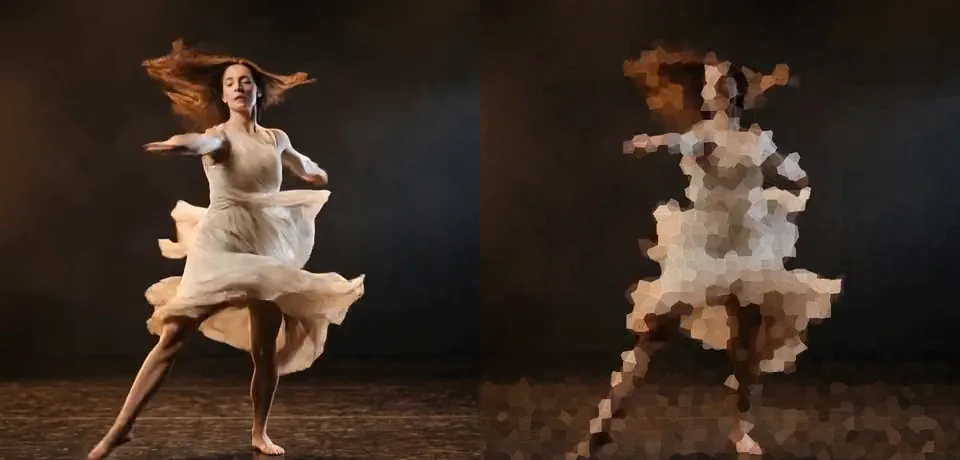
Use it for: a stained-glass window · a memory or a dream that shatters · a picture seen through cracked or frosted glass.
- Cell Size – how big the cells are.
- Amount – how much of the cells lies over the picture.
- Speed – how fast the cell edges drift.
Tip: keyframe Amount from 0 to 1: the picture breaks into glass in place, without the cells moving.
Presets
Section titled “Presets”Pick one in the Preset row of the effect card. It sets all controls at once, in one undo step, and the row then shows its name until you change something. A control with keyframes keeps them, and the card says so.
Stained Glass – large flat cells that stand still, like a church window: the figure reads only by its colours and outline. Strong for a title or a single held image.
Fine Crackle – a fine net of small cells over the whole picture: faces and hands stay readable, as if seen through crackled glass. The quietest look, good for a whole scene.
Glass Veil – medium cells laid at 50 % over the picture, so it stays clear under a soft pattern of glass. For a scene that starts to fall apart, or behind text.
Drifting Shards – big shards whose edges keep sliding: the picture breaks into a few large pieces that never settle. For a breakdown or a cue that should feel unstable.
Controls
Section titled “Controls”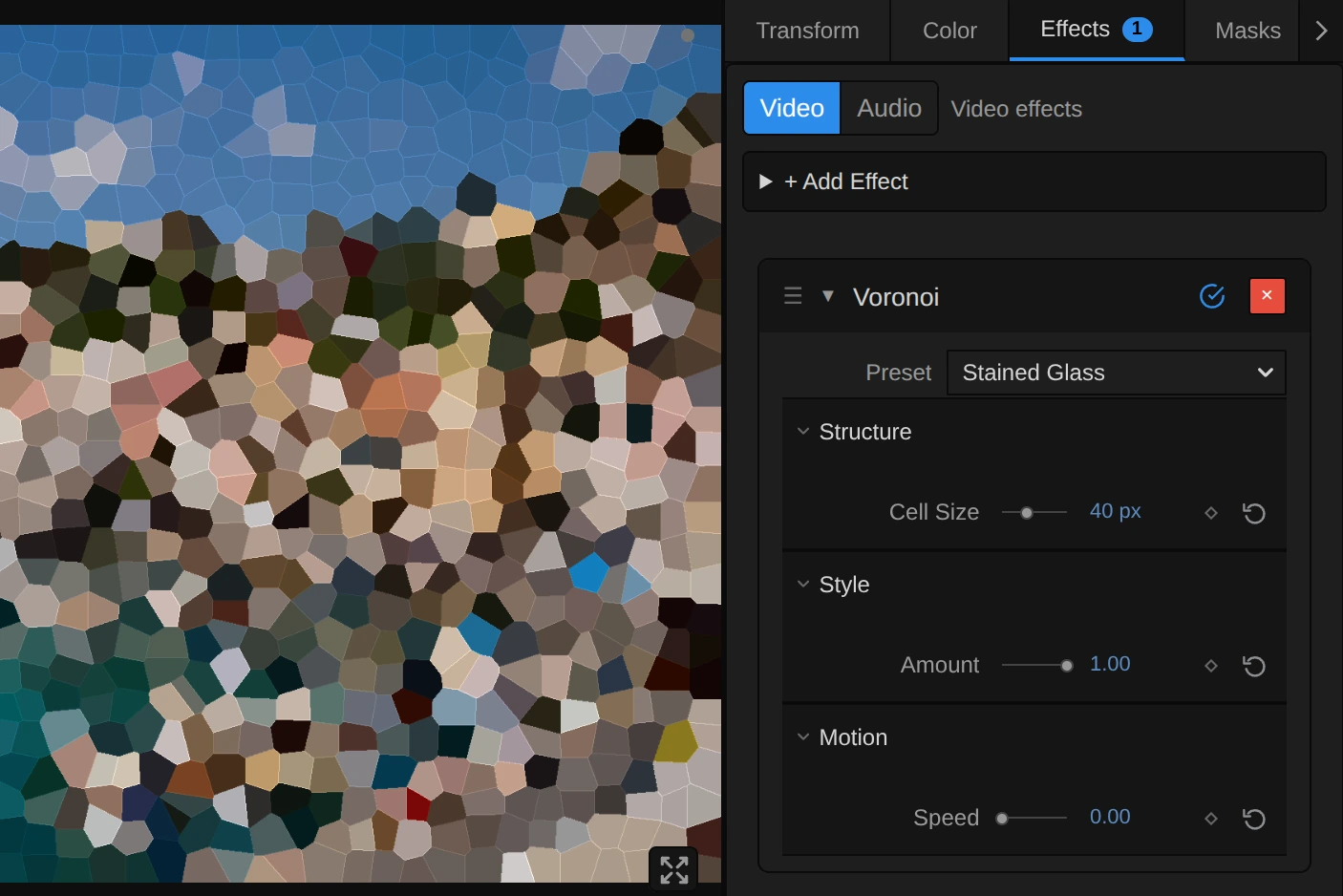
Every cell takes the colour of one pixel, its seed, a little darker than the picture, with a thin light line where it meets the cell to its right or below, so the cells read as glass.
Preset – picks one of the four starting points above and sets the three controls below.
Structure
Section titled “Structure”Cell Size – the distance between the seeds, so roughly the width of a cell. 6–12 keeps faces readable under a fine net, 24 shows clear cells, 48 and more turns a figure into a few shards. It counts pixels of a 1080p picture, so a 4K export and a lower Preview Quality show the same cells. Below 4 the cells stay at 4, and the card says so; above 96 the cells keep growing. A keyframed Cell Size grows the cells from the top-left corner. 4 to 96 px, default 24 px.
Amount – how much of the cells you see. 0 shows the original, 1 only cells, 0.5 lays them half over the picture, so it stays readable under a pattern of glass. Values outside 0 to 1 are held at the nearest end, and the card says so. 0 to 1, default 0.8.
Motion
Section titled “Motion”Speed – how fast the seeds drift. Each seed sways around its place by up to a seventh of a cell, so the edges slide and the cells change shape without ever leaving their spot. 0 holds the glass still, and only the colours change where the picture moves; at 0.5 one sway takes about twelve seconds, at 4 a little over one and a half. It follows the playhead, so a paused picture stands still and the export matches the preview. 0 to 4, default 0.5.
Node setup
Section titled “Node setup”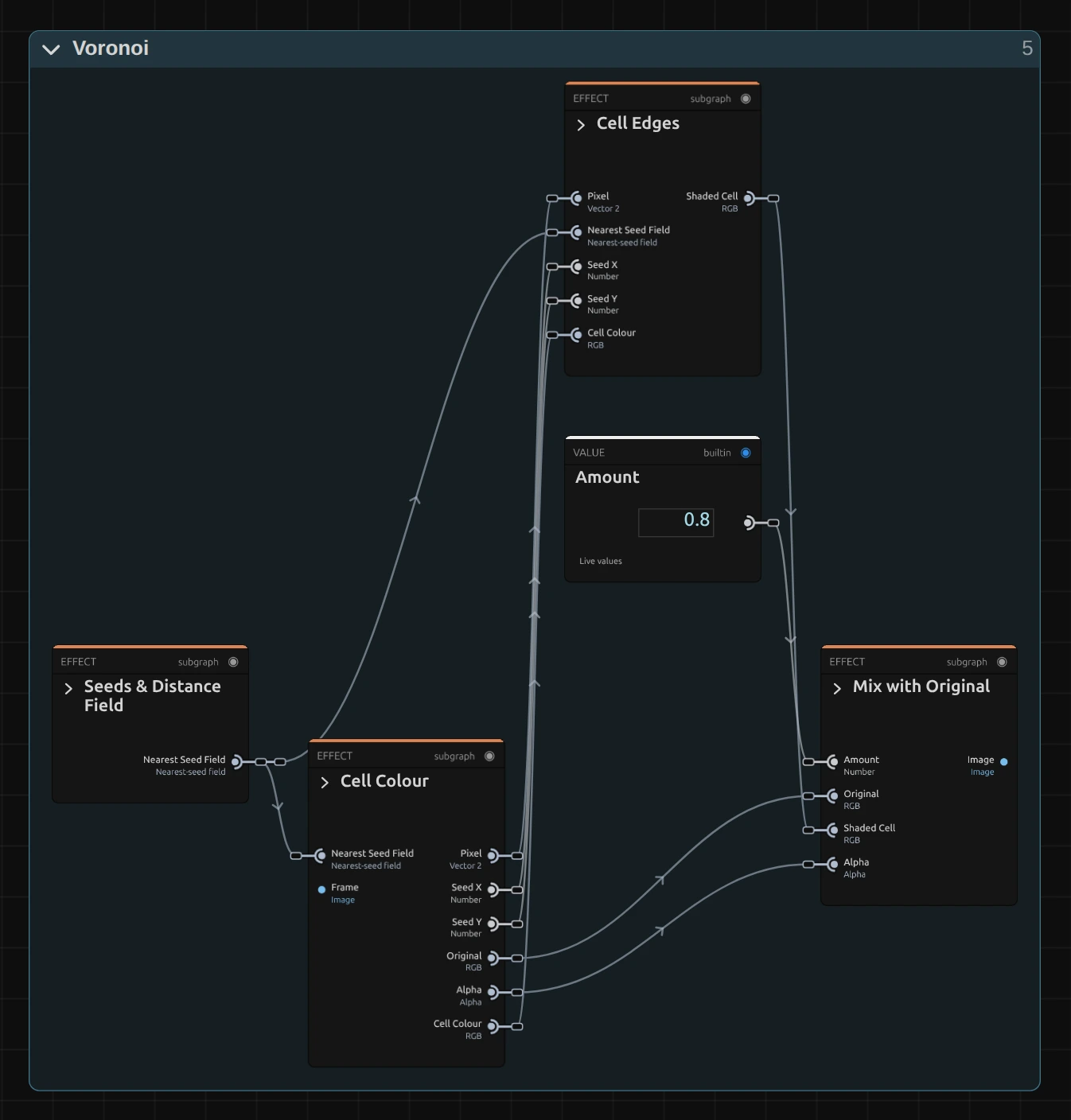
Voronoi works in four stages, one folder each in the Nodes tab: Seeds & Distance Field places one seed per cell and finds the nearest seed for every pixel, Cell Colour reads the colour of that seed, Cell Edges shades the cell and draws its light edge line, and Mix with Original blends the result with the picture by Amount. Click a folder’s header to open it; the sections below show what is inside.
Seeds & Distance Field
Section titled “Seeds & Distance Field”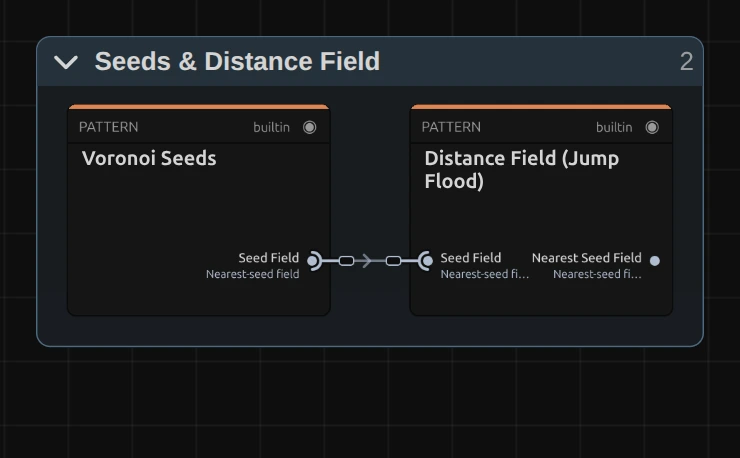
Voronoi Seeds – lays a square grid of Cell Size over the frame and puts one seed at a random place in each square, between 8 % and 92 % of its width. With Speed above 0 every seed sways around that place on the timeline clock. The result is a picture in which only the seed pixels are marked.
Distance Field (Jump Flood) – spreads every seed to the pixels around it in a few big, then smaller steps (half the frame, a quarter, … one pixel), until every pixel knows its nearest seed. That map is the Voronoi pattern.
Cell Colour
Section titled “Cell Colour”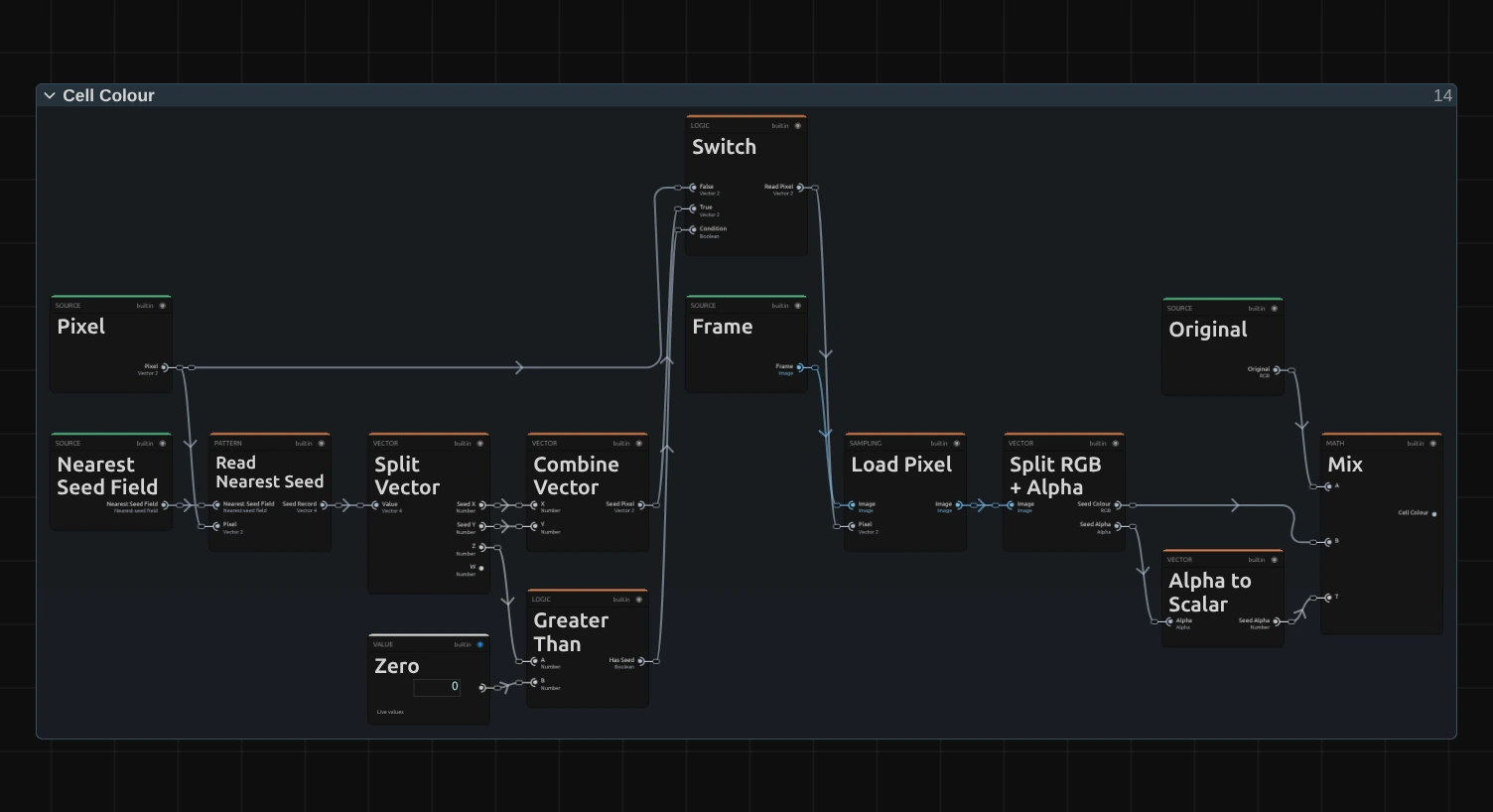
Read Nearest Seed – reads, for this pixel, where its nearest seed lies. The two Read Nearest Seed nodes in Cell Edges do the same for the pixel to the right and the pixel below.
Switch – the seed’s position, or the pixel’s own where no seed was found (Greater Than tells whether a seed was found there).
Alpha to Scalar – the transparency of the seed pixel as a number from 0 to 1.
Mix – blends from the pixel’s own colour to the seed’s colour by that number. An opaque seed colours the whole cell; a transparent one, at the edge of a cut-out figure or a picture smaller than the frame, leaves the pixel its own colour instead of turning the cell black.
Cell Edges
Section titled “Cell Edges”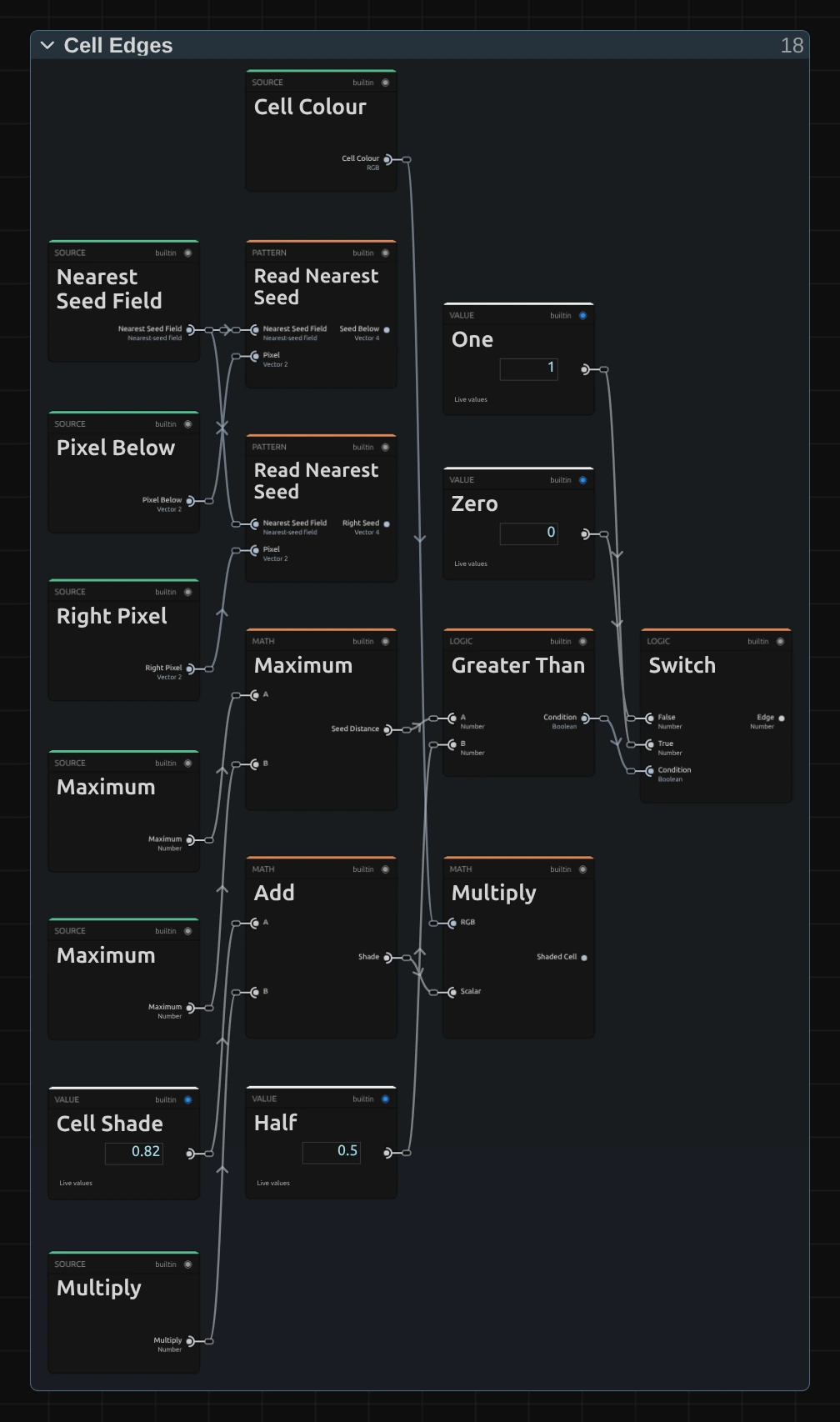
Read Nearest Seed – the nearest seed of the pixel to the right and of the pixel below.
Maximum – how far those seeds lie from this pixel’s seed. A different seed means a different cell.
Switch – 1 on the edge of a cell, where the neighbour belongs to another seed (Greater Than Half 0.5), else 0.
Add – Cell Shade 0.82 plus Edge Lift 0.18 times the edge mark: 0.82 inside the cell, 1 on its edge.
Multiply – the cell colour times its shade: 0.82 inside the cell and 1 on its edge, so every cell is a little darker than the picture, with a light line along its right and lower edge.
Remix: open the Constants folder and set Cell Shade 0.82 to 1: the cells keep the picture’s full brightness, and the edge lines shine brighter than the cells. For a seamless mosaic without lines, also set Edge Lift 0.18 to 0.
Mix with Original
Section titled “Mix with Original”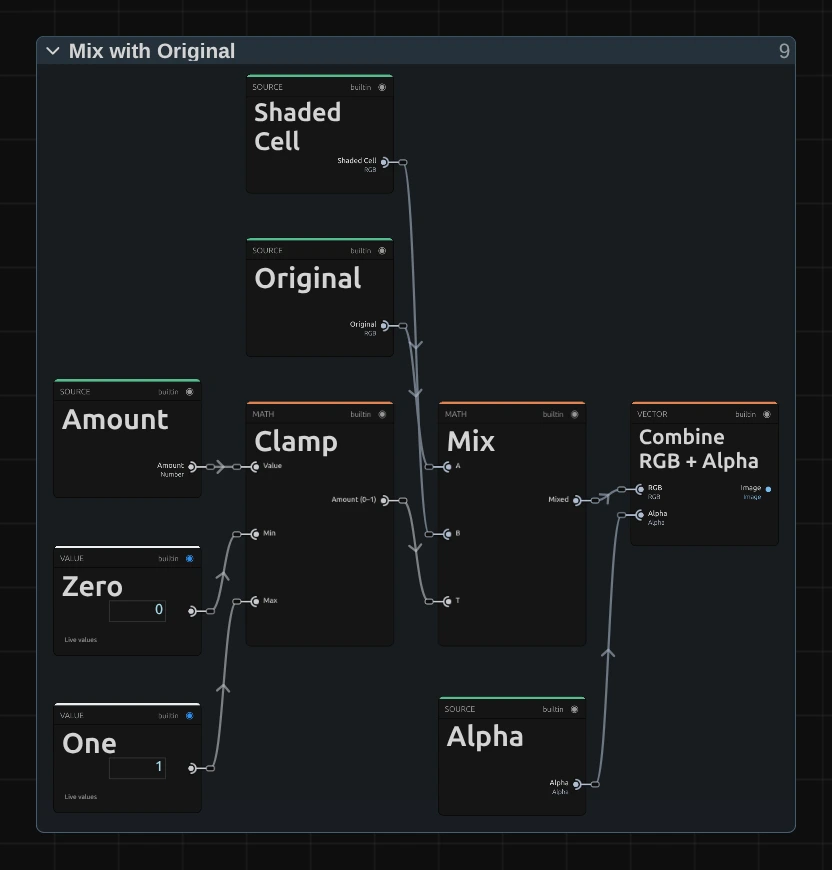
Clamp – keeps Amount between 0 and 1, so a keyframe or a typed value past the ends cannot push colours beyond the cell.
Mix – blends from the original colour to the shaded cell by Amount: 0 is the picture itself, 1 the cells alone.
Combine RGB + Alpha – joins the mixed colour with the original transparency, so a cut-out figure keeps its own smooth outline while its inside turns into glass.
Technical details
Section titled “Technical details”- Size. Cell Size counts pixels of a frame whose shorter side is 1080: a 4K export, a portrait frame, a lower Preview Quality and the thumbnails show the same cells. A cell is never smaller than 4 such pixels and 2 rendered pixels; the card says when Cell Size is below 4. The seed grid starts at the top-left corner, so a keyframed Cell Size scales the cells towards that corner and new cells come in from the right and bottom edges.
- Accuracy. The jump flood finds the nearest seed in about eleven passes for a 1080p frame. It is very close to exact; now and then a pixel at the corner where three cells meet takes the second-nearest seed, which shows as a pixel-sized step in an edge line.
- Time. The seeds sway with the timeline time: scrubbing, playback and export give the same frame for the same moment, and a paused picture needs no extra rendering. Speed multiplies that time, so a keyframed Speed makes the seeds jump; to change the look on a cue, keyframe Cell Size or Amount instead.
- Transparency. The cells keep the original transparency, so a cut-out figure keeps its outline. A cell whose seed is transparent leaves its pixels their own colour.
- Saved projects. Since 2026-10-22 Cell Size counts 1080p pixels (it counted output pixels, so the preview and a 4K export showed other cells than a 1080p frame), a transparent seed no longer paints its cell black, and Amount stays between 0 and 1. A 1080p frame of opaque footage looks as before. The old Threshold control did nothing and is gone; a value saved in a project is ignored. A Voronoi whose node setup you edited keeps its own recipe.
- More: Effect system · Node Catalog · Styles and presets.