
Kaleidoscope
Folds a slice of the picture into mirrored wedges around a centre, like looking through a kaleidoscope. The pattern stays round on any picture size, and a moving figure becomes a flower that opens and closes.
Group: Lens & Distort · How to add an effect
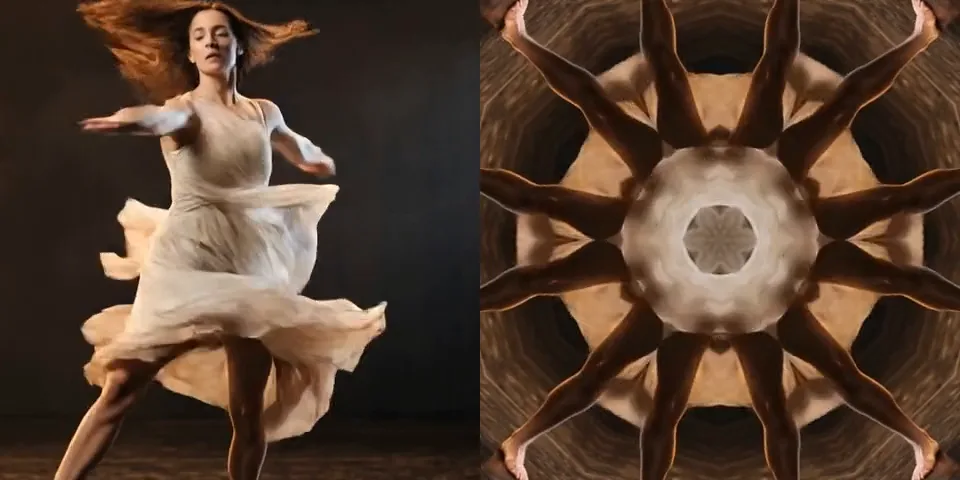
Use it for: psychedelic and ornamental patterns · a symmetric flower from a dancer or from lights · a slow, hypnotic background.
- Segments – how many mirrored pairs go round the circle.
- Source Angle – which slice of the picture the mirrors show.
- Zoom – how close that slice is.
Tip: Source Angle starts at 75°, the slice straight below the centre at six pairs, so a figure in the middle of the frame is folded whole. When you change Segments, set Source Angle to 90° − 90° / Segments to keep reading that slice. Keyframe Source Angle slowly for the classic look of a turning kaleidoscope.
Presets
Section titled “Presets”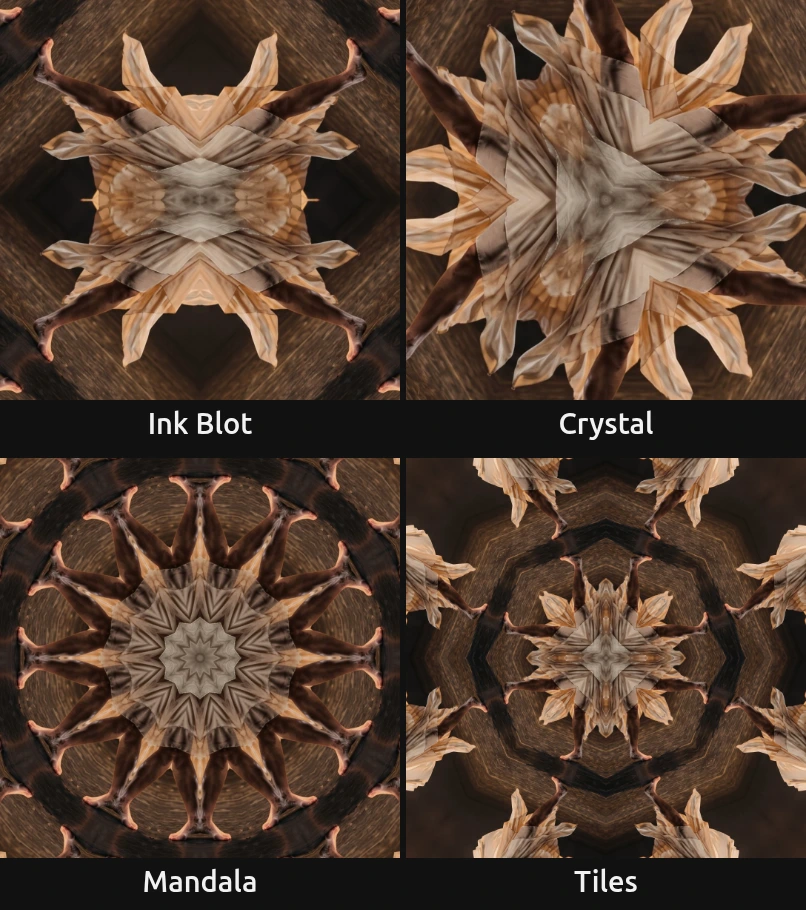
Pick one in the Preset row of the effect card. It sets all controls at once, in one undo step, and the row then shows its name until you change something. A control with keyframes keeps them, and the card says so. Every preset reads the slice straight below the centre, where a figure in the middle of the frame stands. Center X / Center Y go back to the middle of the frame.
Ink Blot – two mirrored pairs, slightly enlarged: the figure is mirrored left to right and top to bottom, like a folded ink print. Still readable as a body, so it works for a dreamlike double.
Crystal – three pairs, close up: big facets, as in a toy kaleidoscope with three mirrors. Strong on fabric, smoke and light.
Mandala – twelve pairs at full size: a dense, round flower of thin petals. For ornament, ritual and a hypnotic background.
Tiles – four pairs, zoomed out: a small flower in the middle, ringed by mirrored copies of the picture. On a busy picture the frame fills with a grid of tiles.
Controls
Section titled “Controls”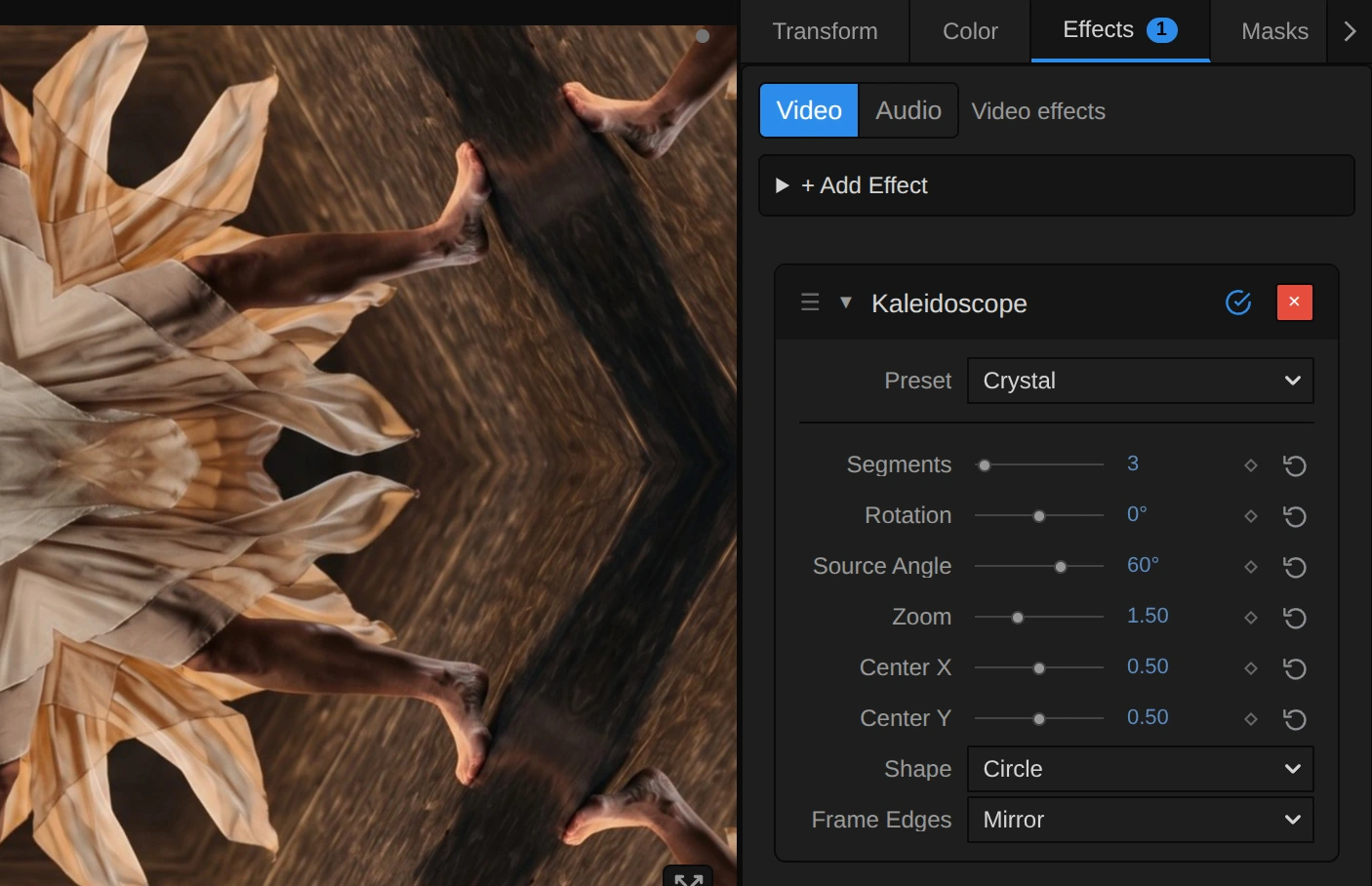
Preset – a starting point for Segments, Zoom and Source Angle; see Presets.
Segments – how many mirrored pairs of slices go round the circle: 6 gives 12 slices. 2 is a simple double mirror, 3 to 6 the classic kaleidoscope, 12 and more a dense mandala of thin petals. Whole numbers give a clean pattern; between two whole numbers both patterns show at once, so a keyframed count dissolves from one to the next. Use hold keyframes for clean jumps. 2 to 16, default 6.
Rotation – spins the whole pattern around its centre, without changing what it shows. Keyframe it for a slowly turning ornament. −360 to 360°, default 0°; a typed or keyframed angle may go further, because the pattern repeats every turn.
Source Angle – which slice of the picture the mirrors show, as a direction from the centre: 0° is to the right, 90° straight down, 180° to the left. The slice is 180° / Segments wide (30° at six pairs) and starts at this angle. Turning it is like turning the tube of a real kaleidoscope: the pattern stays in place, while new parts of the picture flow through it. −180 to 180°, default 75°; a typed or keyframed angle may go further and simply goes round again. Effects saved before 75° became the default keep 0°.
Zoom – how close the slice is. Above 1 a smaller part of the picture fills the pattern, larger and softer; below 1 the mirrors read past the edge of the frame, and Frame Edges decides what fills those rings. 0.25 to 4, default 1.
Center X – where the centre of the pattern sits, from the left edge (0) to the right edge (1). The centre is also where the mirrors read from, so moving it changes the pattern, not only its place. 0 to 1, default 0.5.
Center Y – the same from the top (0) to the bottom (1). Keyframe Center X and Y together to keep the pattern on a moving figure. 0 to 1, default 0.5.
Shape – Circle keeps the wedges true to the angle on any picture size, so the pattern stays round; Stretch to Frame stretches it with the frame into an oval on a wide picture. Circle, Stretch to Frame, default Circle.
Frame Edges – what fills in where the mirrors read past the edge of the frame, at a Zoom below 1 or a centre near the edge. Mirror reflects the picture at the edge, so the pattern continues in rings; Clamp repeats the outermost pixels into streaks; Transparent leaves those places empty, so a sharp-edged polygon floats over the layer below. Mirror, Clamp, Transparent, default Mirror.
Node setup
Section titled “Node setup”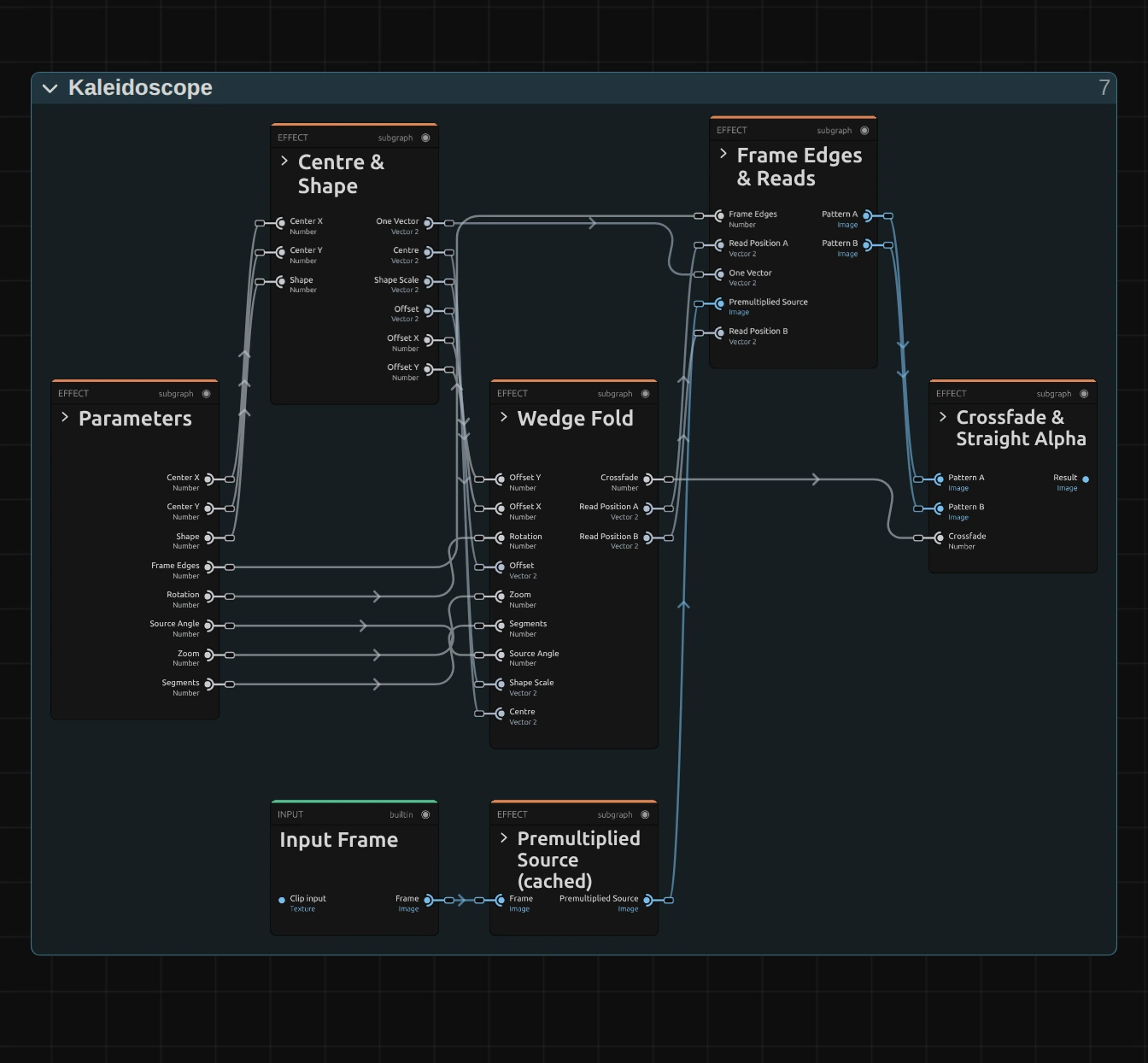
Kaleidoscope does not paint anything: it moves where each pixel reads, like every effect in its group (the shared idea). Centre & Shape measures each pixel’s offset from the centre, Wedge Fold folds its angle into one mirrored slice, Frame Edges & Reads reads the picture there, from the Premultiplied Source prepared once per frame, and Crossfade & Straight Alpha blends the two neighbouring whole segment counts and turns the result back into a normal picture. Wedge Fold and Frame Edges & Reads hold two paths each: A for Segments rounded down, B for one more. Click a folder’s header to open it; the sections below show what is inside.
Centre & Shape
Section titled “Centre & Shape”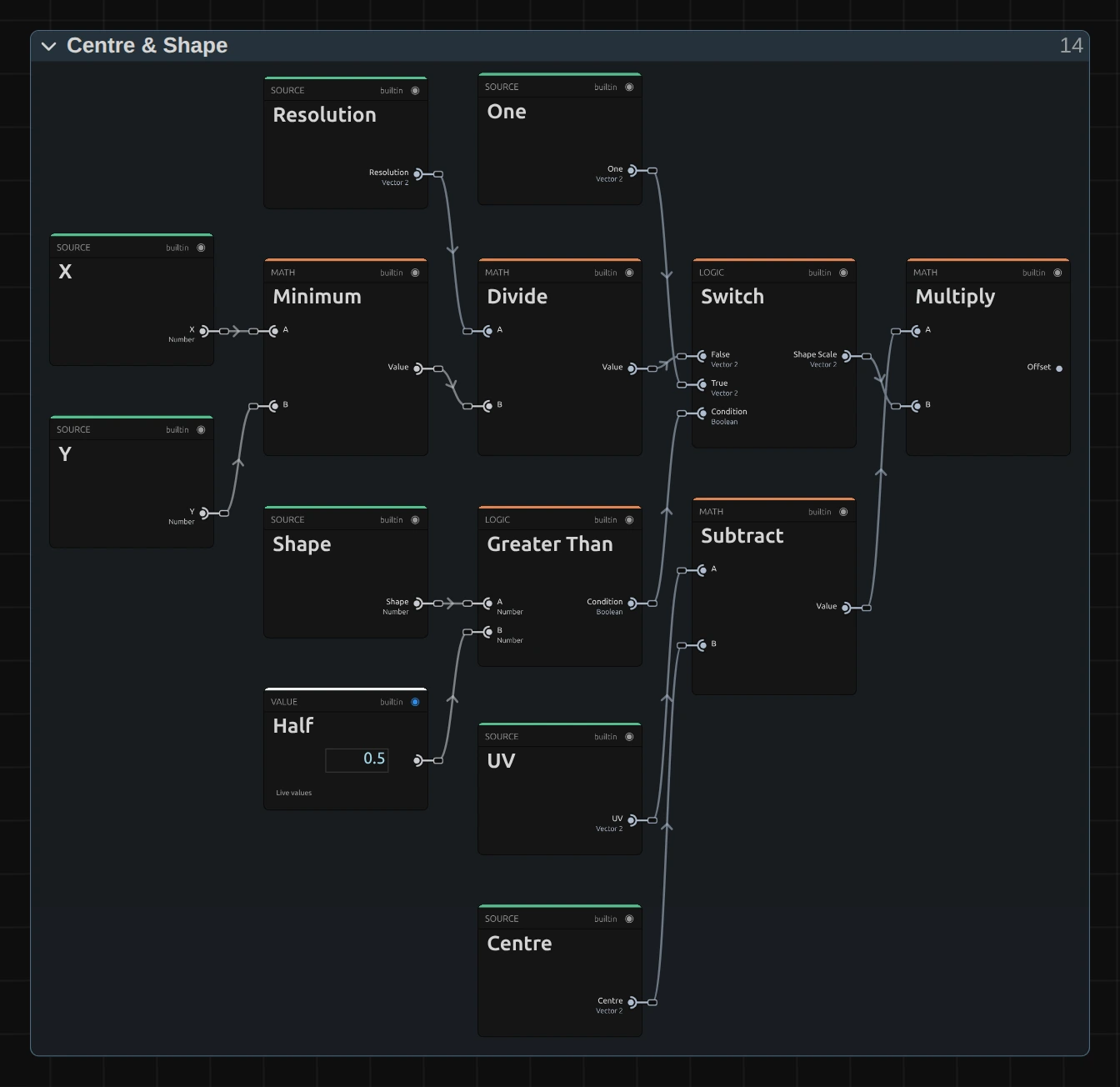
Divide – the frame size divided by its shorter side: (1.78, 1) on 16:9. Minimum before it finds the shorter side from the width X and height Y in pixels.
Switch – picks that size for Circle, or One for Stretch to Frame (Greater Than compares Shape with 0.5). This is the Shape Scale.
Subtract – the pixel’s place (UV) minus the Centre: how far it lies from the middle of the pattern, as a share of the frame.
Multiply – that distance times the Shape Scale: the Offset in units of the shorter frame side, so angles on screen are true angles and a circle stays round.
Wedge Fold
Section titled “Wedge Fold”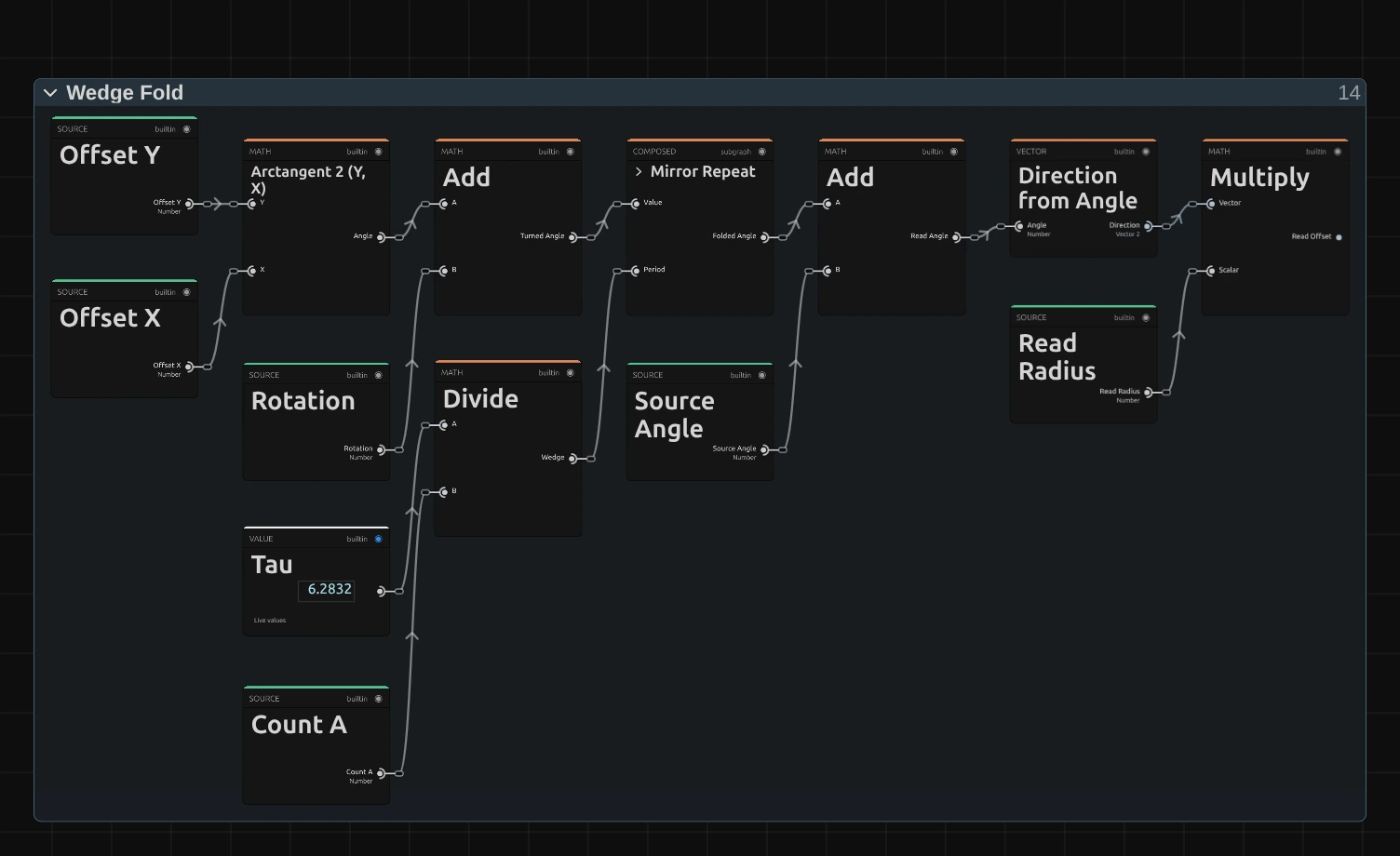
Arctangent 2 – turns each pixel’s offset into its angle around the centre. The first Add card turns that angle by Rotation, which spins the whole pattern.
Divide – a full turn (Tau, 2π) divided by Count A, Segments rounded down: the width of one mirrored pair, the Wedge.
Mirror Repeat – folds every angle into the first half of a wedge, forwards and backwards in turn: from 0 up to half a wedge, then down again. Every slice now reads from the same slice, every second one mirrored. This is the whole trick.
Add – adds Source Angle to the folded angle: which slice of the picture the mirrors show. This is the Read Angle.
Multiply – the direction of that angle (Direction from Angle) times the Read Radius, the distance from the centre divided by Zoom: the Read Offset. Two nodes after it turn it back into a place in the picture, Read Position A. The same chain with Count B makes Read Position B.
Remix: for a spiral, add a new Multiply node of Read Radius and a Value of 3, and a new Add node of the first Add’s Turned Angle and that Multiply. Plug the new Add into the Value input of both Mirror Repeat nodes (one per path). The pattern now twists further the further it is from the centre.
Premultiplied Source
Section titled “Premultiplied Source”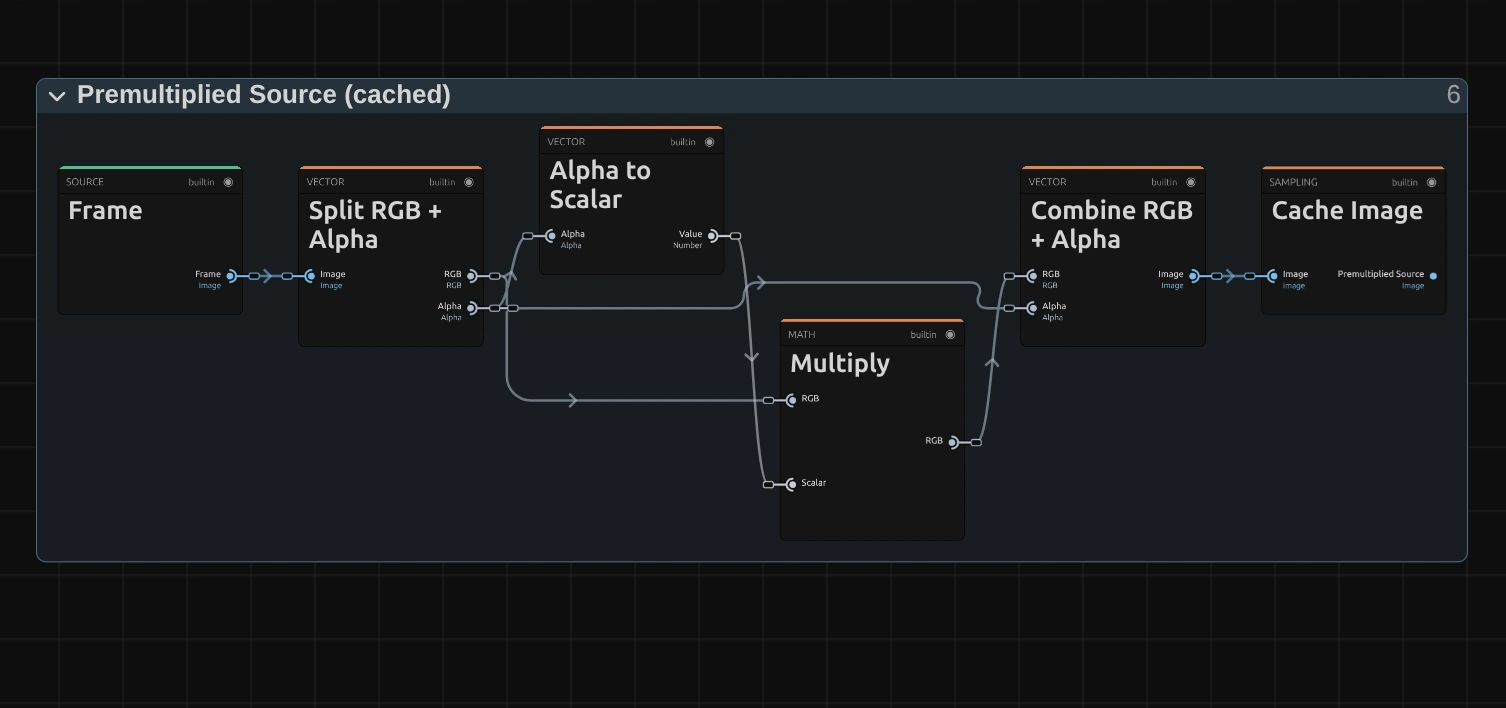
Multiply – multiplies every pixel’s colour by its transparency. When a read later blends neighbouring pixels, a transparent one then adds no colour, so a cut-out figure keeps clean edges instead of a dark rim.
Cache Image – keeps the prepared picture, so it is made once per frame, not once per pixel, and both paths read the same one.
Frame Edges & Reads
Section titled “Frame Edges & Reads”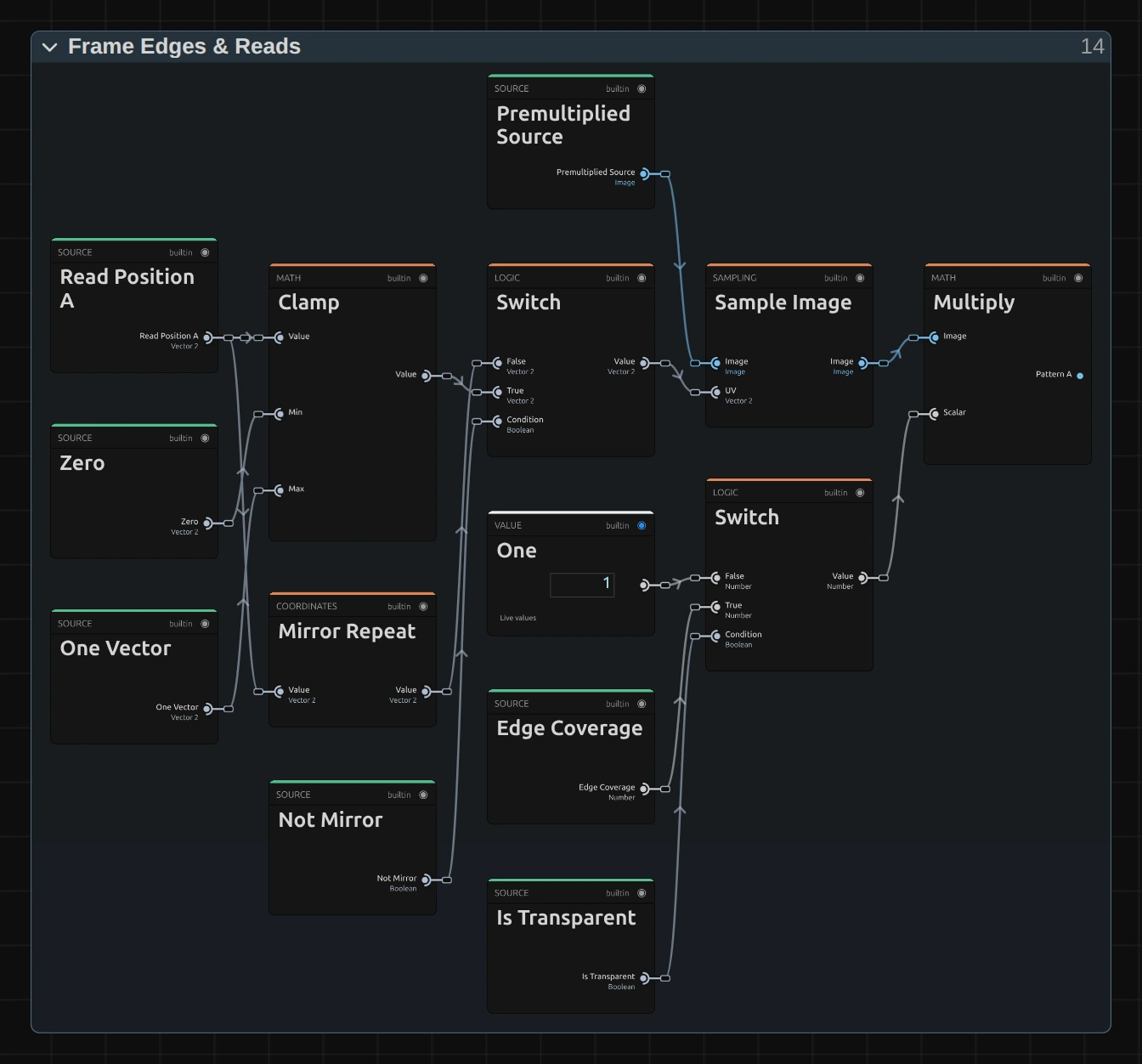
Mirror Repeat – folds a Read Position beyond the frame back in, as in a mirror: the Mirror choice.
Clamp – holds the Read Position between Zero and One, so it stops at the outermost pixel: the Clamp choice, and the base of Transparent.
Switch – picks the mirrored or the clamped position; Not Mirror is true for Clamp and Transparent.
Sample Image – reads the Premultiplied Source at that position, blending the four nearest pixels.
Multiply – scales the read by One, or for Transparent by Edge Coverage, which falls from 1 to 0 within one pixel of the frame edge. The result is Pattern A; the same chain makes Pattern B from Read Position B.
Crossfade & Straight Alpha
Section titled “Crossfade & Straight Alpha”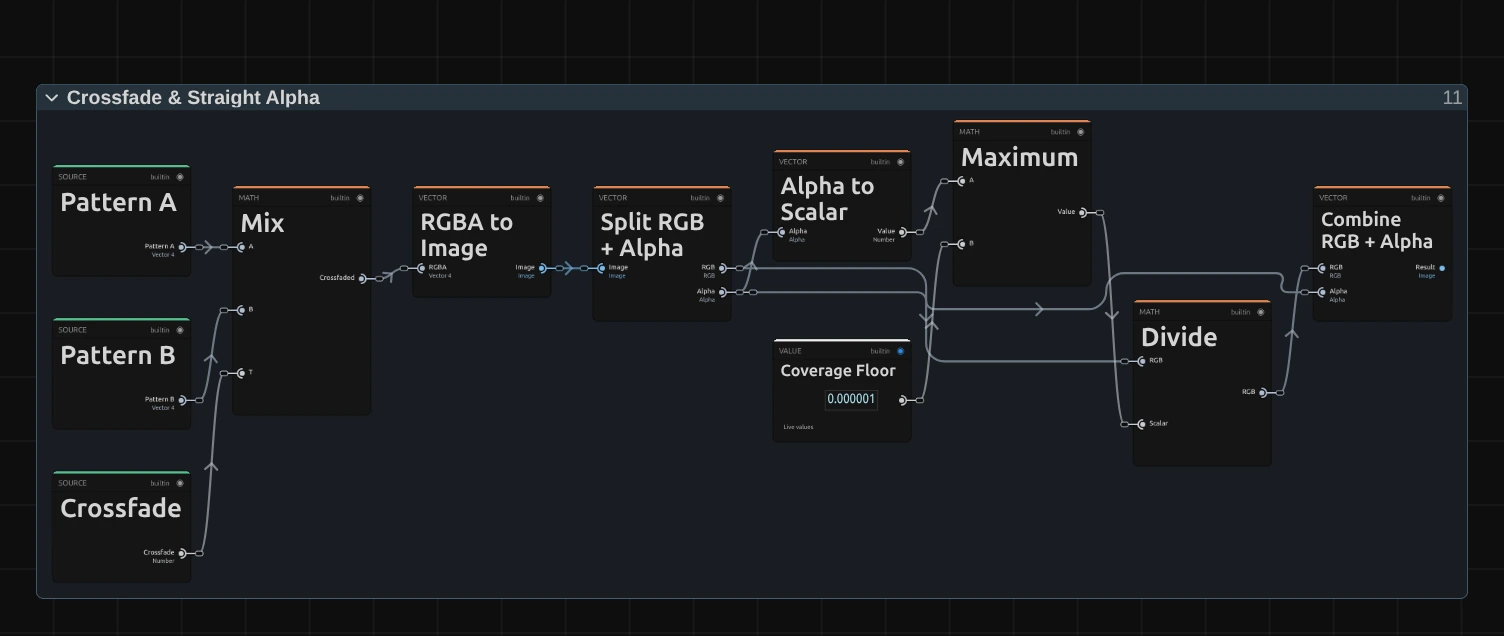
Mix – blends Pattern A and Pattern B by the Crossfade, the part of Segments after the point: at 6 only Pattern A shows, at 6.5 both equally, so a keyframed count never cuts a wedge open.
Maximum – keeps the transparency above a tiny Coverage Floor, so a fully transparent pixel never divides by zero.
Divide – divides the colour by the transparency again: the step back from the Premultiplied Source, so half-transparent edges keep their real colour.
Combine RGB + Alpha – joins colour and transparency into the finished picture that goes on to the next effect.
Technical details
Section titled “Technical details”- Fold. Offsets are measured in units of the shorter frame side, so angles are on-screen angles and the Circle shape stays round. The angle is folded into one mirrored slice of 180° / Segments, turned by Source Angle and read at distance / Zoom.
- Fractional Segments crossfade the patterns of the two neighbouring whole counts, so an animated count changes smoothly and no wedge is cut open; halfway, both patterns show at once. Each count reads the picture once, so the effect costs two reads per pixel.
- Units. Rotation and Source Angle are stored in radians and shown in degrees; keyframe lanes, MIDI and tools use radians.
- Limits. The Segments slider goes to 16; keyframes, MIDI and tools may go up to 64. Segments outside 2–64 and a Zoom below 0.01 are clamped, and the card says so below the effect.
- Transparency. The picture is read premultiplied, so cut-out figures keep clean edges; the preview and the export match.
- Saved projects keep their look: an effect saved before effects owned a graph loads as its earlier recipe with Stretch to Frame and Clamp.
- More: Effect system: Lens & Distort · Editable mirror, split and pixel graphs · Mirror Repeat in the Node Catalog · Styles and presets.