
Lens & Distort
Bend, swirl, fold or straighten the picture: playful lens looks, mirror patterns and corrections for photos. Add one in Properties → Effects → + Add Effect → Lens & Distort (Using effects).
 Lens CorrectionRepairs what a camera lens does to a picture: bowed lines, coloured fringes along hard edges and dark corners.
 Guided PerspectiveStraightens walls and buildings that lean because the camera was tilted, from lines you draw on the photo.
- AI Edge FillFills the empty edges a lens or perspective correction leaves on a still photo with AI-made scenery.
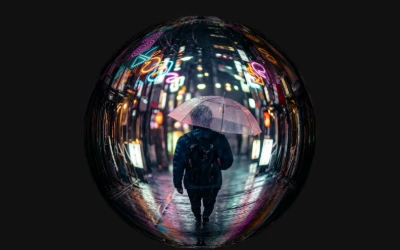 Fisheye LensThe rounded look of an ultra-wide fisheye lens: the middle comes closer and straight lines bend towards the edges.
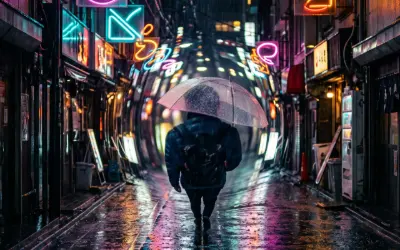 Bulge & PinchSwells a round area of the picture like a lens bump, or squeezes it together.
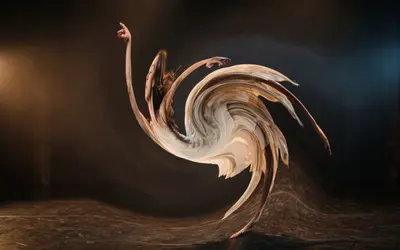 TwirlWinds the picture into a spiral around a centre point, strongest in the middle.
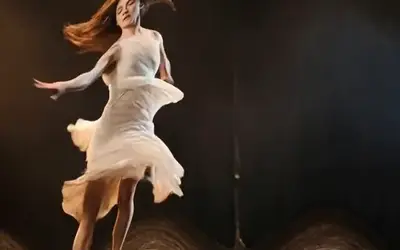 WaveRipples the picture with smooth, travelling waves, from a faint heat shimmer to a funhouse wobble.
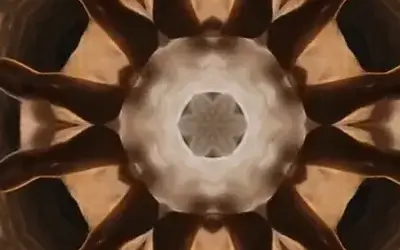 KaleidoscopeFolds a slice of the picture into mirrored wedges around a centre, like looking through a kaleidoscope.
 MirrorReflects one half of the picture onto the other for perfect symmetry, with a seamless mirror line.
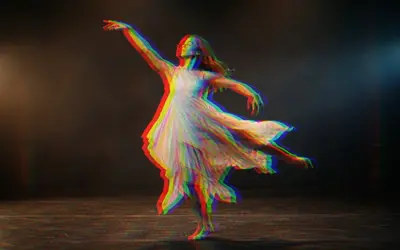 RGB SplitShifts the red and blue colour layers apart, like a misprinted poster, a cheap lens or a glitching screen.
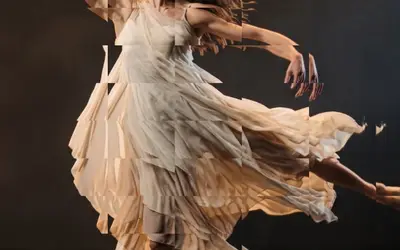 Crystal GlassLooks at the picture through cut glass: a grid of facets that each bend it a little.
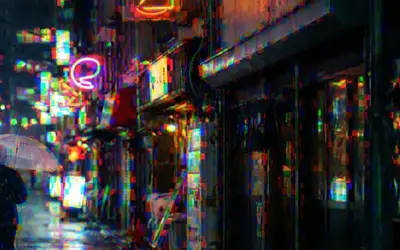 Glass DispersionSplits the colours in small cells, as if seen through rippled glass.
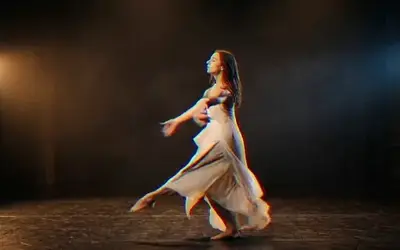 Film PrismFilm shot through a cheap lens or a glass prism: edges gain soft rainbow fringes under a fine, living grain.
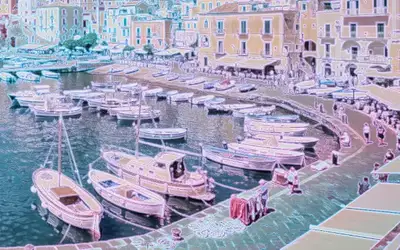 HoloLays a holographic foil over the picture: rainbow bands that bend with its tones.
Which one?
Section titled “Which one?”| Look | Use |
|---|---|
| a lens bump or a squeeze in one round area, the rest untouched | Bulge & Pinch |
| a swirl | Twirl |
| ripples, heat shimmer | Wave |
| an ultra-wide round lens: the whole frame bends, the corners stay | Fisheye Lens |
| a symmetric pattern | Kaleidoscope |
| a mirror image | Mirror |
| colour fringes, a glitch | RGB Split |
| glass, prism and foil | Film Prism, Holo, Crystal Glass, Glass Dispersion |
| straight lines in a photo | Lens Correction, then Guided Perspective |
| a full frame after a correction | AI Edge Fill |
The shared idea
Section titled “The shared idea”A distortion does not move pixels. Every pixel of the result asks: which spot of the original do I show? Change that spot and the picture bends. Bulge & Pinch, Twirl, Wave, Kaleidoscope, Mirror and RGB Split all work this way, and each is a small node graph you can open: select the clip, open the Nodes tab and use the › on the effect’s card, then on each folder (The node setup).
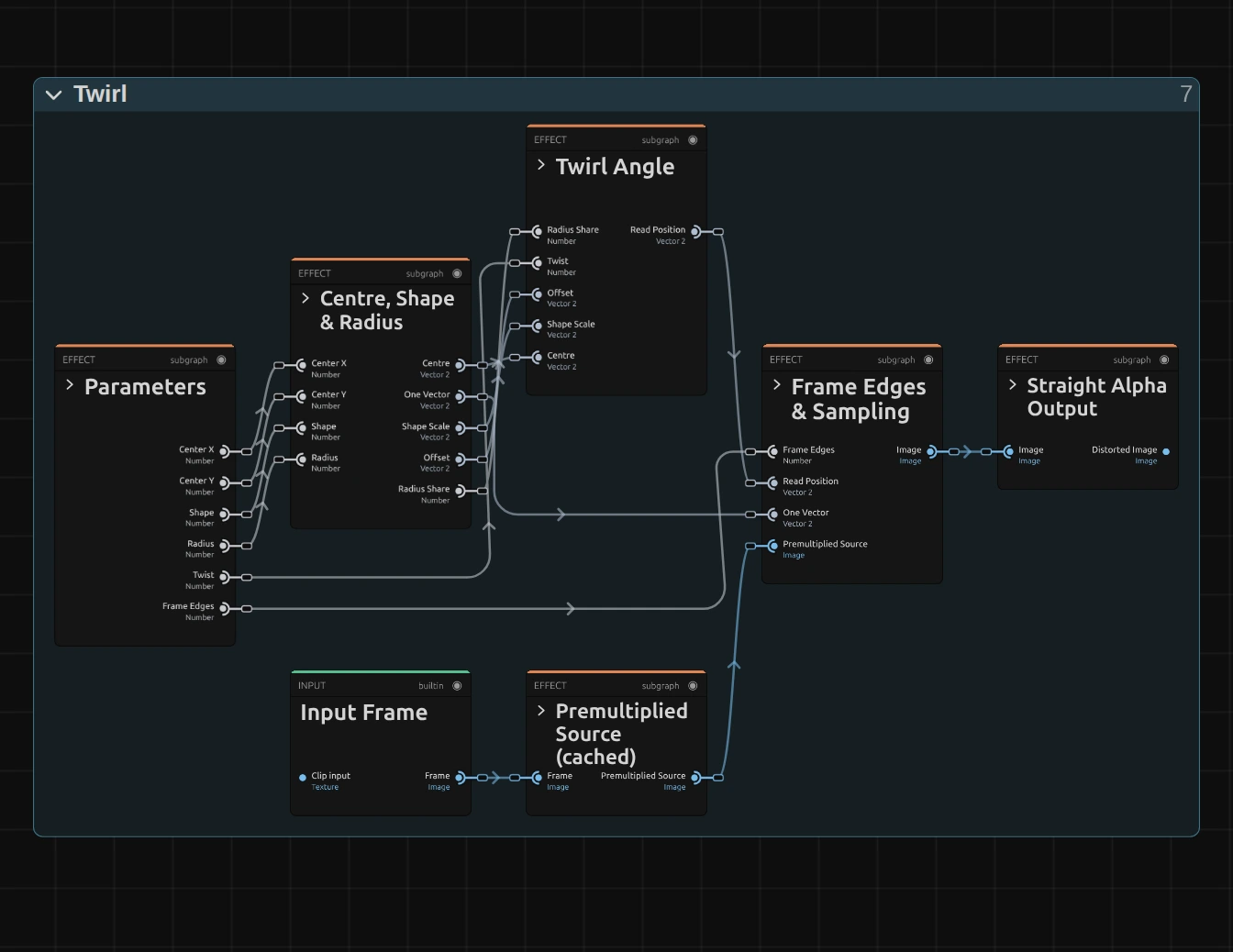
- Centre, Shape & Radius measures each pixel’s Offset from the centre and its Distance / Radius: 0 in the middle, 1 at the edge of the area.
- The middle folder is the effect itself: Twirl Angle, Bulge & Pinch Curve, Wave Displacement, Kaleidoscope’s Wedge Fold or Mirror’s Mirror Lines. It turns the offset into a Read Position. Each effect page shows its folder.
- Frame Edges & Sampling reads the picture once at that position. Premultiplied Source and Straight Alpha Output around it keep transparent edges clean.
Two shared controls
Section titled “Two shared controls”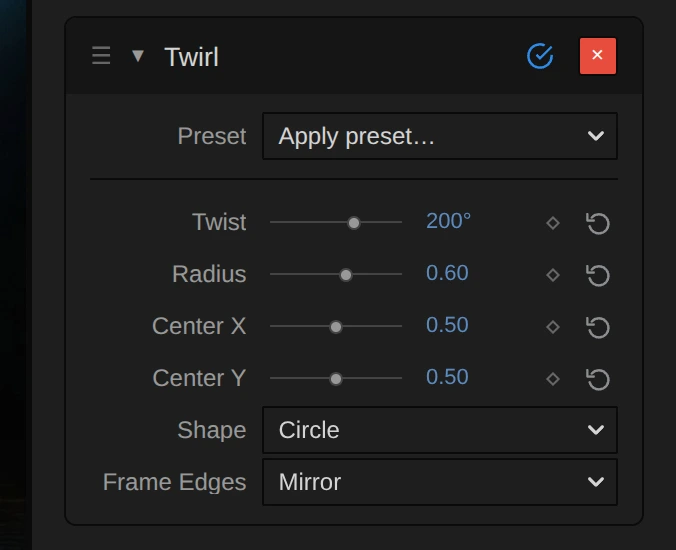
- Shape: Circle keeps the area round on any picture. Stretch to Frame stretches it to the shape of the frame, an oval on a wide picture. Bulge & Pinch, Twirl and Kaleidoscope have it.
- Frame Edges decides what appears where a read lands past the edge of the picture, for example in a pinch or in waves along the border: Mirror reflects the picture, Clamp repeats the border pixels as streaks, Transparent leaves those places empty. Bulge & Pinch, Twirl, Wave, Kaleidoscope, Mirror and RGB Split have it; Fisheye Lens has its own, with Repeat as a fourth choice.
Technical details
Section titled “Technical details”With Shape: Circle, circles stay round and the effect looks the same at every resolution. Angles show in degrees. Very strong settings can shimmer on fine detail; values the effect clamps are named below its card.
Developer notes: Effect system: Lens & Distort notes.