
Export
Export renders your timeline, or a range of it, to a video, an animated GIF, a still or image sequence, an audio file or an FCPXML timeline for other editors. Open the Export tab (in the Video layout it is the open tab of the right-hand group), pick a container, and press the green Export button at the bottom. Saving and archiving the project itself: Project Persistence.
Export methods
Section titled “Export methods”The Export panel offers four video methods:
- WebCodecs Fast: the browser’s hardware encoder, frame by frame. The default.
- HTMLVideo Precise: seeks each frame with the browser’s own video player; slower, the safe choice for files or timing that the fast path cannot handle.
- FFmpeg CPU: the FFmpeg build that runs in the browser, for intermediates such as ProRes or DNxHR (only where that build is available; load it with Load FFmpeg Runtime).
- HAP GPU: HAP files for media servers and show playback (Browser-Native HAP Export).
FCPXML is a container choice of its own, under Timeline.
The Export panel
Section titled “The Export panel”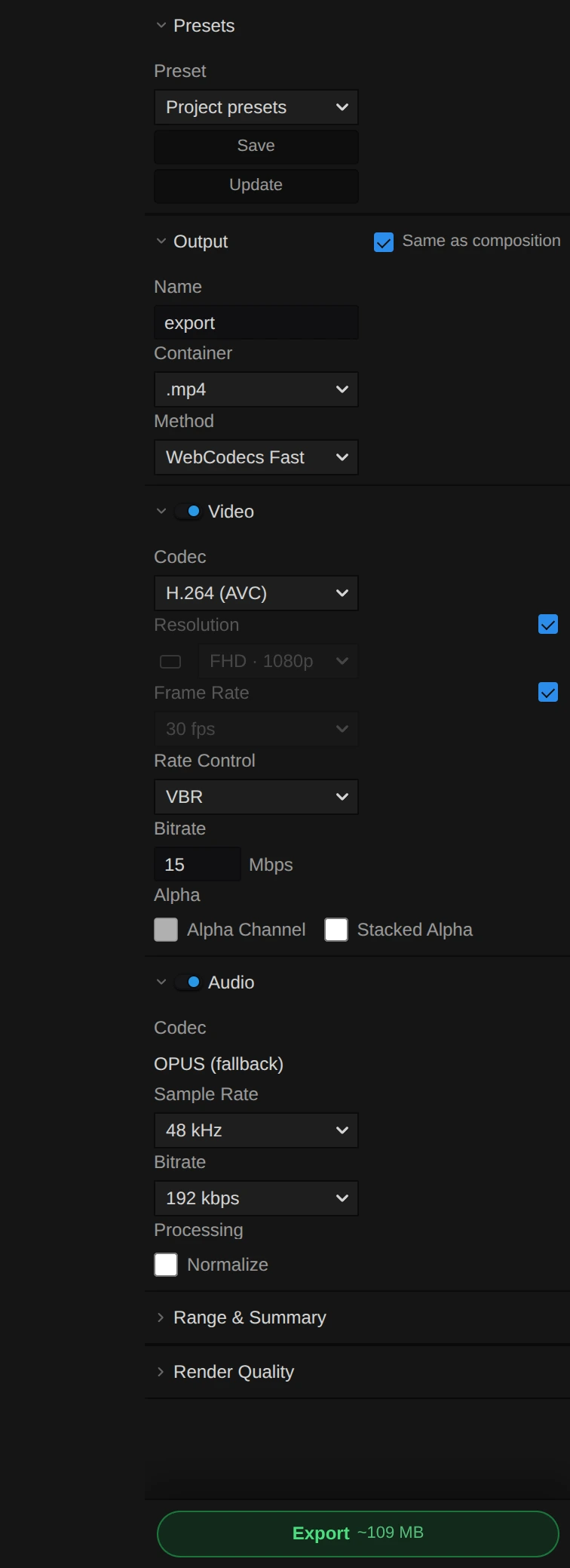
From top to bottom:
- Presets: the Preset list holds the project’s saved export settings; choosing one loads it. Save stores the current settings under a name, Update overwrites the selected preset. For a video export whose range holds storyboard scenes, a Storyboard output row follows (not while a batch is queued): Normal video (blocked while a scene has no accepted media) or Animatic (slates + stills), which renders empty scenes as labelled slates.
- Output: Same as composition keeps resolution and frame rate in step with the active composition. Name is the file name, Container chooses the deliverable, grouped as Video, Image, Audio and Timeline (
.fcpxml), and Method chooses how a video is encoded. - Video (Image for a still or image sequence, GIF for an animated GIF): the switch in its header turns the picture off for an audio-only export. Below it: codec, resolution, frame rate, rate control and bitrate, and under Alpha the Alpha Channel and Stacked Alpha options. Animated GIF shows its palette controls here.
- Audio: the switch in its header turns sound off for a silent video. Below it: codec, sample rate, bitrate for compressed audio and Normalize under Processing. MP4 uses AAC; where the browser cannot encode AAC (Chrome on Linux, as in the picture), it falls back to Opus and the codec reads OPUS (fallback). On Linux a banner also says so (Linux: H.265 and AAC).
- Range & Summary (closed at first): Range is Full timeline or In / Out markers, followed by the timecode, duration, frame count, output size and the estimated file size.
- Render Quality (closed at first, for video and images): how 3D scenes are rendered (Render Quality).
- The green Export button, with the estimated size beside its label.
Two more sections appear above the Export button only when needed: Batch Export when you drag video, audio or image items from the Media panel onto it (it lists them as a queue; All same shares one set of settings between them), and Glyph Artifacts (closed at first) when the selected clip has a Glyph effect; it exports the effect’s cell grid as files (Glyph Artifact Export).
While a video export runs, red Cancel discards the run and yellow Finish File Early finishes the current frame, closes the file and downloads what is done so far. Finish File Early becomes available after the first frame with WebCodecs, HTMLVideo, FFmpeg and HAP; it is not offered while the export prepares or finalises, and not for audio-only, GIF, image-sequence or batch exports. The audio ends with the shortened video.
Narrow panels never scroll sideways: rows stack into one column as the panel gets narrower. Export settings, presets and the batch queue are saved with the project; changing them is not an undo step.
Opaque preview/export parity
Section titled “Opaque preview/export parity”WebCodecs and HTMLVideo video exports preserve the compositor’s displayed RGB when using GPU readback (including the Linux canvas-capture fallback). Ordinary output sets alpha to opaque before publishing the export preview or passing pixels to the encoder, matching the normal preview output shader. Partially transparent dust, soft glows and thin strands are therefore not multiplied by their coverage a second time. Stacked-alpha output keeps its separate coverage plane, and image or native-alpha consumers retain their existing readback contract.
Audio export cancellation
Section titled “Audio export cancellation”Cancelling while the browser audio encoder flushes returns a cancelled run without
an export error banner or duplicate runtime error reports. An AbortError is only
treated as cancellation when this pipeline received an explicit cancel request;
unexpected encoder failures still propagate. Encoders are also released when
cancellation arrives during initialization or encoding fails.
Render Quality
Section titled “Render Quality”Single-sample Raster exports show frame progress only, without a flashing sample counter. Multi-sample renders keep their sample progress visible between frames; Denoise appears only when the renderer has enabled that pass. Raster sub-samples also improve edge antialiasing with the physical camera bypassed; one sub-sample means one ordinary render, not path tracing.
Raster is the default for new exports. Choose Path Traced explicitly, or choose Composition to follow its render engine. Saved explicit choices remain intact.
Render Quality sets how 3D scenes are rendered for export: the engine (composition setting or override), raster sub-samples (jittered antialiasing, and motion blur when the camera shutter is open), and for path traced scenes the samples per pixel, an adaptive threshold (pixels stop once their error is below it, after 16 samples), a time limit per frame and OIDN denoising. Path traced frames render bit-identically across exports. The progress shows a second level for the current frame: samples → denoise → encode, with the remaining time. See Path Tracing. Export samples wait for pending geometry before accumulating, including motion-blur time slices, so placeholder frames are never counted as completed samples. Diagnostics include the render quality and render time.
Export Presets
Section titled “Export Presets”- Presets are stored per project, not in browser-only local storage.
Saveprompts for a name and creates a new preset or overwrites an existing preset with the same name.Updateoverwrites the currently selected preset without asking for a new name.- Choosing a preset in the list loads it into the live export settings.
- Presets and the current export settings are written into the project UI state and restored with the project.
WebCodecs And HTMLVideo Export
Section titled “WebCodecs And HTMLVideo Export”FrameExporter is used for both the WebCodecs and HTMLVideo export buttons.
Canvas-backed sources such as text, solids, Lottie, and Rive are re-rendered for every export frame before capture, so the exported frame matches the current timeline time instead of reusing a stale first-frame texture. Motion shape clips are built as motion layer sources and rendered by the WebGPU motion renderer at export frame time before compositing.
Fast Mode
Section titled “Fast Mode”- Source preparation tries project handles, project RAW paths, original media handles,
media Files and clip Files in order until it actually reads nonempty bytes. A File
returned by a handle can still fail later with
NotReadableError; that failure continues to the next file candidate before trying URLs. URL fallback includes the video’scurrentSrc, skips duplicate URLs and rejects HTTP errors and empty bodies. Failures remain logged. If every source is unavailable, export still fails explicitly; this cannot reconstruct missing or revoked media. Clips sharing a source reuse one preparation read per export run. - Sources of 512 MB and more are read on demand instead of whole. Chromium cannot read a
file of several GB into one ArrayBuffer (
NotReadableError); a 4.5 GB phone recording used to stop FAST export with “Could not load file data”. FAST export reads only the top-level box headers and theftyp/moovboxes, then fetches sample bytes window by window as the decoder consumes them: 8 MB read-ahead, at most 256 MB held per clip, older bytes dropped and read again if a keyframe restart needs them. Samples beyond 4 GiB (64-bitco64offsets) work the same way. A fragmented MP4 keeps its sample tables inmoofboxes and falls back to the whole-file read; if that fails too, the error names the file size and the reason. Code:src/engine/webcodecs/fileSampleData.ts,loadMp4FileOnDemand()inmp4DemuxLoader.ts,clipPreparation/fastSourceLoading.ts. Nightly journey:tests/playwright/nightly/export/large-source-fast-export.spec.ts(generates a source above 4 GiB, or usesMASTERSELECTS_LARGE_VIDEO_FIXTURE). - Export canvas capture snapshots the submitted GPU image immediately, without a per-frame
queue.onSubmittedWorkDone()round trip. The retainedVideoFrameremains valid if canvas cleanup happens afterward; capture does not read a nullable canvas field after yielding. - A canvas capture failure still permits pixel readback, but disables repeated direct-capture attempts only for that export canvas. Initializing a new export retries the direct path.
tests/browser/export-canvas-probe.htmlis a dev-only synthetic WebGPU check: it compares immediate/waited capture, verifies alternating frame pixels, encodes H.264, and reproduces the former cleanup race without changing a project. Its timings are not whole-editor export benchmarks.- Uses WebCodecs sequential decoding for a single clip.
- FAST export resolves the requested time to a source sample, waits for that exact decoded frame, and fails if it stays unavailable instead of silently substituting a buffered neighbor. The Windows beta harness verifies the complete exported frame sequence with independently decoded frame counters.
- When a decoder withholds the exact frame past the first rolling window, FAST export submits a bounded number of later samples while releasing older buffered frames. This lets reordered frames arrive without accepting a neighboring frame in the output.
- Repeated source-time jumps, such as frames from a sped-up or speed-ramped clip, continue decoding from the current cursor and discard skipped outputs. A forward jump restarts at a keyframe only when a keyframe lies inside the gap, so skipping is cheaper than decoding through it.
- Speed ramps: FAST export tracks the source stride between requested frames, decodes the predicted next frame in the background, and immediately closes decoded frames that fall between predicted requests. Hardware decoders therefore keep free output surfaces. If a decelerating ramp requests a frame that was closed, export restarts from the preceding keyframe for that frame.
- Decoder backpressure waits for decoder progress events instead of fixed sleeps. If a hardware decoder holds reordered samples and its queue stops draining, export submits more input instead of waiting for a timeout.
- A hardware decoder with only a few output surfaces (Android) sets how many decoded frames export keeps open: see Decoder surface budget.
- Regular multi-clip exports use source-shared sequential WebCodecs decoders; nested-composition video clips use
ParallelDecodeManager. - In parallel exports, speed-keyframed and transition-mapped clips prefetch at their mapped source time and retire old frames using that same time. They do not first seek to the clip’s constant-speed time.
- Every FAST path picks the source frame for a requested time with one rule (
parallelDecode/presentationFrame.ts). A reversed clip asks for the time 10 µs before a frame boundary, so it shows frame 119 − N of a 120-frame source, not 120 − N. - Constant-rate media is matched on its nominal frame grid. An MP4 stores timestamps in its timescale, and a coarse one (1/1000, 1/600) moves a 30 fps frame start up to half a tick (500 µs) away from k/30, to either side of a request. Phone muxers (Android MediaMuxer at 1/90000 or 1/1000000) also store each frame up to a few milliseconds off k/30. The grid’s frame duration is derived from the samples and snapped to an integer, half-integer (7.5, 12.5 fps) or 1000/1001 rate. The grid is used when every timestamp lies within a quarter frame of it, or within the container’s rounding when the tick is coarser (240 fps at 1/600); dropped frames are allowed. When several rates fit a short clip, the one whose timestamps do not drift wins. A request goes to its nominal frame and is looked up in the middle of that frame. Before this, a 1/1000 file exported every third frame twice, and jittered phone footage showed the previous frame for about a quarter of all frames.
- Media without a grid (real VFR) takes the sample nearest to the request. Only when that sample starts 2–20 µs after the request (beyond the container’s rounding), the request means “just before this boundary” and the previous sample is shown.
- Parallel exports count a frame as ready only when exactly that frame is buffered. If it is not, they wait, flush frames the decoder holds back, then re-decode. Before, a buffered neighbour within three frames counted as ready, so with about a dozen layers and the 8-decoder pool some layers showed the previous frame. Recycling a pool decoder resumes after the newest buffered frame. A clip that walks its source backward prunes and evicts the frames it has already passed.
- If the exact frame still does not arrive, a neighbour within the lookup window stands in. The run’s diagnostics count it as a
previousFrameFallbacksentry withreason: 'neighbour-frame'. The per-time and the per-clip source-time prefetch share this wait (waitForExactBufferedFrame). A single sample that never decodes therefore no longer stops the export. The export fails only when no frame is buffered nearby. For a reversed clip, a full frame buffer evicts the end farthest from the target, never the frame that just arrived. - Preview resolution updates pause during export. Each export frame rechecks its render host dimensions before rendering so an intervening preview resize cannot produce readback pixels at the wrong size.
- Parses source media with MP4Box, so it reads MP4 and MOV (ISO-BMFF) files. Other containers
(WebM/Matroska, AVI, MPEG-TS, Ogg) are refused before parsing with a message that names the
container and the clip and points to Precise export, instead of a parser error
(
clipPreparation/fastSourceContainer.ts). Only containers recognised by their signature are refused; an unrecognised header still goes to the parser, whose error also names the clip. The Playwright journeys intests/playwright/export/fast/check Fast export frame by frame (codecs, range, 1080p60, A/V sync, B-frame, HEVC, long-GOP, VFR, rotated, alpha and audio sources). - Decode, buffer, and unsupported-file failures remain in the selected workflow. Errors are logged and surfaced; Fast mode does not automatically switch to HTMLVideo.
Precise Mode
Section titled “Precise Mode”Nested preview and export account for each composition wrapper’s start time and trim when seeking deeper video sources.
- Uses detached
HTMLVideoElementinstances and browser seeking. - Prepares nested video sources for the selected export range and parent trims. Ordinary forward 1x composition branches skip unused descendants; retimed or transition-driven branches keep conservative preparation. Composition wrappers do not consume video decoders.
- If a required video cannot be admitted within the media budget, preparation reports the failure before rendering.
- A seek that exceeds its 2-second budget waits briefly for the frame. If the frame then decoded, it is logged at info; if not, the warning says the exported frame repeats the previously decoded frame, and the run’s diagnostics (
debugExport→exportStats.*.seeks) counttimeoutsandpreviousFrameFallbackswith sample times and clips. The export finish logs one summary warning when any frame repeated. - Waits for ready state and a fresh frame before capture. A temporarily unavailable nested source triggers the export readiness retry; an older preview composition texture is never accepted as the current export frame.
- Is slower than fast mode, but it is the explicit compatibility choice for difficult files or timing cases.
- Streamed LOD splats (
*.lod.zip) choose their chunks while a frame is drawn. Before each frame the export waits (up to 30 s, then logs a warning) until every chunk the previous frame asked for is resident, so detail trails the export camera by one nearly identical frame.
Output Codec Support
Section titled “Output Codec Support”WebCodecs / HTMLVideo Export
Section titled “WebCodecs / HTMLVideo Export”Supported containers:
- MP4
- WebM
Supported codecs are checked at runtime:
- H.264
- H.265
- VP9
- AV1
Runtime Behavior
Section titled “Runtime Behavior”- WebM is limited to VP9 or AV1.
- MP4 accepts the full codec list, but browser support is checked with
VideoEncoder.isConfigSupported(). - Unsupported combinations are not silently promised by the docs; they must pass the runtime checks or be remapped by the encoder logic.
- The selected bitrate is passed into
VideoEncoder, but in the WebCodecs path it is a target, not a guaranteed final file bitrate. rateControl = cbrmaps toVideoEncoderConfig.bitrateMode = "constant"and falls back to variable bitrate if constant mode is rejected during encoder configuration.- Browser encoders can undershoot the requested bitrate on simple material, so the panel treats file size as a target estimate rather than an exact promise.
- Codec strings carry the smallest standard level that fits the export size and frame rate (for example HEVC Level 5.1 and H.264 Level 5.2 for 3840x2160 at 60 fps); small exports keep the historical defaults.
- Chrome on Windows advertises hardware encoders above 1080p with at most 30 fps even when they encode faster. When the real frame rate is rejected, export retries with a 30 fps rate-control hint and a bitrate scaled by 30/fps, so the file keeps the requested bits per second; frame timestamps keep the real rate (verified: 3840x2160 HEVC at 60 fps and 15 Mbps on an RTX 5080 laptop). Hardware configs are preferred over software ones at the real rate.
- Dense particle material needs far higher bitrates than camera footage; 4K60 HEVC of fine point clouds looks soft below roughly 60 Mbps.
- When the browser closes a video encoder after an encode error (often after a GPU or driver reset), the export fails with that error (“The video encoder stopped (OperationError: Encoding error.) …”) instead of the follow-up “Cannot call ‘encode’ on a closed codec”.
- One tab renders one export at a time (export run job budget 1). Every path out of an export attempt releases its run job; a later export that is refused names what still holds the slot (“Another export is still running in this tab: a fast export (video-bake-….mp4) started 4 min ago …”) instead of a budget code. Composition video bakes use the same slot; unbaking or removing a running bake region stops its render.
- Encoder backpressure waits for encoded output instead of flushing, so hardware encoders keep their GOP and rate control. At least eight frames may be in flight (bounded by a 384 MB ceiling, so 8K stays at two) because hardware encoders hold several frames before their first output.
- Motion frame state is validated once per frame: replicator evaluations and modifier plans created by the frame runtime are sealed and proven by their input key instead of being re-evaluated and compared as JSON.
Linux: H.265 and AAC
Section titled “Linux: H.265 and AAC”Chrome on Linux has no AAC encoder and usually cannot encode H.265; H.265 decoding depends on the graphics hardware. On Linux only, a banner at the top of the editor tells you when this affects your work, says what happens instead and what you can do. ✕ closes it for good: each notice is remembered on its own, also after a reload.
| When | Banner |
|---|---|
| You click the greyed-out H.265 (HEVC) codec, a preset or saved setting asks for H.265 (the export switches to H.264), or an export starts with H.265 | H.265 encoding is not available: choose H.264, VP9 or AV1 (the FFmpeg export has no H.265 either), or use Chrome on Windows or macOS. |
| You choose a browser MP4 export with audio (container, method, audio switch, preset) or start one | AAC is not available: the MP4 gets Opus audio, which QuickTime and some editors cannot open. For AAC choose the .mov container (FFmpeg export with AAC audio), or use Chrome on Windows or macOS. |
| An H.265 clip is imported or opened and the browser cannot decode it | The clip is decoded in software (HEVC Decoding), so playback and export are slower; convert it to H.264, or use Chrome on Windows or macOS. |
The banner appears only when the browser’s own check (VideoEncoder/AudioEncoder/VideoDecoder.isConfigSupported() with the configuration the export or clip actually uses) says no; never on Windows or macOS, never when the check passes. Opening the panel with saved MP4 settings stays quiet until you change them or start the export. The fallback is logged once per session under LinuxCodecNotice, also after the banner was closed. Code: src/services/codecNotices/ (decision and texts), src/components/common/LinuxCodecNotices.tsx; closed notices are stored in uiSettingsStore.dismissedCodecNotices.
Stacked Alpha Export
Section titled “Stacked Alpha Export”stackedAlpha is supported in the WebCodecs / HTMLVideo export path.
How It Works
Section titled “How It Works”- The export canvas height is doubled.
- The top half contains RGB.
- The bottom half contains alpha as grayscale.
OutputPipelinemode2andExportCanvasManagerhandle the stacked-alpha render path.
Limitation
Section titled “Limitation”- This is a stacked-alpha format, not a conventional single-layer transparent video container.
Animated GIF Export
Section titled “Animated GIF Export”Animated GIF is exposed as .gif in the video container group.
Browser GIF Mode
Section titled “Browser GIF Mode”- Available from the WebCodecs / HTMLVideo workflow selector, but GIF is not a WebCodecs codec.
- Uses the same frame-accurate browser render path, then encodes indexed GIF frames with the
gifencJavaScript encoder. - Supports palette size, global vs per-frame palette mode, forever/once/count loop modes, transparent or opaque GIF output, and binary alpha threshold.
- Uses fast quantization without dithering because
gifenchas no dithering support. - Does not support audio.
- Uses the GIF size estimator instead of video bitrate math.
- Stops before rendering when the selected range would exceed the browser encoder’s memory budget; use FFmpeg GIF or reduce duration, FPS, or resolution for larger exports.
FFmpeg GIF Mode
Section titled “FFmpeg GIF Mode”- Available from the FFmpeg workflow selector.
- Uses FFmpeg
palettegenandpaletteusefor palette-quality output. - Supports palette size, global/per-frame palette behavior, dithering, Bayer scale, forever/once/count loop modes, transparent or opaque GIF output, transparency threshold, and frame-difference optimization.
- Does not extract or mux audio.
Size Estimation
Section titled “Size Estimation”- GIF estimates are based on output pixels, frame count, palette size, dither mode, palette mode, transparency mode, and optimization settings.
- The panel shows a single estimate and a content-dependent range because GIF LZW compression varies heavily with motion, noise, and transparency.
- MP4/WebM estimates continue to use bitrate targets.
Audio Export
Section titled “Audio Export”Audio export is handled separately from the video encoder.
Current Flow
Section titled “Current Flow”- Audio is extracted from the selected timeline range.
AudioExportPipelinerenders the mixed audio through the same clip-local path used for processed timeline waveforms.- Audio-only WAV export writes the mixed
AudioBufferas 16-bit PCM WAV. - WebCodecs export can mux the audio chunks into the final file.
Supported Behavior
Section titled “Supported Behavior”- Audio-only export supports uncompressed WAV (
.wav) without WebCodecs audio encoding. - Audio-only export supports MP3 (
.mp3) through the browser-side Mediabunny MP3 encoder package, without the Native Helper. - Browser-compressed audio-only export writes AAC (
.aac) or Opus (.ogg), according to runtime support. - AAC is the MP4 default. Browser exports default to 192 kbps and retry with a Chromium-compatible AAC bitrate when the requested bitrate is unsupported.
- Opus is used for WebM when supported.
- Clip-local trim, region edit-stack operations including paste/insert/delete silence, reverse, speed/pitch, mute, EQ, and volume are rendered before mixing.
- If the browser cannot encode a usable audio format, the export can proceed without audio.
Limitation
Section titled “Limitation”- Audio availability is determined by browser and container support; export may proceed without audio when no supported format is available.
Image Export
Section titled “Image Export”Image export can render a single composited frame at the current playhead position or a numbered still-image sequence over the selected range.
Supported Formats
Section titled “Supported Formats”- PNG
- JPG
- WebP
- BMP
Current Behavior
Section titled “Current Behavior”- A visual clip’s Export Current Frame context-menu command renders the whole active composition at its full resolution, independent of preview quality. Its JPG has a black background, without preview overlays. Use the export panel’s PNG or WebP format for transparency.
- Timeline
Framemode does not use the In/Out range. It renders only the current playhead frame. Direct source batch export instead encodes the complete source image. Sequencemode uses the normal export range, respectsUse In/Out, renders at the selected frame rate, and writes numbered image files into a user-selected folder when the browser supports File System Access.- Browsers without folder write access fall back to a ZIP download.
- Custom resolution still applies before the image is written.
- PNG and BMP are exported losslessly.
- JPG and WebP expose a quality control in the panel.
- Audio is ignored while image export is active.
Glyph Artifact Export
Section titled “Glyph Artifact Export”When the current frame contains a supported glyph/cell treatment, the Advanced panel can export the exact cell result independently of the normal raster deliverable:
- TXT writes the character grid as plain UTF-8 text.
- SVG creates real vector
<text>cells; it does not embed a raster frame. - Web Pack bundles TXT, SVG, metadata, and optional gzip tracking sidecar data in a ZIP.
The exporter uses the same grid/ramp contract as the GPU glyph path. Files and Blobs are created only for the download operation and are never stored in durable project state.
Batch Source Export
Section titled “Batch Source Export”- Media files can be queued for batch export from the export panel.
- The queue can use each job’s own settings or apply one shared technical configuration while retaining individual file names.
- Direct source jobs bypass timeline-only outputs and In/Out markers; source images are exported at the selected output resolution.
Browser-Native HAP Export
Section titled “Browser-Native HAP Export”HAP is a dedicated browser encoder choice rather than an FFmpeg codec. It
produces QuickTime .mov files through the WebGPU block encoder and exposes
HAP, HAP Alpha, and HAP Q formats for VJ and media-server playback. The export
summary, size estimate, progress UI, persistent presets, and project settings
all treat HAP as its own encoder; video exports use PCM audio when audio is
included.
FFmpeg Export
Section titled “FFmpeg Export”The FFmpeg path is a separate CPU-based export pipeline.
Current Build Characteristics
Section titled “Current Build Characteristics”- Loads the FFmpeg core from the local
/ffmpegpath on demand. - Runs FFmpeg synchronously; the UI is blocked while one segment or the final join is encoding.
- Reports progress from FFmpeg log output where possible.
- Streams frames in bounded segments (
src/engine/ffmpeg/bridge/ffmpegFrameStream.ts): rendered frames fill one reused RGBA buffer of about 256 MB (32 frames at 1080p, 8 at 4K); each full buffer is encoded into a compressed segment file in the FFmpeg memory filesystem, and the end of the export joins all segments with the concat demuxer (stream copy) and encodes the audio once. All FFmpeg export codecs are intra-only, so the copy join is exact. GIF segments are a lossless UT Video intermediate and the join runs the palette pass for the whole clip. - Peak raw memory is therefore one segment, independent of the export length. What still grows with the length is the compressed file: the segments, then the joined file and its copy for the download (roughly 2-3x the final file size at the end). Example: 20 s of 1080p30 ProRes 422 HQ is about 550 MB of output instead of 4.6 GB of raw frames; 600 frames of 720p MJPEG peaked at about 480 MB of buffers in a Node run of the real FFmpeg core instead of 2.1 GB raw. The practical limit is the encoded size, so heavy profiles (ProRes 4444 XQ, FFV1, UT Video) reach it first.
- Out of memory is reported by stage: the segment buffer (halved automatically down to one frame before giving up), the encoded segments, or the finished file. Each message names the size and suggests a more compact codec or profile, a shorter range, or WebCodecs.
- Cancel takes effect at the next segment boundary, including during encoding; temporary files are removed. A JavaScript exception thrown out of an FFmpeg run makes the bridge reload the core before the next command.
- Known pre-existing quirk: MXF with PCM audio drops the last video frame in this FFmpeg 5.1 core, with or without segments.
Supported Video Codecs
Section titled “Supported Video Codecs”- ProRes
- DNxHR / DNxHD family
- FFV1
- UTVideo
- MJPEG
- Animated GIF
Supported Containers
Section titled “Supported Containers”- MOV
- MKV
- AVI
- MXF
- GIF
Current Limitations
Section titled “Current Limitations”- GIF export is silent.
- This build does not expose a shared decoder pool.
- Multi-threaded mode is only reported as a capability check; the exported core path is synchronous.
callMain()blocks while encoding, so it is not the same runtime profile as the WebCodecs path.
FCPXML Export
Section titled “FCPXML Export”FCPXML export is available through the container chooser as .fcpxml.
What It Exports
Section titled “What It Exports”- Timeline structure
- Clip timing and track layout
- Basic audio placement
What It Does Not Export
Section titled “What It Does Not Export”- Compositions are skipped
- Text clips are skipped
- The XML points back to media by file reference, so it is an interchange file, not a self-contained rendered deliverable
Limitation
Section titled “Limitation”- This is useful for NLE round-tripping, not for final media delivery.
Frame Export
Section titled “Frame Export”Still-image export renders the current composited frame through an export render session.
Current Path
Section titled “Current Path”- The runner reads back the rendered RGBA pixels.
- It encodes the pixels as PNG, JPG, WebP, or BMP according to the selected image format.
Limitation
Section titled “Limitation”- Still-image and image-sequence paths use CPU pixel readback.
Export Process Notes
Section titled “Export Process Notes”WebCodecs / HTMLVideo
Section titled “WebCodecs / HTMLVideo”- Prepare clips and runtimes for the selected export mode.
- Seek all clips to each export time.
- Build layers for that frame. Export layers carry the same transform as the preview, including the clip anchor (pivot); anchored 3D clips such as splats therefore render in the same place.
- Render procedural motion shapes, nested compositions, transitions, and supported 3D assets, then composite through the GPU engine.
- Capture a
VideoFramefrom the export canvas when possible, otherwise fall back to pixel readback. - Encode and mux the file.
Baked Datamosh transitions are prepared as ordinary project-backed video media before frame rendering. Preview and export therefore consume the same cached codec artifact; export does not run the I-frame-removal bake again. Isolated source renders used by the baker stage detached HTML video frames through a canvas before WebGPU import so a newly sought frame cannot collapse into a repeated source column.
WebCodecs decoder startup submits a bounded search window of up to 32 samples before waiting for delayed initial output. It does not insert a separate output wait after each small startup chunk; normal decoding still waits for its target, and end-of-source decoding still drains the decoder. This supports hardware decoders that briefly report an empty queue before delivering their first frame.
FFmpeg
Section titled “FFmpeg”- Render each frame through the GPU engine.
- Read pixels from the GPU.
- Write frames into the bounded segment buffer; every full buffer is encoded into a compressed segment.
- Extract audio if enabled and the selected output supports audio.
- Join the segments (stream copy, or the GIF palette pass) and mux the audio.
Limitation
Section titled “Limitation”- Neither path is background rendering. Both depend on the current browser session.
Browser Export Debugging
Section titled “Browser Export Debugging”When export fails in the UI, reproduce the same browser-side path through the dev bridge before changing exporter code:
$token = Get-Content -Path .ai-bridge-token -Raw$headers = @{ Authorization = "Bearer $token"; 'Content-Type' = 'application/json' }$body = @{ tool = 'debugExport'; args = @{ includeAudio = $true; exportMode = 'fast'; download = $false; maxRuntimeMs = 25000 } } | ConvertTo-Json -Depth 6Invoke-RestMethod -Uri 'http://localhost:5173/api/ai-tools' -Method Post -Headers $headers -Body $bodydebugExport calls FrameExporter in the active browser tab and returns blob metadata, sampled progress, engine readiness before/after, and recent Export/WebGPU logs. It intentionally does not download unless download = $true. Use maxRuntimeMs to cancel cleanly before a long bridge request appears hung.
Interpret the result as follows:
- Blob
size > 0: browser export works; debug UI download/progress/preset handling next. WebGPU device lost during exportplus brokengetStatsfields such asrenderLoop.isRunning=false,renderDispatcher=null, ortargetCanvasCount=0: hard-reload the browser tab or callreloadApp, then retest.- Video-only timelines should skip audio work even if
includeAudio = $true; a long “Rendering audio” phase usually points at audio-range detection.
Current Limitations
Section titled “Current Limitations”- Preview and export are separate pipelines, even though they reuse the same engine.
- Precise export still depends on browser media readiness and seek behavior.
- FFmpeg export is blocking.
- The exporter does not provide a true multi-pass render pipeline.
Sources
Section titled “Sources”Key implementation files:
src/components/export/ExportPanel.tsxsrc/components/export/useExportState.tssrc/components/export/useExportRunController.tssrc/components/export/exportHelpers.tssrc/components/export/runners/src/components/export/panel/src/engine/export/FrameExporter.tssrc/engine/export/ClipPreparation.tssrc/engine/export/BrowserGifExporter.tssrc/engine/export/ImageSequenceExporter.tssrc/engine/export/VideoSeeker.tssrc/engine/export/VideoEncoderWrapper.tssrc/engine/export/codecHelpers.tssrc/engine/managers/ExportCanvasManager.tssrc/engine/pipeline/OutputPipeline.tssrc/services/export/fcpxmlExport.tssrc/engine/ffmpeg/FFmpegBridge.tssrc/engine/ffmpeg/codecs.ts
Decoder loss while awaiting a frame
Section titled “Decoder loss while awaiting a frame”FAST export includes the final exact-frame wait in its bounded decoder recovery. If the browser loses the decoder after samples were submitted, export recreates it and restarts from the preceding keyframe once. It still requires the exact source frame; a missing frame or failed recreation produces an explicit failure instead of substituting a neighboring frame or retrying indefinitely.
Export submissions retain exclusive ownership until the runner and its cleanup settle. Same-tick duplicate starts and restart attempts during cancellation are ignored; cancellation leaves the timeline export lock in place until cleanup finishes. A later export can start normally after completion or failure.
Decoder surface budget
Section titled “Decoder surface budget”A hardware video decoder on Android (MediaCodec behind Chrome’s VideoDecoder) owns a small pool
of output surfaces. Every decoded VideoFrame the page has not closed keeps one. FAST export used
to keep up to six frames open per source: one behind the shown frame, the shown frame and four
decoded ahead. On a phone whose decoder hands out fewer, the decoder kept its queued samples and
emitted nothing until the export closed a frame. The export instead waited for each frame until a
time limit ran out: 1.2 s for the frame, up to 2 s per queued sample, and the foreground seek
waited for the background decode-ahead.
Chrome 155 on a Pixel 10 Pro hands out four open H.264 frames at 1080x1920. There, every third
frame of a 1080x1920 phone clip waited about 8.8 s (Slow export frame, almost all of it
seekMs), about 2.9 s per frame. The real-device journey D6 reached its 17-minute limit after
232 of 420 frames. Another export of the same project failed with “FAST export could not decode
frame”: five frames held, 87 samples queued in the decoder.
FAST export now notices such a stall: samples are pending, the decoder has put out nothing for 100 ms, and the export holds decoded frames. This counts only once the decoder has put out a frame since it was configured; a hardware decoder starting up after a keyframe restart is slow, not out of surfaces. During a foreground seek the export closes every frame more than half a frame before the requested one; the shown frame was already rendered. In the background it closes only frames behind the shown one, and when nothing may be closed the background decode-ahead ends at once instead of waiting. The flush at the end of a source waits the same way: a decoder without a free surface cannot emit its last frames, so the flush used to wait 4 s plus a 2 s queue drain.
The number of frames held at the stall, at least two, is the decoder’s surface budget for the rest of the export. Keeping a frame behind, decoding ahead and starting a background window all stay within it: the shown frame plus one decoded ahead always fit, and a frame behind is kept only if a surface is left for it. One stall per source and export teaches the budget; after that the decoder always has a surface for the next frame. A desktop decoder with a large pool never stalls and keeps the full window.
Three rules keep the requested frame safe when the export holds few frames:
- Frame timestamps are whole microseconds, a requested time is not (1/30 s is 33333.33 µs). Every limit that closes or discards frames before a request therefore keeps half a frame of slack. A strict “before” closed the requested frame itself, and a keyframe restart at a trimmed cut, with no frame kept behind, discarded it.
- An empty buffer with the request behind the decode cursor counts as a backward jump only when
the decoder already put that frame out (
missingFrameRestartReasoninexportSamplePlanning.ts). After a stall released every held frame, the request is still queued in the decoder. A frame the decoder never puts out (a lost output) still gets one keyframe restart before the export fails. - During a foreground seek the background decode-ahead schedules nothing, and every decode window skips samples another window submitted while it waited. No sample is decoded twice, so no twin replaces a frame that is being rendered.
Code: src/engine/webCodecsExport/exportSurfaceBudget.ts, the stall check in
exportDecoderPump.ts, the release in WebCodecsExportMode.ts.
The export diagnostics (debugExport / getStats, and window.__MS_EXPORT_DIAGNOSTICS__ for a
remote-debugged phone) report the decoder work of a run under decoder: samples submitted,
frames buffered and discarded, keyframe restarts and their reasons, time spent waiting for queue
drain (backpressureWaitMs) and for output (outputWaitMs, outputWaitTimeouts), the most frames
held at once, surfaceStalls and the learnt surfaceBudget. The window copy holds numbers only,
no clip names or ids.
Tests:
tests/unit/webCodecsExportSurfacePool.test.tsexports 45 frames on a mock decoder with 2 to 5 surfaces and Chrome’s whole-microsecond timestamps: every frame exact, no shown frame closed while it is rendered, one stall, the budget equal to the pool. It also covers the end of the source, a slow first output and a cut that restarts at a keyframe. Before the fix, 3 surfaces took 239 s for these 45 frames.- The phone journey
tests/playwright/mobile/m3-export-decoder-surfaces.spec.tsreplaceswindow.VideoDecoderwith an Android decoder model (tests/playwright/fixtures/androidDecoderModel.ts, four surfaces) for the export of a 2 s 1080x1920 phone recording under 4x CPU throttling. It judges the share of the export spent seeking and every exported frame. On the code before the fix it failed with 92 % of 85 s spent seeking (slowest frame 15 s); with the fix the export takes about 5 s with 1-7 % seeking. - The real-device journey D6 (
tests/playwright/README.md, “Real device”) records the same diagnostics on the phone. On the Pixel 10 Pro it now exports the 420 frames of its 14 s edit in 15 s, every frame exact, with one stall and one keyframe restart at the cut.
Encoder allocation during preparation
Section titled “Encoder allocation during preparation”Video export checks codec support and selects the audio format before preparation, but allocates the video encoder only when the first RGBA or zero-copy frame is ready. Slow source loading, audio rendering, and asset preparation therefore do not hold an idle video codec that the browser can reclaim. Cancellation during preparation discards the pending encoder and muxer. This does not restore inaccessible source files or prevent resource loss after encoding has begun.
On desktop Linux, WebCodecs export captures compositor pixels by GPU readback. This avoids silently black frames from GPU-canvas capture on Mesa, and supports stacked alpha (RGB above alpha-as-luma). Rendering remains on WebGPU; readback adds a GPU-to-CPU copy.
Export diagnostics retain the latest runner phase and ten-percent progress bucket under an ephemeral operation ID. The Cancel button and a runner returning no output are separate observed signals. Tab visibility/pagehide records remain nonterminal observations. See Product analytics for privacy, delivery limits, and interpretation of incomplete runs.