
Radial Blur
Blurs the picture around a centre point: Zoom streaks it outward from the middle, Spin turns it in circles.
Group: Blur & Sharpen · How to add an effect
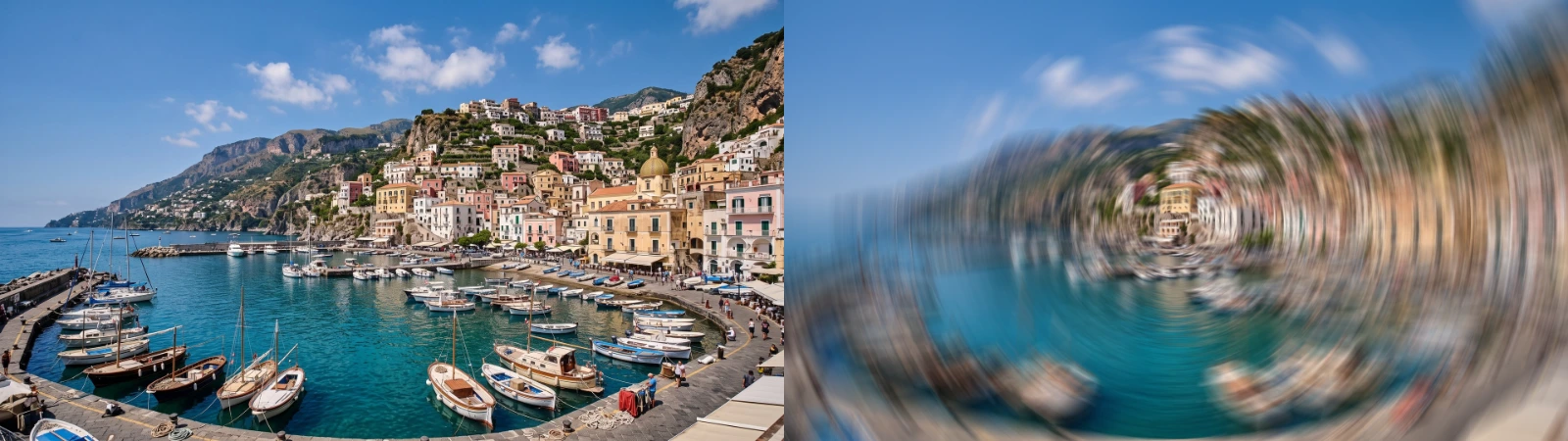
Use it for: a dizzy or spinning moment · drawing the eye to one point · a rush towards the middle of the frame.
- Type – Zoom streaks outward from the centre, Spin turns around it.
- Amount – how strong.
- Center X / Center Y – where the sharp middle sits.
Tip: put the centre on the performer: they stay sharp while the stage around them swirls. For a strong, even zoom burst use Zoom Blur.
Presets
Section titled “Presets”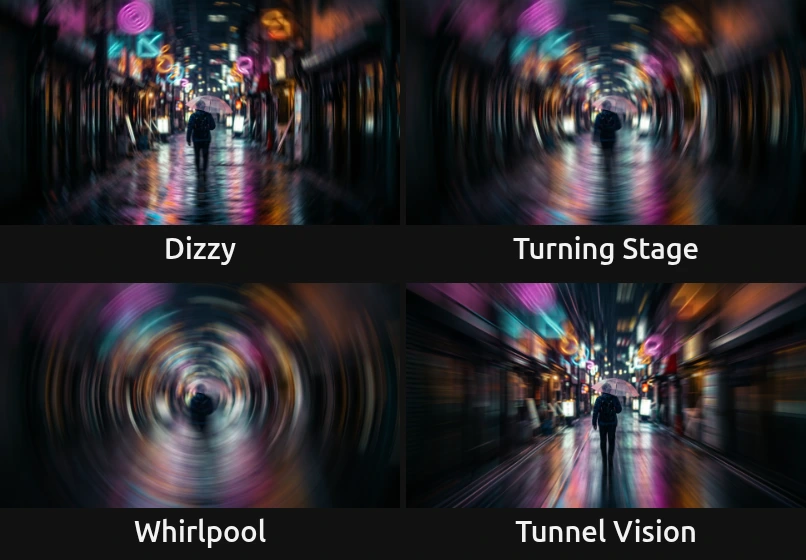
Pick one in the Preset row of the effect card. It sets Type and Amount and puts the centre back in the middle of the frame, in one undo step; the row shows its name until you change something. A control with keyframes keeps them, and the card says so.
Dizzy – Spin, Amount 0.2: the frame wobbles by a few degrees. A light dizziness or a drunken moment; faces near the middle stay readable.
Turning Stage – Spin, Amount 0.6: the camera seems to rotate. Figures smear in arcs but are still recognisable, like a pirouette caught with a slow shutter.
Whirlpool – Spin, Amount 1.5: everything but the middle turns into rings of light. For a fall into a dream or a transition; keyframe Amount up to it and back.
Tunnel Vision – Zoom, Amount 2: the edges of the frame rush outward while the middle stays sharp. For a moment of shock or focus on one person.
Controls
Section titled “Controls”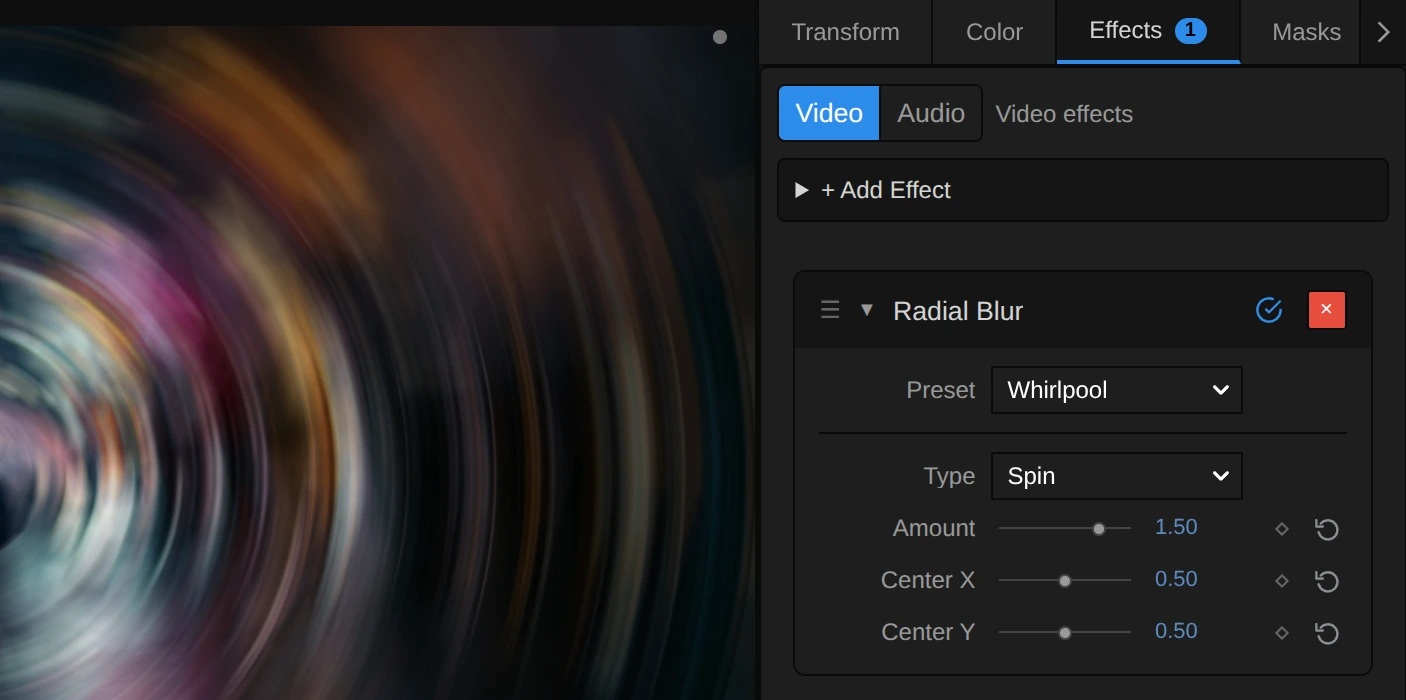
Preset – a starting point for Type and Amount; see Presets.
Type – how the picture moves around the centre. Zoom averages every pixel with the picture on the way to the centre, the nearest part counting most, so shapes smear outward like a quick push in. Spin averages along a circle around the centre, half one way and half the other, like a camera turning on its axis. In both the middle stays sharp and the streaks grow towards the edges: a Spin streak grows with the distance from the centre, a Zoom streak with the square of it, so Zoom keeps a larger sharp area. Zoom, Spin, default Zoom.
Amount – how strong the blur is. For Spin it is the turn: 20° per unit, so 0.2 is a light wobble, 0.5 a clear turn of 10° and 2 a full 40° whirl in which only the middle survives. For Zoom it is gentler: at 0.5 the far corners of a 1080p frame streak about 80 px, at 2 about 310 px, while the middle stays crisp. Animated it changes smoothly, and 0 leaves the picture untouched. 0 to 2, default 0.5.
Center X – where the sharp middle sits across the frame: 0 is the left edge, 0.5 the middle, 1 the right edge. The streaks are longest at the corner farthest from it, so an off-centre point gives a lopsided, more dynamic swirl. Keyframe it to follow a performer. 0 to 1, default 0.5.
Center Y – where the sharp middle sits from top to bottom: 0 is the top edge, 0.5 the middle, 1 the bottom. Move it up to the height of a face (a smaller value) to keep the face sharp. 0 to 1, default 0.5.
Node setup
Section titled “Node setup”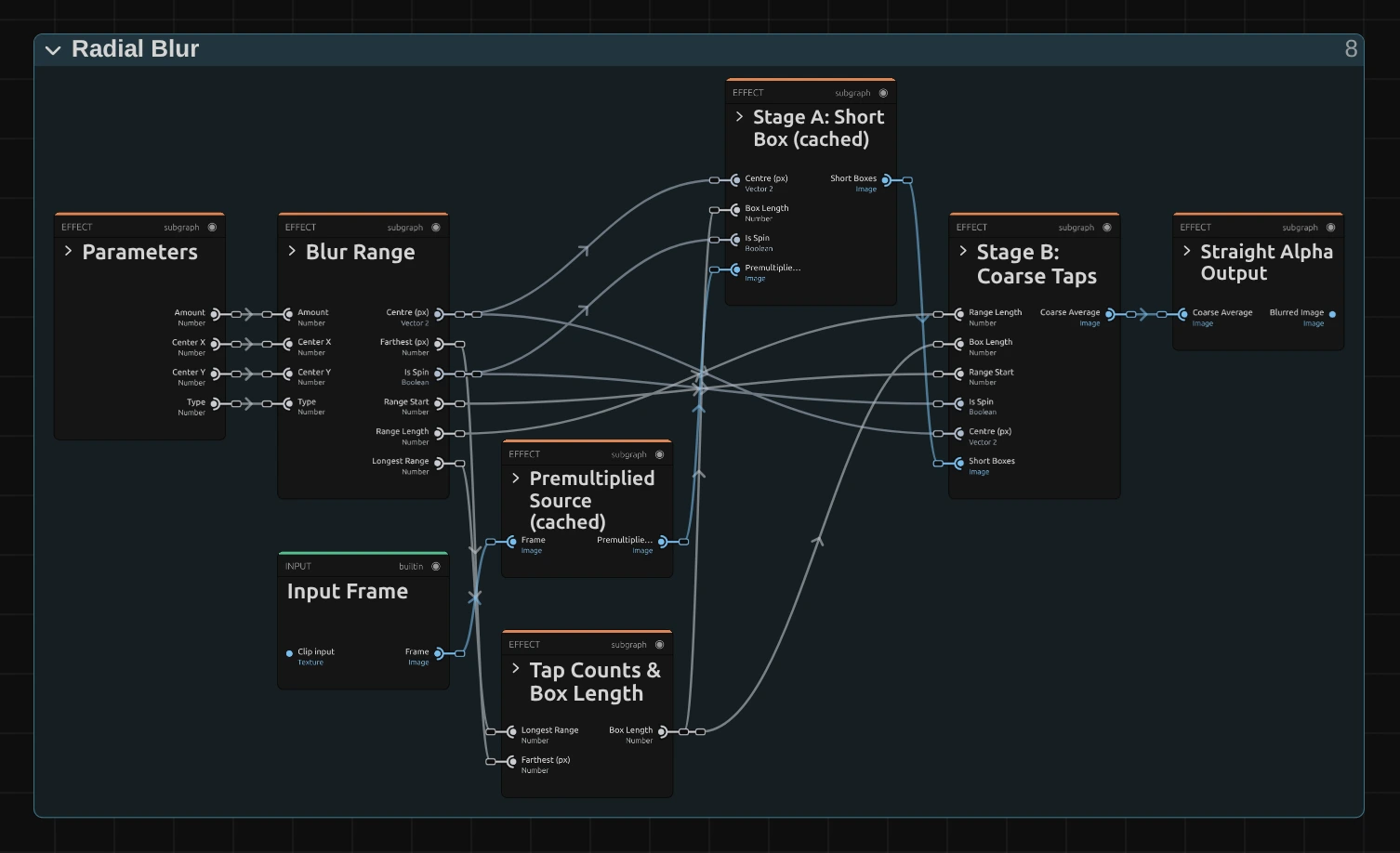
Radial Blur works in the six stages of Motion Blur, one folder each in the Nodes tab; only the path of the streak differs. Blur Range picks Zoom or Spin and turns Amount into the range of the streak, Tap Counts & Box Length cuts the longest streak into short pieces, and Premultiplied Source prepares the picture so transparent edges stay clean. Stage A averages one short piece around every pixel along a ray or a circle and caches it, Stage B reads that cache once per piece along the whole streak, and Straight Alpha Output turns the result back into a normal picture. Click a folder’s header to open it.
Blur Range
Section titled “Blur Range”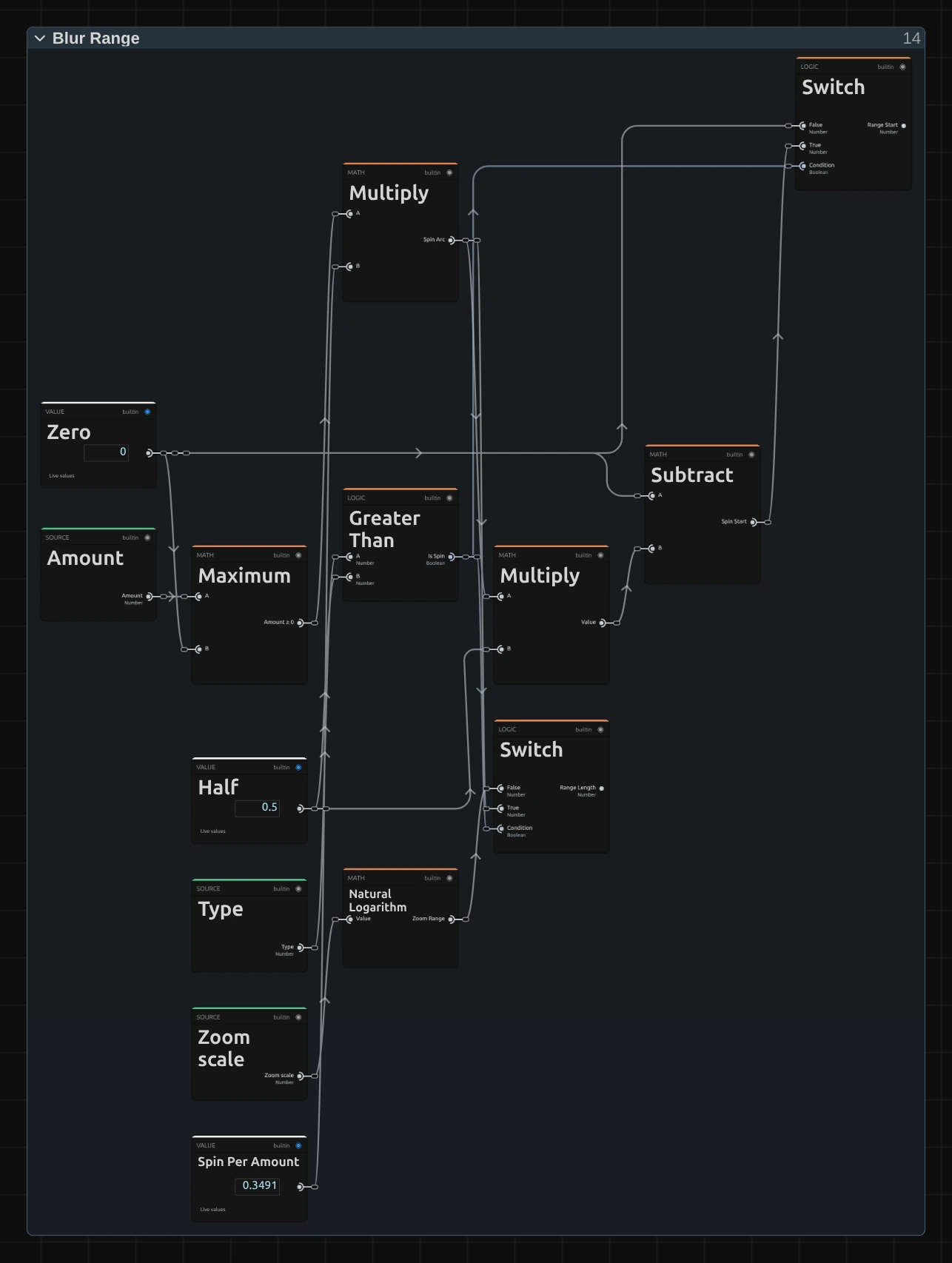
Maximum – keeps Amount at 0 or above. A negative Amount, which a keyframe overshoot or a tool can produce, leaves the picture unchanged, and the card and the tool result say so.
Greater Than – Type is 0 for Zoom and 1 for Spin; above Half it gives Is Spin, the switch every later stage reads.
Multiply – Amount times Spin Per Amount (0.3491, which is 20° in radians): the Spin Arc. The streak starts half of it behind the pixel (Spin Start) and ends half of it ahead.
Natural Logarithm – the Zoom path. The Zoom scale is 1 − 0.2 × Amount × the pixel’s distance from the centre (in shares of the frame), never below Min Scale 0.05: how far towards the centre the streak reaches. Its logarithm is the Zoom Range, so equal steps along the streak are equal steps in size, as in a real zoom.
Switch – picks the Range Length: the Zoom Range or the Spin Arc. The second Switch picks where the streak starts: at the pixel itself for Zoom, at Spin Start for Spin.
Remix: to always spin, plug a Value of 1 into input A of Greater Than. Every Switch in the later stages then picks Spin, whatever Type says.
Tap Counts & Box Length
Section titled “Tap Counts & Box Length”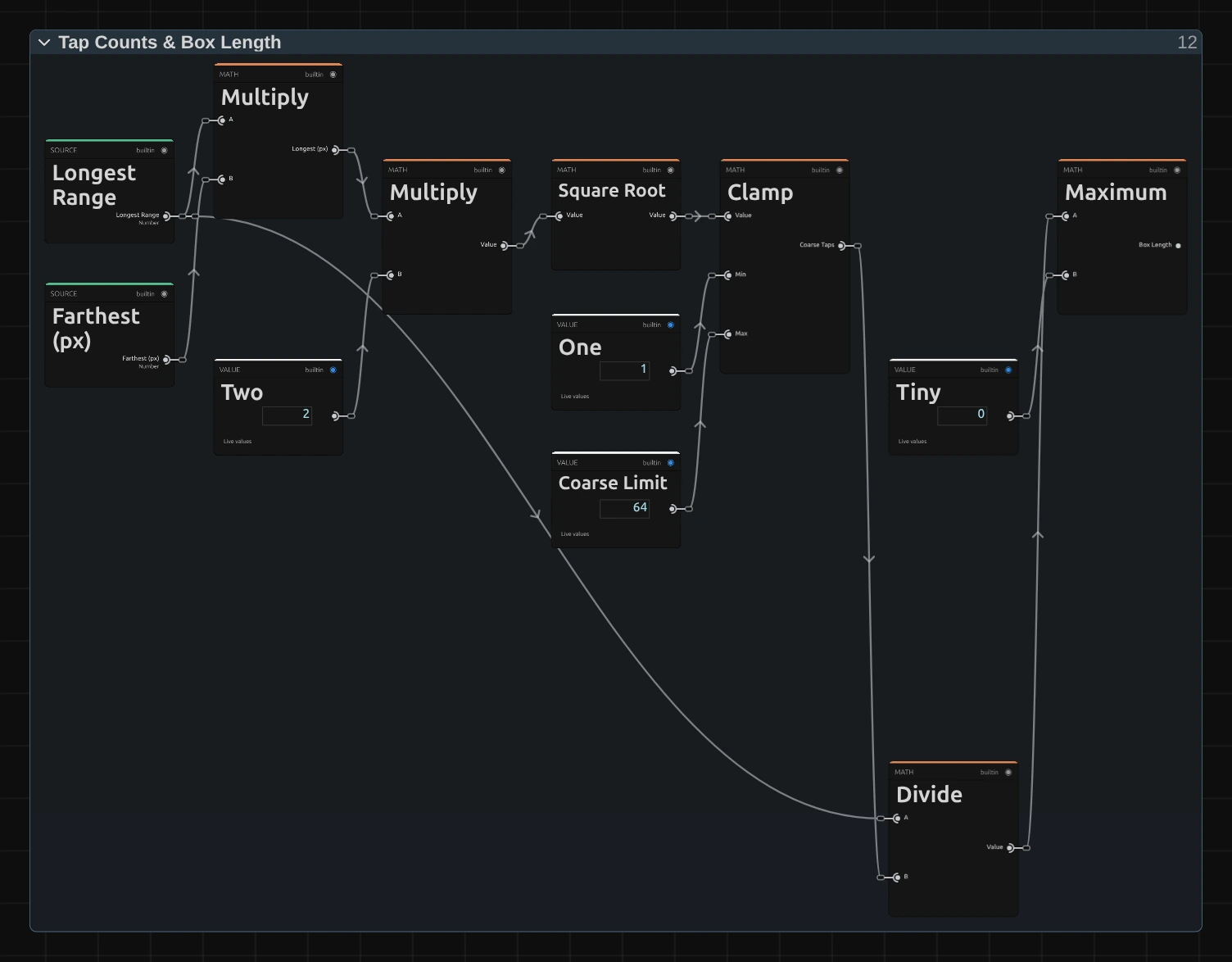
Multiply – the Longest Range (the range at the corner farthest from the centre) times that corner’s distance in pixels: the longest streak anywhere in the frame. At the default (Zoom 0.5, centred) it is about 80 px in a 1080p frame, with Spin 0.5 about 190 px.
Square Root – the square root of twice that length. Cutting the streak into that many pieces gives both stages about the same work: 190 px become about 20 pieces of about 10 px, so a pixel reads about 30 times instead of 190.
Clamp – keeps that between 1 and 64 without rounding it: the Coarse Taps, how many pieces Stage B reads at most. It is rarely a whole number; the last piece then counts only with the share of it that fits (Stage B), so the pieces grow smoothly with Amount instead of jumping by one.
Maximum – the Longest Range divided by the number of pieces: the Box Length, shared by every pixel. It is measured along the range, not in pixels, so a piece is longer far from the centre and shorter close to it, just like the streak. It never reaches 0, so a zero streak cannot divide by zero.
Premultiplied Source
Section titled “Premultiplied Source”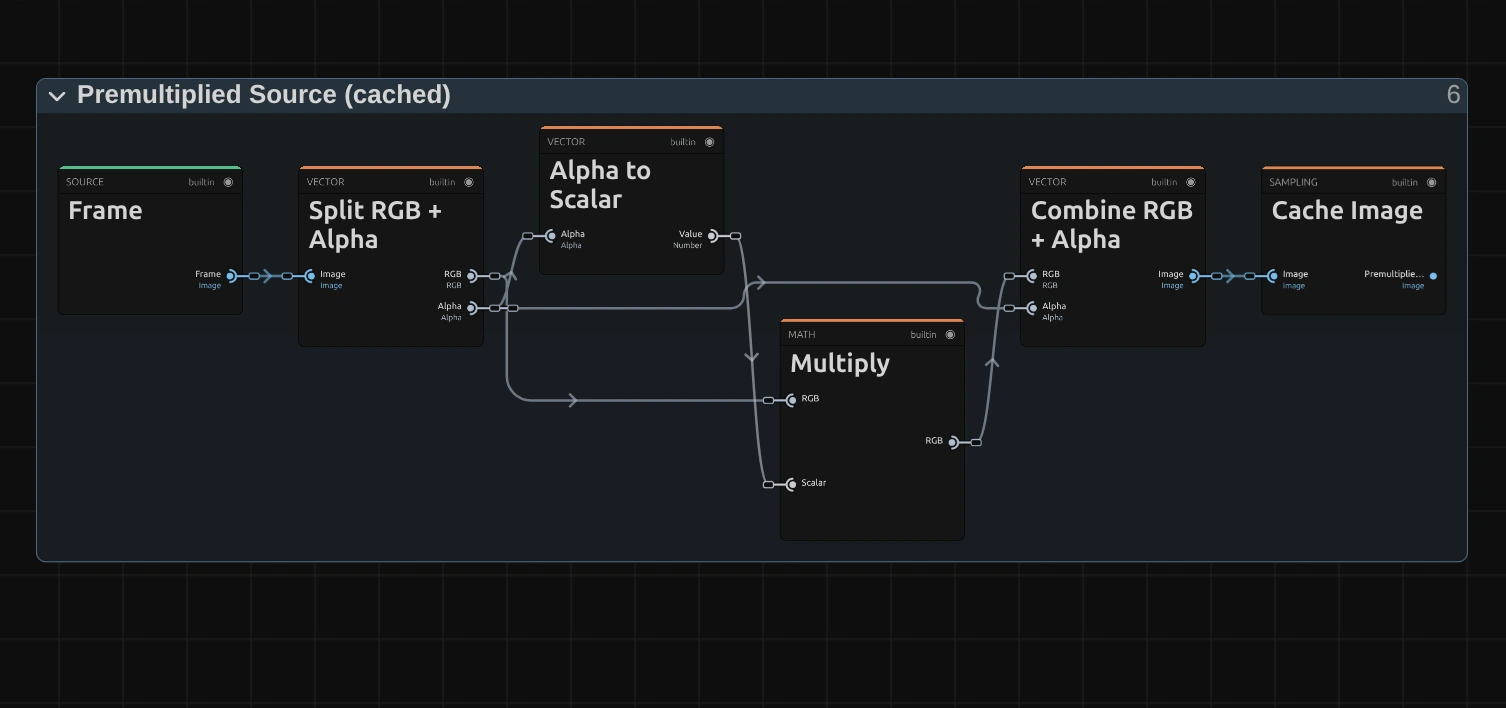
Multiply – multiplies each pixel’s colour by its alpha. A see-through pixel then adds almost nothing to the average, so the colour of its invisible part cannot smear into the streak as a dark rim around a cut-out figure or a title.
Cache Image – keeps the prepared picture in a 16-bit float texture for Stage A to read, so no precision is lost in dark areas.
Stage A: Short Box
Section titled “Stage A: Short Box”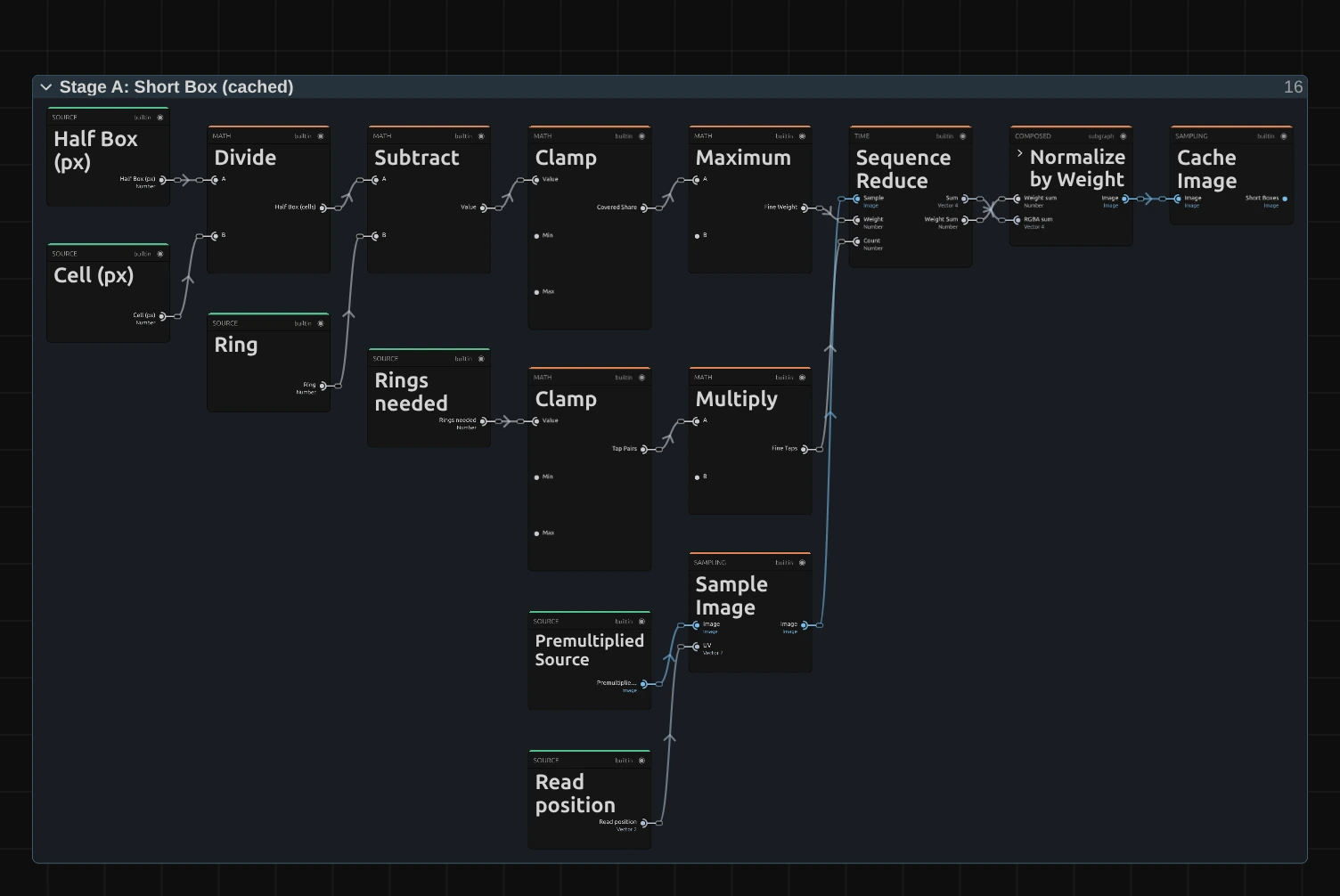
Divide – half of this pixel’s piece in cells of one pixel. The piece is the Box Length times the pixel’s distance from the centre (Length in the folder), so it is longer far from the centre and shorter close to it. Only a piece longer than 256 px gets cells wider than a pixel (Cell).
Clamp – the reads sit one pixel apart, in pairs from the pixel outward, each in the middle of its one-pixel cell. A cell the piece covers only partly counts with that share, and its read moves to the middle of the covered part; Maximum keeps every weight just above 0. So the piece grows smoothly with Amount: a new pair enters with weight 0 and grows in, and even a piece shorter than a pixel blurs a little instead of leaving the picture unchanged.
Multiply – the number of reads: twice the rings needed to reach the end of the piece, kept between 1 and 128 pairs by the other Clamp. Close to the centre it is 2, in the far corners as many as the piece has pixels.
Sequence Reduce – reads the Premultiplied Source at every position along the piece (Sample Image) and adds up the reads, each times its weight; Normalize by Weight divides by the summed weight, so the sum becomes an average. For Zoom the reads run along the ray to the centre (the offset from the centre is scaled), for Spin along the circle around it (the offset is turned); a Switch on Is Spin picks one. A read that falls outside the frame repeats the edge pixel; a mirrored edge, as in Motion Blur, would fold the path onto another ray or circle.
Cache Image – keeps, for every pixel, the average of the short piece around it: the Short Boxes that Stage B reads.
Stage B: Coarse Taps
Section titled “Stage B: Coarse Taps”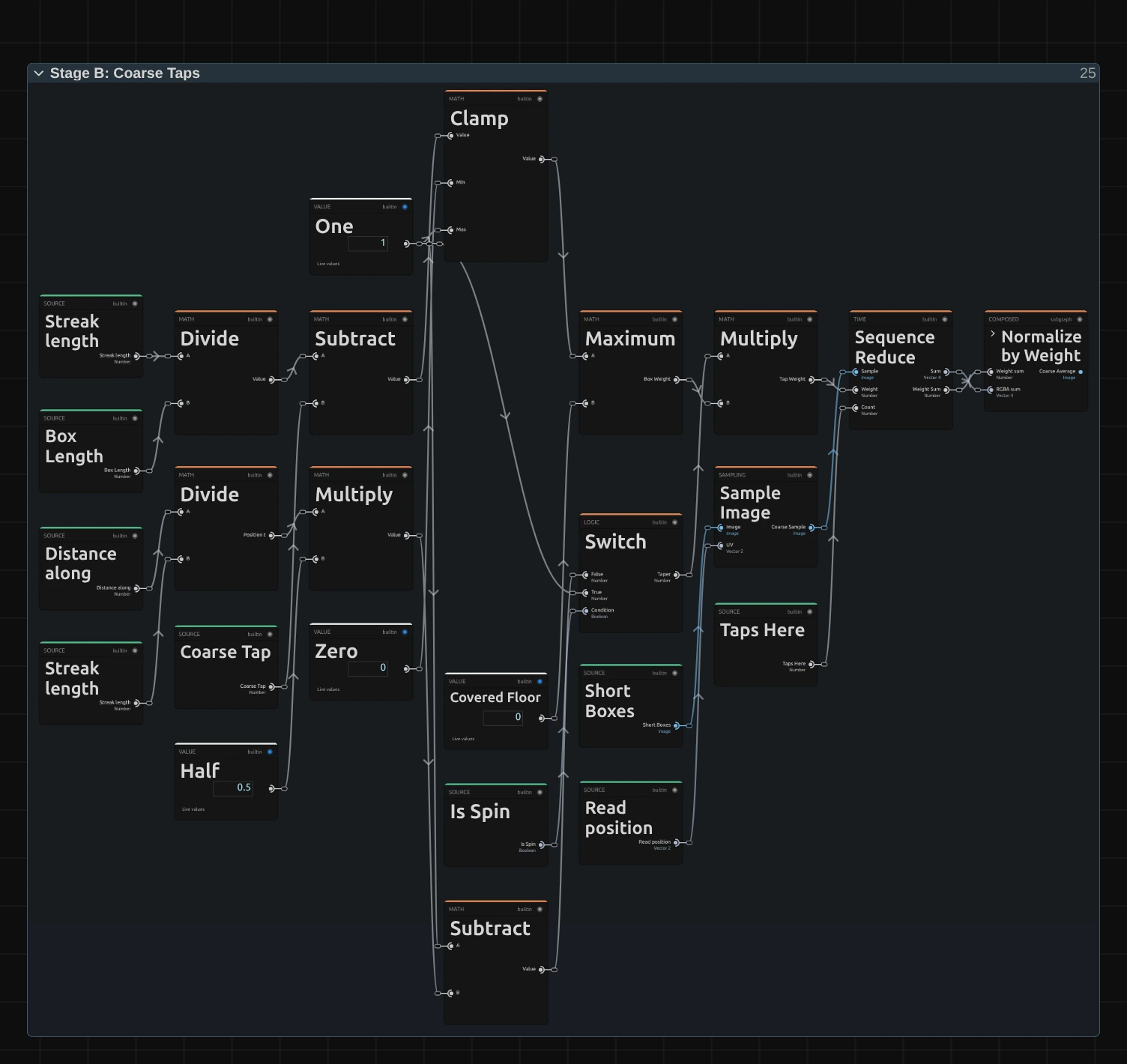
Clamp – how much of piece number Coarse Tap still lies on this pixel’s streak, between 0 and 1. In both modes the streak is rarely a whole number of pieces (in Zoom its length also changes from pixel to pixel), so the last piece counts only its covered share and the blur grows smoothly when Amount changes.
Subtract – One minus half the Position t: the Zoom fade. The read at the pixel counts fully, the one nearest the centre half, which keeps the middle of the picture from washing out over the edges.
Switch – picks that fade for Zoom and an even 1 for Spin, whose circle has no inside or outside.
Multiply – the fade times the Box Weight: the Tap Weight of a read.
Sequence Reduce – reads one cached short piece per tap (Sample Image on the Short Boxes), adds them up with their Tap Weights, and Normalize by Weight divides by the summed weight, so the streak keeps the picture’s brightness.
Straight Alpha Output
Section titled “Straight Alpha Output”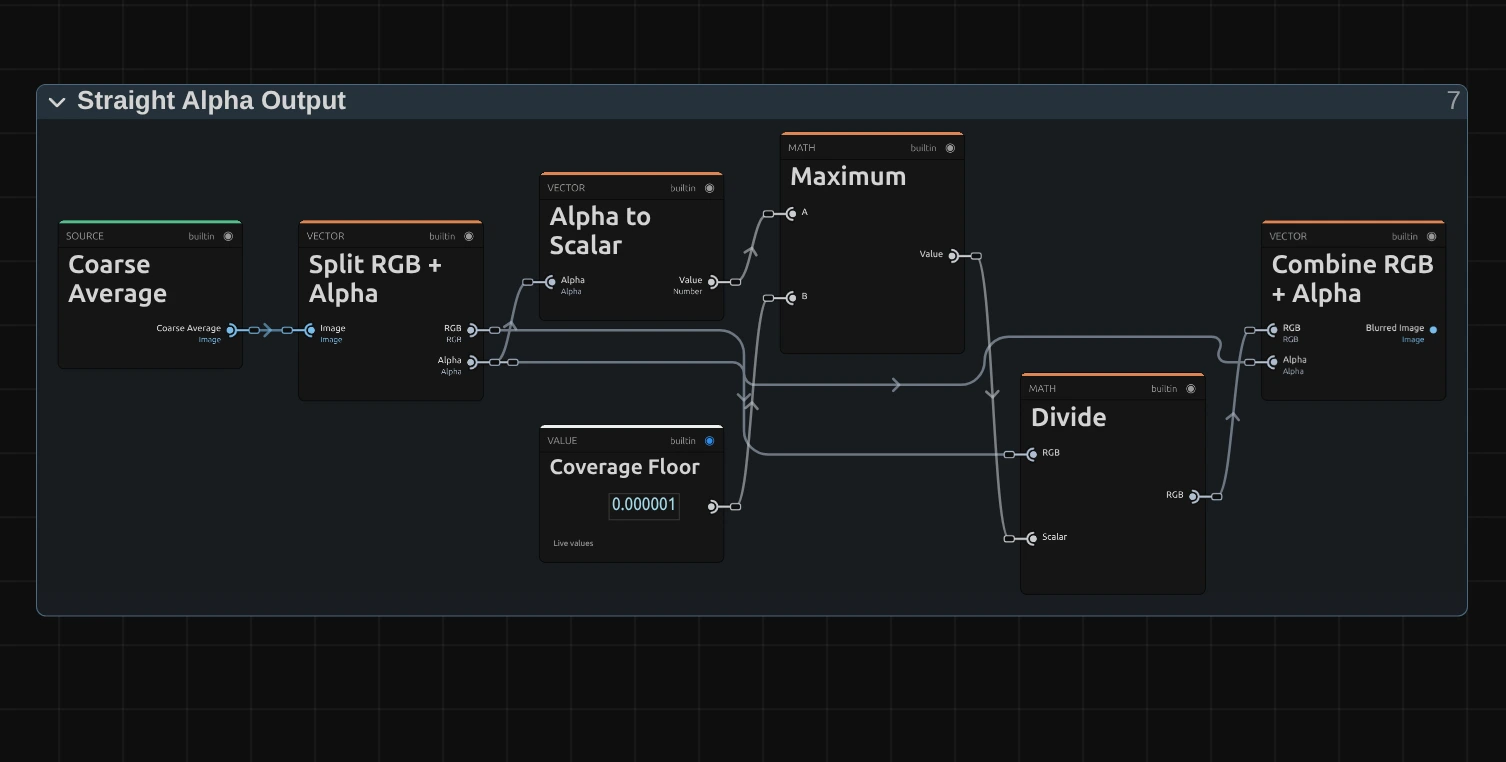
Maximum – the averaged alpha, but never below the Coverage Floor, a tiny 0.000001. Fully transparent pixels then stay black and transparent instead of turning into errors.
Divide – divides the averaged colour by the averaged alpha: the reverse of the Multiply in Premultiplied Source, so half-transparent streaks get their real colour back.
Combine RGB + Alpha – joins colour and alpha into the finished picture that leaves the effect.
Technical details
Section titled “Technical details”- Units. Center X and Y are shares of the frame (0 to 1, from the top left). Spin turns by 20° per unit of Amount in total, half each way, so its streak at a pixel is Amount × 0.349 × the distance from the centre. Zoom reads from the pixel towards the centre down to a scale of 1 − 0.2 × Amount × the distance from the centre in shares of the frame, never below 0.05, and weights its reads 1 − t/2. At the same Amount, Zoom Blur’s streak is about 3.5 times as long in the corners and more near the centre.
- Two stages. About 2 × √(2 × longest streak in pixels) reads per pixel: Stage B reads up to 64 pieces, Stage A up to 256 pixels per piece. Neither count is rounded to a whole read: the last piece and the outermost reads count with the share of them that fits, so the blur changes smoothly when the amount is animated. A streak beyond that (only on very large frames) reads its pieces further apart, and the card and the tool result say so.
- Edges. At the frame edge the picture is clamped, not mirrored. Transparent edges smear without a dark rim, and the preview and the export match.
- Below 0 and zero. A negative Amount leaves the picture unchanged, as in earlier versions, and the card and the tool result say so. An unedited Radial Blur at Amount 0 is skipped, so the picture passes through exactly.
- Software preview. Where the editor falls back to its software preview, Radial Blur reads the same path in one stage of up to 64 one-pixel steps, blended between pixels, so an animated amount changes smoothly there too. Streaks longer than 64 px spread their reads and can look stepped; the
SoftwareBlurlog says so. - Saved projects. They keep their look, with one fix: every Radial Blur without an edited node setup renders with the current recipe, also in projects saved with version 3.2.7 (that recipe jumped a little where an animated amount added a read, and left a streak under about a pixel unchanged). Still pictures differ by less than half a level on average, up to about 10–30 levels on thin high-contrast lines. A missing or unknown Type counts as Zoom. The old Samples value is kept in the project but no longer changes anything. A Radial Blur whose node setup you edited keeps its own recipe; when that recipe does not read Type, the card hides it and says so if it is set.
- More: Blur & Sharpen notes · Editable blur kernels · Node Catalog · Styles and presets.