
Tone Geometry
Replaces the image with a grid of squares, circles or triangles sized by darkness, in Ink on Paper; Shape picks the form, Scale the cell size.
Group: Print & Halftone · How to add an effect
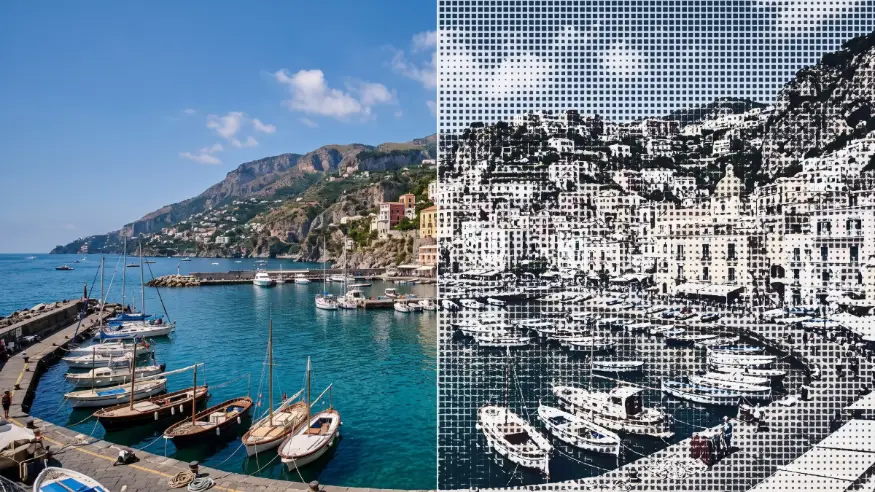
A short page made from the editor’s effect catalog: what the effect does and its controls. Tips and its node setup will follow.
Controls
Section titled “Controls”| Control | Range | Default |
|---|---|---|
| Pattern | ||
| Scale | 2 to 80 | 14 |
| Angle | −180 to 180 | 0 |
| Shape | square, circle, triangle | square |
| Mix | ||
| Amount | 0 to 1 | 0.75 |
| Color | ||
| Ink | a colour | #111827 |
| Paper | a colour | #f8fafc |
| Motion | ||
| Speed | 0 to 5 | 1 |
Styles: the Style menu in the effect card switches to another look of the same engine. Controls you changed keep their values and keyframes when the new look has the same control, also under another name; the others start at the new look’s defaults. Looks of Print & Halftone: Dither Studio, Dithering, Halftone, Paper Print, Pattern Halftone, Riso, Riso Glow. Further looks under Lens & Distort (4), Pixel & Mosaic (2), Lines & Engraving (6), Textile & Craft (3), Analog & Glitch (4), 3D & Particles (1).
Technical details
Section titled “Technical details”Tone Geometry is one look of the pattern engine; its looks share one node setup. It changes over time: its picture depends on the playback time or on earlier frames. How effects are stored, rendered and exported: Effect system. Its building blocks: Node Catalog.