
Flow Mosh
The picture flows along its own contours in whole cells, like a datamosh: colours stream along the edges and in one drift direction, cells copy cells, some race ahead and leave copies behind, rows slip sideways. How far everything has flowed is Progress: 0 is the picture exactly, so keying Progress from 1 to 0 lets the picture flow back together.
Group: Analog & Glitch · How to add an effect
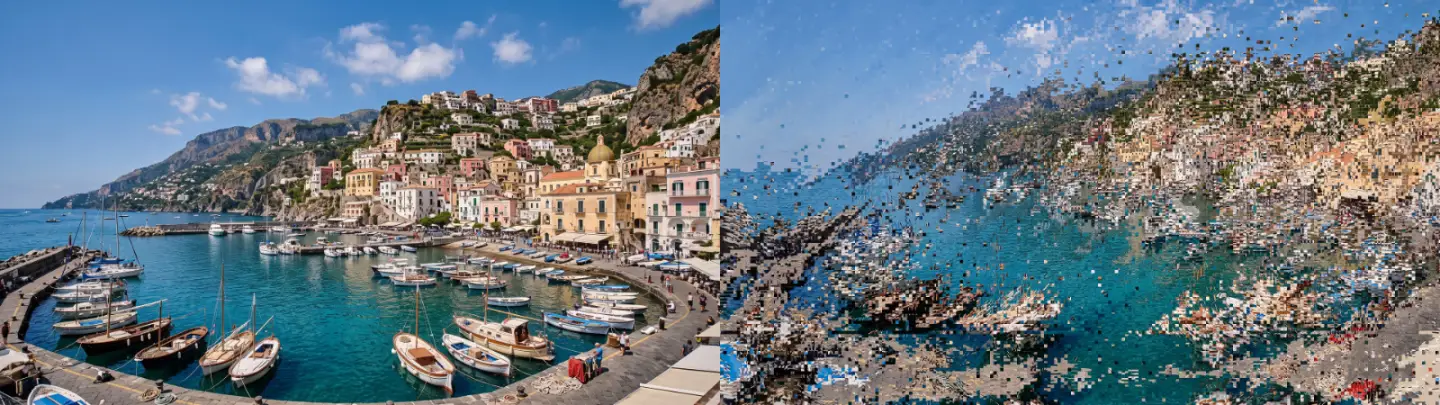
Use it for: a texture or pack shot that streams into place · datamosh transitions · liquid glitch stills.
Animate it: key Progress from 1 to 0 (ease out for a picture that settles slowly). Nothing in the effect moves on its own, so a held Progress is a still.
Tip: on artwork whose colours differ more in hue than in brightness (pink against green), set Flow From to Red – Green, so the flow follows the colour shapes.
Presets
Section titled “Presets”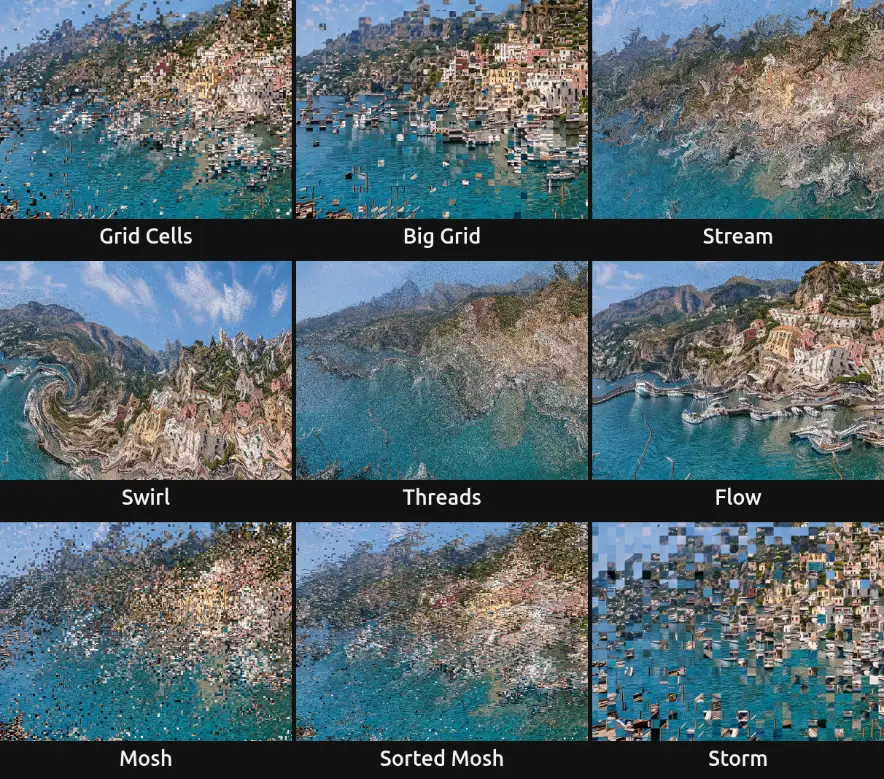
Pick one in the Preset row of the effect card; Progress stays as it is. Sizes follow a design grid of 17.8 px cells at 1080p.
Grid Cells – everything moves in half-cell steps on the design grid: nothing gets finer than its cells.
Big Grid – the same in whole design cells.
Stream – a smooth stream without a grid, with tight turbulent eddies: the picture melts along its contours like paint.
Swirl – two counter-rotating vortices pull the picture round, the larger one left of the centre.
Threads – strong flow along the contours with many trails, pulling outlines into thin threads.
Flow – the softest stream: the colour shapes glide along the borders between pink and green (Flow From Red – Green) with gentle wide swirls.
Mosh – fine blocks off the grid, fast cells, jumps and slipped rows: a classic datamosh.
Sorted Mosh – the mosh with half of the pixel rows sorted by brightness in short runs.
Storm – wild turbulence, chunky fast cells and many jumps and slipped rows: the picture breaks into confetti.
Controls
Section titled “Controls”Progress – how far the picture has flowed: from 0, unchanged, to 1, the full Distance. Jumps and Slices also grow with it. 0 to 1, default 0.6.
Distance – how far a cell travels at Progress 1. 0 to 1500 px, default 300 px.
Flow From – what the flow follows: the contours of the brightness, or of the colour between red and green. Brightness, Red – Green, default Brightness.
Smoothness – how much the picture is blurred before the flow is taken from it: small values follow fine detail, large ones only the big shapes. 2 to 200 px, default 30 px.
Along Contours – how strongly the flow runs along the contour lines where the picture has an edge. 0 to 2, default 1.
Edge Pull – how strong an edge must be to steer the flow: higher values let gentle gradients steer it too. 0 to 5, default 1.
Drift – how strongly flat areas flow in Drift Direction. 0 to 2, default 1.
Drift Direction – the main direction of the flow; contours flow the way that agrees with it. 0° flows to the right, 90° down. −180 to 180°, default −35°.
Vortices – adds two counter-rotating whirls, left of the centre and at the lower right, about a fifth of the frame wide. 0 to 2, default 0.
Turbulence – a swirl on top of the flow; it grows as Progress rises. 0 to 3, default 0.6.
Swirl Size – how big the swirls are. 4 to 600 px, default 60 px.
Cell Size – the cells the picture moves in: each cell copies a whole cell, so nothing gets finer than the grid. 1 to 120 px, default 9 px.
Offset X – moves the cell grid sideways, to line it up with a grid in the picture. −60 to 60 px, default 0 px.
Offset Y – moves the cell grid up or down. −60 to 60 px, default 0 px.
Snap – Cells moves whole cells; Pixels lets every pixel follow its own path for a smooth stream. Cells, Pixels, default Cells.
Glitch
Section titled “Glitch”Particles – the share of cells that travel faster than the rest. 0 to 1, default 0.15.
Particle Speed – how much further the fastest of them travel. 1 to 6×, default 2.5×.
Trails – the share of fast cells that copy from a random point of their path, leaving copies along the stream. 0 to 1, default 0.2.
Jumps – the share of cells that copy a cell up to 4 cells across and 2 along away. 0 to 1, default 0.08.
Slices – the share of cell rows that slip sideways by up to 10 cells. 0 to 1, default 0.06.
Sort Rows – the share of pixel rows that sort their colours by brightness in short runs (35 px at 1080p) after the mosh; it grows with Progress. 0 to 1, default 0.
Shape – Keep holds the layer’s outline still (where the flow would bring in transparency, the original stays); Move lets the outline flow too. Keep, Move, default Keep.
Seed – another pattern of fast cells, jumps, slices and swirls. 0 to 9999, default 0.
Amount – mixes the flowed result with the original. 0 to 1, default 1.
Node setup
Section titled “Node setup”The effect is built from shared nodes; open it in the Nodes tab (The node setup). Four Cache Image nodes at a quarter of the frame hold the stream value (a 4 × 4 Kernel Sum (Rect) average), its two Gaussian blur passes (Sequence Reduce) and the flow field: the blurred value’s gradient turned along its contours, blended with the drift direction, plus a curl of Fractal Noise. Each cell then reads that field ten times as it traces its path back, rounds the result to whole cells and copies the cell there with Sample Image; seeded Random (Integer Hash) nodes pick fast cells, jumps and slices. For Sort Rows a Segment Sort sorts the result in short row runs; at 0 a Switch folds it away when the effect is compiled.
Remix: connect a depth map or a matte instead of the stream value, so the picture flows around the subject.
The full stack
Section titled “The full stack”Effect presets hold one effect each, so the textur look in full is three effects on one clip, in this order: Flow Mosh with the Flow preset (or the calmer Stream), then Pixel Sort Bands with Fine + Wide, then Block Cloud with Brand Base on top. Key Progress of all three from 1 to 0 over the same span, and the picture flows, unsorts and clears into the original together. Each effect is skipped at Progress 0, so the last frame is the original exactly.
Technical details
Section titled “Technical details”- Units. Distance, Smoothness, Swirl Size, Cell Size and Offset X/Y are pixels of a 1080p frame and scale with the frame.
- Stateless. Every frame traces each cell’s path back from scratch, ten steps per cell, through the flow field of the current frame. On footage the flow follows the moving picture; nothing builds up between frames.
- Edges. A path that leaves the frame reads the picture mirrored at the edge.
- Progress 0. At Progress 0 (or Amount 0) the renderer skips the effect, so the picture is exactly the input.
- Values. Values outside the rendered range render clamped; the card and agent tool results say so.
Effect pipelines: Effect system. Nodes: Node Catalog.