
Pixel Sort Bands
A pixel sorter whose streaks grow with Progress. Along each line the light tones are sorted into long drips, in single-pixel lines or in bands as wide as a design’s grid cells. Progress 0 is the picture exactly, so keying Progress from 1 to 0 makes the streaks settle back into the original.
Group: Analog & Glitch · How to add an effect
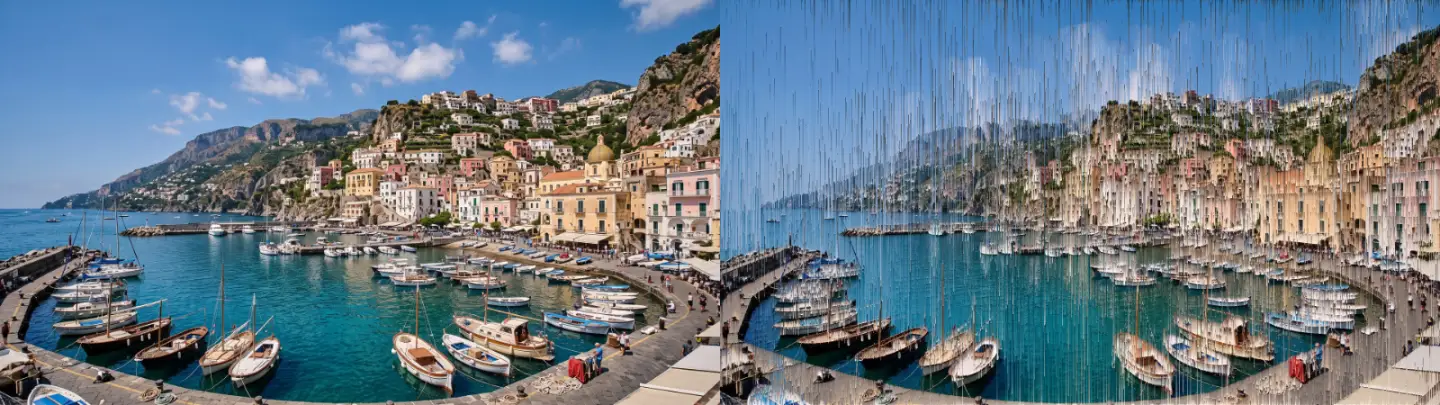
Use it for: a texture or a pack shot that resolves out of streaks · glitch transitions · album-cover stills with long drips.
Animate it: key Progress at 1 where the shot starts and at 0 where it should be clean. Ease the keys for the feel you want: ease in for a slow start, ease out for streaks that hesitate before they snap back.
Tip: Layer 2 sorts the result once more inside the same effect, so a cross of streaks (Woven) or fine plus wide bands (Fine + Wide) needs no second instance.
Presets
Section titled “Presets”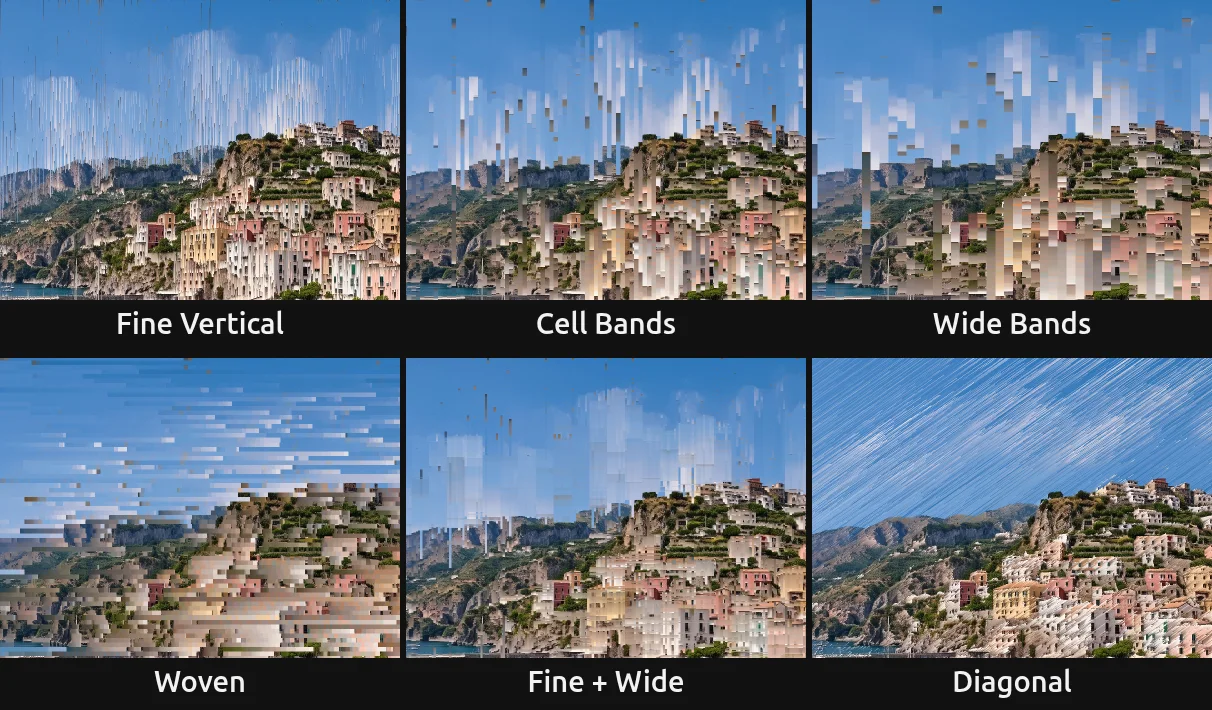
Pick one in the Preset row of the effect card; Progress stays as it is. Sizes follow a design grid of 17.8 px cells at 1080p.
Fine Vertical – single-pixel lines: the light tones run down in fine drips. The classic pixel sort.
Cell Bands – bands half a design cell wide, on the grid: each band sorts as one flat-coloured column.
Wide Bands – whole-cell bands: chunky columns of flat colour.
Woven – light tones sorted down in half-cell bands, mid tones sorted across on top (Layer 2 Horizontal): a woven cross of streaks.
Fine + Wide – fine quarter-cell streaks with a few 2-cell bars that join a little later and less strongly (Layer 2 Vertical).
Diagonal – streaks along a diagonal rising to the right (Horizontal, tilted by −35°).
Two other timings of Fine + Wide work as recipes. Wide first (the bars are gone early, the fine streaks stay longer): Fine + Wide with Layer 2 Delay 0.45. Fine first (the bars hold longer): swap the layers, with Band Width 35.6 px, Centre 0.66 and Range 0.38 on the first layer and Layer 2 Width 4.45 px, Layer 2 Centre 0.8, Layer 2 Range 0.6, Layer 2 Strength 0.85 and Layer 2 Delay 0.4.
Controls
Section titled “Controls”Progress – how far the sort has grown: from 0, the picture unchanged, to 1, the widest range and the longest streaks. The sorted bands fade in over the first quarter, so small values show the first streaks softly. 0 to 1, default 0.6.
Direction – whether the lines run down the picture or across it. Vertical, Horizontal, default Vertical.
Tilt – slants the lines by this angle, so streaks fall diagonally; for steeper diagonals pick the other Direction. −45 to 45°, default 0°.
Sort By – what decides the order along a line and which tones take part: brightness, hue or colour strength. Brightness, Hue, Saturation, default Brightness.
Order – Low to High puts dark (or low) values first, at the top or left of each streak; High to Low turns the streaks around. Low to High, High to Low, default Low to High.
Centre – the tone that sorts first: only values near it take part. The default picks light pastel tones; lower it to sort darker parts. 0 to 1, default 0.78.
Range – how far from Centre a value may lie and still sort, at Progress 1. Small values sort a narrow band of tones, 1 sorts nearly everything. 0 to 1, default 0.62.
Band Variation – how differently the bands react: each band takes its own share of the range, so some sort early and some late, which keeps the streaks organic. 0 keeps all bands alike. 0 to 1, default 0.4.
Band Width – how wide a band is: 1 sorts single pixels, larger values group lines into bands that each sort as one flat colour (their average across the band). Fractional widths alternate between the two nearest whole widths, so a band can follow a design’s grid exactly. 1 to 120 px, default 1 px.
Band Offset – moves the bands sideways, to line them up with a grid in the picture. 0 to 120 px, default 0 px.
Streaks
Section titled “Streaks”Max Length – about how long a streak may get at Progress 1: runs also break at seeded points, about one per this length, so long sorted runs split into streaks. 8 to 2000 px, default 330 px.
Drift – slides those break points along the lines without changing how much sorts: key it to make the streaks crawl. −1000 to 1000 px, default 0 px.
Layer 2
Section titled “Layer 2”Layer 2 – sorts the result a second time: Vertical or Horizontal with its own bands and tone range; Off leaves it out (and costs nothing). Off, Vertical, Horizontal, default Off.
Layer 2 Width – the band width of the second layer. 1 to 120 px, default 36 px.
Layer 2 Offset – moves the second layer’s bands sideways (for rows: up or down). 0 to 120 px, default 0 px.
Layer 2 Centre – the tone the second layer sorts first. 0 to 1, default 0.66.
Layer 2 Range – how far from Layer 2 Centre a tone may lie and still sort. 0 to 1, default 0.38.
Layer 2 Strength – how far the second layer grows at Progress 1, as a share of Progress. 0 to 1, default 0.5.
Layer 2 Delay – how much Progress the first layer has before the second one starts, so the two settle at different times. 0 to 0.95, default 0.15.
Seed – another pattern of band variations and break points. 0 to 9999, default 0.
Amount – mixes the sorted result with the original. 0 to 1, default 1.
The full stack
Section titled “The full stack”Effect presets hold one effect each, so the textur look in full is three effects on one clip, in this order: Flow Mosh with the Flow preset (or the calmer Stream), then Pixel Sort Bands with Fine + Wide, then Block Cloud with Brand Base on top. Key Progress of all three from 1 to 0 over the same span, and the picture flows, unsorts and clears into the original together. Each effect is skipped at Progress 0, so the last frame is the original exactly.
Node setup
Section titled “Node setup”The effect is built from shared nodes; open it in the Nodes tab (The node setup). Kernel Sum (Rect) averages each band across its width, and a Cache Image keeps that band image. From it the recipe works out the sort key, whether the band sorts (Step on the distance to Centre) and where runs start (seeded Random (Integer Hash) breaks). Segment Sort then sorts every run of the band image along its line, and Mix puts the sorted colour where the band sorts. A second chain of the same nodes sorts that result again for Layer 2, behind a Switch that Layer 2 Off folds away when the effect is compiled.
Remix: feed Segment Sort any image and key, for example a blurred picture or a depth map, to sort by something else; its Run Start input decides where runs break.
Technical details
Section titled “Technical details”- Units. Band Width, Band Offset, Max Length and Drift are pixels of a 1080p frame and scale with the frame. A band is read at up to 64 evenly spaced pixels per row; wider bands (above 64 px at 1080p) average those, and the card says so.
- Sorting. Segment Sort runs one GPU compute workgroup per line: it sorts runs of up to 4096 pixels at once, so on frames taller (or, horizontally, wider) than 4096 pixels runs also break every 4096 pixels. Keys are sorted at 256 levels; equal keys keep their order.
- Progress 0. At Progress 0 (or Amount 0) the renderer skips the effect, so the picture is exactly the input.
- Transparency. Alpha stays the input’s; bands that are mostly transparent do not sort.
- Values. Values outside the rendered range (keyframe overshoot, tool calls) render clamped; the card and agent tool results say so.
Effect pipelines: Effect system. Nodes: Node Catalog.